
Indie game storeFree gamesFun gamesHorror games
Game developmentAssetsComics
SalesBundles
Jobs
TagsGame Engines

Thaluna: Real-Time Translator

Translate games, anime, and manga in real-time · By Thaluna.Dev

❓ Questions & Usage Help Sticky

A topic by Thaluna.Dev created Jan 26, 2026 Views: 1,125 Replies: 21
Viewing posts 1 to 7
Developer (3 edits)

# ❓ Questions & Usage Help

Use this section for **general questions** and help with using Thaluna.

**Post here if you are unsure about:**

* OCR modes (Standard, Manga, Pixel, etc.)

* Translation models and language selection

* Lens Mode vs Real-time Mode

* Performance settings or recommended configurations

* Whether a behavior you see is "expected" or normal

**❗ IMPORTANT:**

* Do **NOT** post bug reports here. Use the Bug Reports section for that.

* Make sure you are using the **latest version** and check existing threads before posting.
Hi! Sorry for my english! So i tried use thaluna on melonds to play Hana Yori dango game and it don't work? Does it work for NDS games/Emulator?

Developer

Hi! No worries about your English

Yes, this is possible. In many cases this happens when the game is running in exclusive fullscreen.
Thaluna works best when the game is in windowed or borderless window mode.

You can quickly check this:

  • Start the game

  • While the game is running, click on the Thaluna window so it has focus

  • Try translating text again

If translation starts working after Thaluna gets focus, it means the game is blocking screen capture in fullscreen mode. Switching the game to windowed mode should fix it.

If Thaluna works in other games but not in this one, it’s very likely a fullscreen or emulator-specific limitation.

Regarding NDS / emulator games:
It can work, but results depend on:

  • emulator rendering method

  • fullscreen vs windowed mode

  • font and visual style used by the game

If the translation works but the text recognition is inaccurate, you can try enabling Pixel OCR / Artistic OCR mode in settings. Some games use stylized fonts that are harder to detect in standard OCR mode.

Give it a shot and let me know if it works!

Hi!
I'm blind and didn't see the demo.

After installation, the program gives a large number of critical errors. 

I tried to solve the problem with the GPT chat. But after two hours we came to the conclusion:
1 Thaluna uses a hard-wired PaddleOCR build
- no fallback
- no model integrity check
- no ability to switch OCR via UI or config
2 PaddleOCR crashes BEFORE it has time to load models:
-the file really doesn't exist
- but it can't be created
- because the engine crashes earlier
- .paddleocr is always empty / incomplete
- every run = same Fatal error
3 This is a known bug in this particular build of Thaluna on Windows 11:
- Windows 11
- new Ryzen (Phoenix / Hawk Point / AI)
- clean system without old VC++ libraries.

What should i do?

Developer

Hi! No worries, this kind of issue is usually fixable. Once I see the logs, I’ll know exactly what’s going on.

I’ve prepared a diagnostic build of Thaluna specifically for troubleshooting this problem.

Important:
The diagnostic version launches with a visible CMD console window.
All error messages and logs will be printed directly in that console, not saved to a file.

Please download and run the Diagnostic build.

When you start the app:

  • Keep the CMD window open
  • If any errors appear, copy the entire console output and send it to me

Additionally, please make sure you have the required Visual C++ Redistributable installed (needed by PaddleOCR):

After installing it, restart your PC and try the diagnostic build again.

If the issue persists, please send:

  • The full CMD console output
  • A short description of what happens (for example: crash on startup, error message, missing files, etc.)

Reinstalled Visual C++ Redistributable. Sorry I couldn't find where to download Diagnostic build.
Should I continue writing under this post or somewhere else?

Developer

Hi!

No worries at all 👍

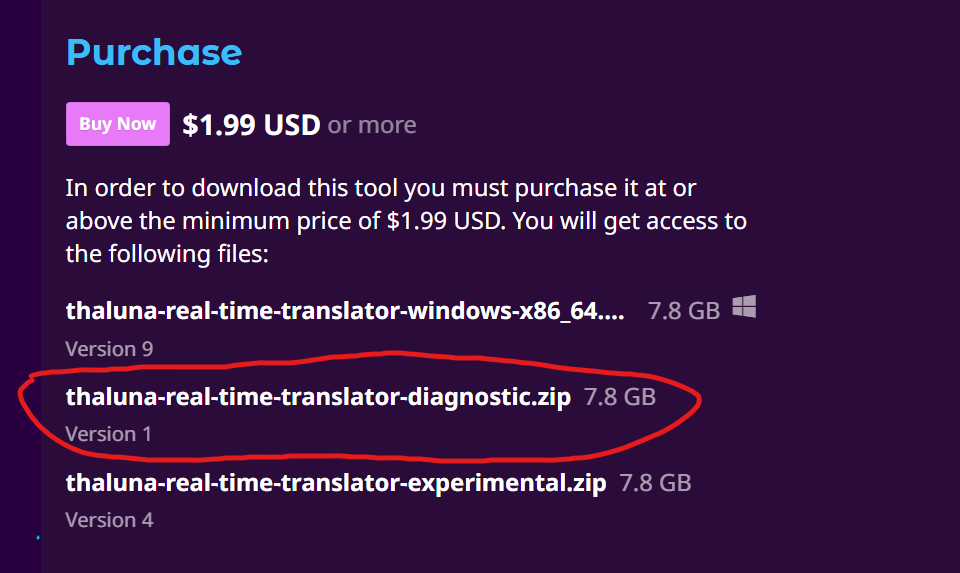
The Diagnostic build is on the same download page, just listed as an additional file. You don’t need a separate link.

Here’s how to find it:

  1. Go to the Thaluna download page (where you normally download the app).

  2. In the list of available files, look for:
    thaluna-real-time-translator-diagnostic.zip

It’s listed alongside the main version.

Once you run the Diagnostic version:

• A visible CMD console window will open together with the app
• All startup logs and errors will be printed there

If it crashes or shows errors, please click the console window, press Ctrl+A to select everything, then Enter to copy it, and paste the output here.

This will let me see exactly what’s happening on your system.

Code:
{

[Thaluna] Starting... HOME=C:\Users\Антон

[Thaluna] Paddle models: C:\Users\Антон\AppData\Local\Thaluna\.paddleocr

[Thaluna] Models OK.

main.py:948: DeprecationWarning: Enum value 'Qt::ApplicationAttribute.AA_EnableHighDpiScaling' is marked as deprecated, please check the documentation for more information.

main.py:949: DeprecationWarning: Enum value 'Qt::ApplicationAttribute.AA_UseHighDpiPixmaps' is marked as deprecated, please check the documentation for more information.

[Thaluna] Starting... HOME=C:\Users\Антон

[Thaluna] Paddle models: C:\Users\Антон\AppData\Local\Thaluna\.paddleocr

torch\cuda\__init__.py:287: UserWarning:

NVIDIA GeForce RTX 5060 Laptop GPU with CUDA capability sm_120 is not compatible with the current PyTorch installation.

The current PyTorch install supports CUDA capabilities sm_37 sm_50 sm_60 sm_61 sm_70 sm_75 sm_80 sm_86 sm_90 compute_37.

If you want to use the NVIDIA GeForce RTX 5060 Laptop GPU GPU with PyTorch, please check the instructions at https://pytorch.org/get-started/locally/

  warnings.warn(

FATAL: kernel `fmha_cutlassF_f32_aligned_64x64_rf_sm80` is for sm80-sm100, but was built for sm37

...

FATAL: kernel `fmha_cutlassF_f32_aligned_64x64_rf_sm80` is for sm80-sm100, but was built for sm37

2026-02-08 05:11:27.066 | INFO     | manga_ocr.ocr:__init__:35 - OCR ready

Pre-warming default models...

[DEBUG] OCR init: lang=en, gpu=True, models=OK

paddle\utils\cpp_extension\extension_utils.py:711: UserWarning: No ccache found. Please be aware that recompiling all source files may be required. You can download and install ccache from: https://github.com/ccache/ccache/blob/master/doc/INSTALL.md

C:\diag\_internal\paddleocr\ppocr\postprocess\rec_postprocess.py:1229: SyntaxWarning: invalid escape sequence '\W'

  noletter = "[\W_^\d]"

C:\diag\_internal\paddleocr\ppocr\postprocess\rec_postprocess.py:1455: SyntaxWarning: invalid escape sequence '\W'

  noletter = "[\W_^\d]"

Pre-warming complete.

Unknown property direction

Unknown property direction

Unknown property direction

[DEBUG] OCR init: lang=en, gpu=False, models=OK

...

[DEBUG] OCR init: lang=en, gpu=False, models=OK

}

(1 edit)

At some point, the errors start to appear too quickly. And a section of code at the beginning immediately disappears. 

This line is repeated over 7,000 times:

FATAL: kernel `fmha_cutlassF_f32_aligned_64x64_rf_sm80` is for sm80-sm100, but was built for sm37

At this point, an error window appears:

[DEBUG] OCR init: lang=en, gpu=False, models=OK


Thaluna - Critical Error

Wystąpił nieoczekiwany błąd: Fatal: Error initializing OCR for en on CPU: (NotFound) Cannot open file C:

\Users\AHTOH\AppData\Local\Thaluna\.paddleocr\whl\det\en\en_PP-

OCRv3_det_infer/inference.pdmodel, please confirm whether the file is normal.

[Hint: Expected paddle::inference::IsFileExists(prog_file_) == true, but received paddle::inference::IsFileExists(prog_file_):0 != true:1.] (at .. \paddle\fluid\inference\api\analysis_config.cc:117)

Aplikacja zostanie zamknięta. Sprawdź konsolę lub logi, aby uzyskać więcej szczegółów.

Developer

Hi!
Thank you so much for the detailed logs — they were extremely helpful. We finally pinpointed what’s going on.

There are two separate issues happening at the same time:

1. Non-ASCII Windows username (primary cause)
Your Windows username contains Cyrillic characters (Антон). Unfortunately, PaddleOCR has a known issue with non-ASCII usernames on Windows. The path gets corrupted internally (Антон → AHTOH), which causes PaddleOCR to fail when loading its models.

To fix this, I’ve updated Thaluna to use a safe system path that does not include the username:
C:\Users\Public\Thaluna\
This completely avoids the path corruption problem.

2. RTX 5060 (Blackwell) GPU — too new for PaddleOCR
Your RTX 5060 uses the Blackwell architecture (sm_120). The current PaddleOCR / CUDA build does not support this GPU yet, which is why you see repeated sm_120 / kernel errors. This is a limitation of the OCR engine, not your system.

How to run Thaluna successfully right now

  1. Download the Diagnostic build again
    I’ve just uploaded a newly updated Diagnostic build that includes the username path fix.
    Please re-download the Diagnostic version from the same Itch page (older diagnostic builds won’t include this fix).
  2. Set OCR Device to CPU
    Go to Settings → OCR Device → CPU
    GPU OCR will not work on RTX 5060 yet.
  3. Translation Device behavior (important)
  • If you use built-in translation, it must also run on CPU
  • If you want fast translations, use Ollama instead
  1. Use Ollama for fast translation (recommended)
    Ollama works perfectly on modern GPUs like RTX 5060.
    I recommend using the Gemma3:4b model.

Step-by-step guide here:
https://www.youtube.com/watch?v=_9PjiXKfxUY

After downloading the updated Diagnostic build and switching OCR to CPU, please try starting the app again.

If anything still fails:

  • Let the Diagnostic version open (CMD window will appear)
  • Copy the console output
  • Paste it here

Thanks again for your patience — your report genuinely helped improve Thaluna for users with newer hardware and non-ASCII usernames.


Hi! I have new logs:

[Thaluna] Starting... HOME=C:\Users\Антон

[Thaluna] Non-ASCII username detected, using safe path: C:\Users\Public\Thaluna

[Thaluna] Paddle models: C:\Users\Public\Thaluna\.paddleocr

[Thaluna] Models OK.

main.py:977: DeprecationWarning: Enum value 'Qt::ApplicationAttribute.AA_EnableHighDpiScaling' is marked as deprecated, please check the documentation for more information.

main.py:978: DeprecationWarning: Enum value 'Qt::ApplicationAttribute.AA_UseHighDpiPixmaps' is marked as deprecated, please check the documentation for more information.

[Thaluna] Starting... HOME=C:\Users\Антон

[Thaluna] Non-ASCII username detected, using safe path: C:\Users\Public\Thaluna

[Thaluna] Paddle models: C:\Users\Public\Thaluna\.paddleocr

torch\cuda\__init__.py:287: UserWarning:

NVIDIA GeForce RTX 5060 Laptop GPU with CUDA capability sm_120 is not compatible with the current PyTorch installation.

The current PyTorch install supports CUDA capabilities sm_37 sm_50 sm_60 sm_61 sm_70 sm_75 sm_80 sm_86 sm_90 compute_37.

If you want to use the NVIDIA GeForce RTX 5060 Laptop GPU GPU with PyTorch, please check the instructions at https://pytorch.org/get-started/locally/

  warnings.warn(

2026-02-08 18:15:55.442 | INFO     | manga_ocr.ocr:__init__:16 - Loading OCR model from C:\Thaluna\_internal\models\manga-ocr\manga-ocr-base

2026-02-08 18:15:55.722 | INFO     | manga_ocr.ocr:__init__:22 - Using CUDA

...

FATAL: kernel `fmha_cutlassF_f32_aligned_64x64_rf_sm80` is for sm80-sm100, but was built for sm37

...

2026-02-08 18:16:07.027 | INFO     | manga_ocr.ocr:__init__:35 - OCR ready

Pre-warming default models...

[DEBUG] OCR init: lang=en, gpu=True, models=OK

paddle\utils\cpp_extension\extension_utils.py:711: UserWarning: No ccache found. Please be aware that recompiling all source files may be required. You can download and install ccache from: https://github.com/ccache/ccache/blob/master/doc/INSTALL.md

C:\Thaluna\_internal\paddleocr\ppocr\postprocess\rec_postprocess.py:1229: SyntaxWarning: invalid escape sequence '\W'

  noletter = "[\W_^\d]"

C:\Thaluna\_internal\paddleocr\ppocr\postprocess\rec_postprocess.py:1455: SyntaxWarning: invalid escape sequence '\W'

  noletter = "[\W_^\d]"

[2026/02/08 18:16:08] ppocr WARNING: The first GPU is used for inference by default, GPU ID: 0

Pre-warming complete.

(1 edit)

The program has started, but it still doesn't work.

FATAL: kernel `fmha_cutlassF_f32_aligned_64x64_rf_sm80` is for sm80-sm100, but was built for sm37
Repeated too many times.

The program does not read the text in the selected area or reads it incorrectly.

Developer (1 edit)

Hi! Honestly, those logs were a goldmine, thank you so much for sending them. We finally caught the culprit.

Good news first: the path issue is officially dead. I could see in the logs that Thaluna successfully switched to the safe path: C:\Users\Public\Thaluna. So the Cyrillic username problem is gone for good 👍

The only thing left is your GPU. Since the RTX 5060 is so brand new (Blackwell), the current OCR engine just doesn't know how to talk to it yet. That's why you're seeing those "fatal kernel" errors , it's trying to use tools that don't exist for your card.

Here’s how to get it working right now:

  1. Grab the latest Diagnostic build I just uploaded to Itch This one includes an additional fix:
    Manga Mode now correctly respects the OCR Device setting and will stay on CPU instead of trying to use CUDA automatically. This prevents unnecessary GPU initialization on very new GPUs like the RTX 5060.
  2. Force it to CPU: Go into Settings -> Performance and set both OCR Device and Translation Device to CPU.
  3. Save and restart.

If the UI gives you any trouble, you can just open Thaluna_internal\config.json and manually change both devices to "cpu".

Since CPU translation can be a bit slow, I really recommend using Ollama. Your 5060 is a beast, and Ollama will use it perfectly for translation, even if the OCR is stuck on the CPU for now. I made a quick guide on how to set it up here:

  • https://www.youtube.com/watch?v=_9PjiXKfxUY

    Give it a shot and let me know if it finally starts reading text for you.

  • Deleted 113 days ago
    Developer

    Hey

    This is expected on that type of laptop — it uses integrated graphics (no dedicated GPU), so everything runs on the CPU.

    That can cause lag or stuttering during startup, especially while models are loading.

    A typical setup for this hardware is:

    • OCR Device → CPU
    • Use OpenRouter for translation

    Hello, will there by support for koboldcpp, its working way better for me than ollama in different tasks

    Developer(+2)

    Hi! KoboldCpp should already work with Thaluna — no separate support needed. It connects through the existing Custom OpenAI-compatible Local API option.

    Just start KoboldCpp, then head to Settings → Ollama / Local API in Thaluna and fill in:

    Then pick "Local API: OpenAI Compatible" as your translation model and you should be good to go!

    Program świetnie sprawuje się w grach horror indie (w klimacie PSX). Tylko pytanie:


    Czy będzie kiedyś możliwość większego zmniejszenia czasu reakcji? (z 0,010 na 0,001)?

    Ponieważ niektóre dialogi przewijają się automatycznie co 5s i tłumacz nie nadąża 😅

    Developer(+1)

    Hej, dzięki za feedback!

    Sprawdziłem dokładnie i ta wartość 0.010 / 0.001 to czułość wykrywania zmian w Game Lens, a nie realny czas tłumaczenia, więc samo zejście do 0.001 nie przyspieszy całego procesu tłumaczenia.

    W najbliższym update obniżę minimalny auto-refresh delay z 0.10s do 0.05s, dzięki czemu Game Lens będzie mógł szybciej reagować na krótkie dialogi. Nie chcę jednak od razu skakać do ekstremów typu 0.001s, bo samo przechwycenie ekranu + OCR + tłumaczenie i tak trwa dłużej niż 1 ms, a zbyt agresywne odświeżanie może łapać tekst w połowie animacji i dawać mniej stabilne wyniki.

    Jeśli dialogi znikają u Ciebie po około 5s, spróbuj też:

    - zmniejszyć obszar przechwytywania do samego okna dialogowego,

    - w Real-Time Mode włączyć tryb instant / szybkiego OCR,

    - w Game Lens ustawić niższy refresh delay i dobrać czułość zmian,

    - jeśli karta to wspiera, przełączyć OCR na GPU,

    - użyć szybszego modelu tłumaczenia.

    Tak naprawdę największą różnicę robi nie sam timer, tylko OCR + model tłumaczenia. Jeśli chcesz maksymalnej szybkości, najlepiej zadziała GPU OCR + lokalny model, np. przez LM Studio, llama.cpp server, KoboldCpp albo inne OpenAI-compatible Local API, dobrze dopasowany pod Twój sprzęt.

    Dzięki temu forum przeszedłem na "KoboldCpp" i jest trochę lepiej :D
    Jak przełączam na GPU (mam RTX 5060) to zawiesza mi się program na ładowaniu GPU i nie rusza (albo coś źle robię)

    Obszar i tak mam malutki (tylko okienko gdzie postacie mówią - przy każdej grze ustawiam)

    ale i tak świetna robota i wart swojej ceny! :D (Jak kupiłem u konkurencji to podziałał tydzień...)

    Fajnie, że rozwijasz program :D Oby tak  dalej! :D
    Będę śledził aktualizacje bym na swoich LIVE z gier horror więcej ogarniał jak szybko gadają xD

    Na pewno będę testował 0.05s jak będzie :D 

    Developer(+1)

    Z tego, co piszesz, główny winowajca to najpewniej Twoja RTX 5060. Obecnie Thaluna nie radzi sobie stabilnie z kartami z serii RTX 5000 ani przy GPU OCR, ani przy wbudowanych lokalnych modelach. Powód jest dość prosty: stack, na którym to stoi, czyli PaddleOCR / CUDA / transformers, nie ma jeszcze stabilnego wsparcia dla tej generacji kart.

    Na Twoim sprzęcie najlepiej więc ustawić OCR i translation device w Thalunie na CPU, a jako translation engine wybrać coś poza wbudowanymi offline modelami:

    - Local API / OpenAI-compatible, np. KoboldCpp, llama.cpp server albo LM Studio

    - Ollama

    - OpenRouter, jeśli może być cloud

    Wbudowanych offline modeli typu English-Polish, Japanese-English itd. bym na razie unikał jako głównego trybu. One też korzystają ze stacku ML/transformers i mogą tylko dokładać obciążenia albo powodować problemy na RTX 5000.

    Z lokalnych backendów polecam KoboldCpp albo llama.cpp/LM Studio. Dobrze skonfigurowane pod Twoją kartę często mogą działać szybciej niż Ollama. Ollama jest prostsza w ustawieniu, ale KoboldCpp/llama.cpp/LM Studio dają więcej kontroli nad szybkością.

    Jedna ważna rzecz: jeśli planujesz korzystać z KoboldCpp czy Local OpenAI API, najlepiej od razu startuj Thalunę w tym trybie, a nie najpierw na wbudowanym modelu offline. Wbudowany model może po drodze załadować dodatkowe paczki/model lokalny i niepotrzebnie obciążyć system, nawet jeśli potem przełączysz się na Local API.

    W pigułce, najlepsza konfiguracja na teraz:

    OCR: CPU, tryb Instant

    Translation device: CPU

    Translation engine: Local API / OpenAI-compatible

    Backend: KoboldCpp / llama.cpp server / LM Studio, dobrze dopasowany do Twojego GPU

    Capture region: jak najmniejszy, tylko samo okno dialogowe

    Mała uwaga: to, że OCR i translation device w Thalunie stoją na CPU, nie znaczy, że Twoja karta leży bezczynnie. KoboldCpp, llama.cpp czy LM Studio korzystają z GPU po swojej stronie, to zupełnie osobne sprawy.

    Poradniki, co i gdzie ustawić, znajdziesz na:

    https://thaluna.app

    W najbliższym update zejdę z minimalnym auto-refresh delay do 0.05s, więc przy szybkich dialogach powinno być trochę lepiej. Nie obiecuję jednak cudów na RTX 5060, bo głównym ograniczeniem wciąż będzie brak stabilnego GPU OCR dla kart z tej serii.

    Jak tylko PaddleOCR / CUDA / transformers dostaną stabilne, nieeksperymentalne wsparcie dla RTX 5000, postaram się zrobić update Thaluny pod GPU OCR i GPU dla wbudowanych modeli albo przynajmniej osobną wersję eksperymentalną do testów.

    Hello! Thanks you for creating Thaluna. I really enjoy using Game Lens.

    I would like to suggest a small feature that I think would improve usability.

    Currently, pressing Snapshot: Toggle Overlay only hides the current translation overlay. If new text appears, Game Lens automatically creates a new overlay again.

    I would love to have a separate hotkey such as Toggle Translation Visibility

    Example:

    • Press F9 → Hide all translation overlays.
    • OCR and translation continue running in the background.
    • No new translation overlays appear while this mode is enabled.
    • Press F9 again → Translation overlays become visible again immediately.

    This would allow players to enjoy the original game text without distractions and only display translations when they actually want to read them. I think this would be especially useful for visual novels, JRPGs and story-heavy games. Thank you for considering this feature!

    Developer

    Hi! Thank you for such a thoughtful suggestion — I’m really glad you’re enjoying Game Lens!

    I went ahead and implemented the behavior you described, and it’ll be included in the next update.

    While Game Lens is active, the existing “Toggle Overlay” shortcut will now work as a proper visibility toggle. Pressing it hides all translations, while OCR and translation continue running quietly in the background. New text won’t cause the overlays to reappear while they’re hidden — press the shortcut again, and the latest translation will appear immediately.

    You’ll still be able to remap the shortcut in Settings, so you can use F9 or any other supported key combination you prefer.

    One small note: I reused the existing shortcut instead of adding a brand-new one, since the resulting behavior matches your example. If you would still prefer a separate hotkey alongside the existing toggle, please let me know — I’d be happy to adjust it.

    I really appreciate you taking the time to write this up. This is exactly the kind of feedback that helps make Thaluna better!