


✅ Step 1 – Create an OpenRouter Account
- Go to: https://openrouter.ai
- Create an account
- Add a small balance (recommended: $5 for testing)
🔑 Step 2 – Generate an API Key
-
Open your OpenRouter dashboard
-
Go to API Keys
-
Click Create New Key
-
Copy the generated key
Keep this key private.
⚙️ Step 3 – Add the Key in Thaluna
-
Open Thaluna
-
Go to Settings → Ollama/Cloud
-
Paste your API key
-
Select a model preset (or enter a custom model ID)
You are now ready to use Cloud Mode.
🌍 Step 4 – Enable OpenRouter in Language Settings
After setting your API key and model:
-
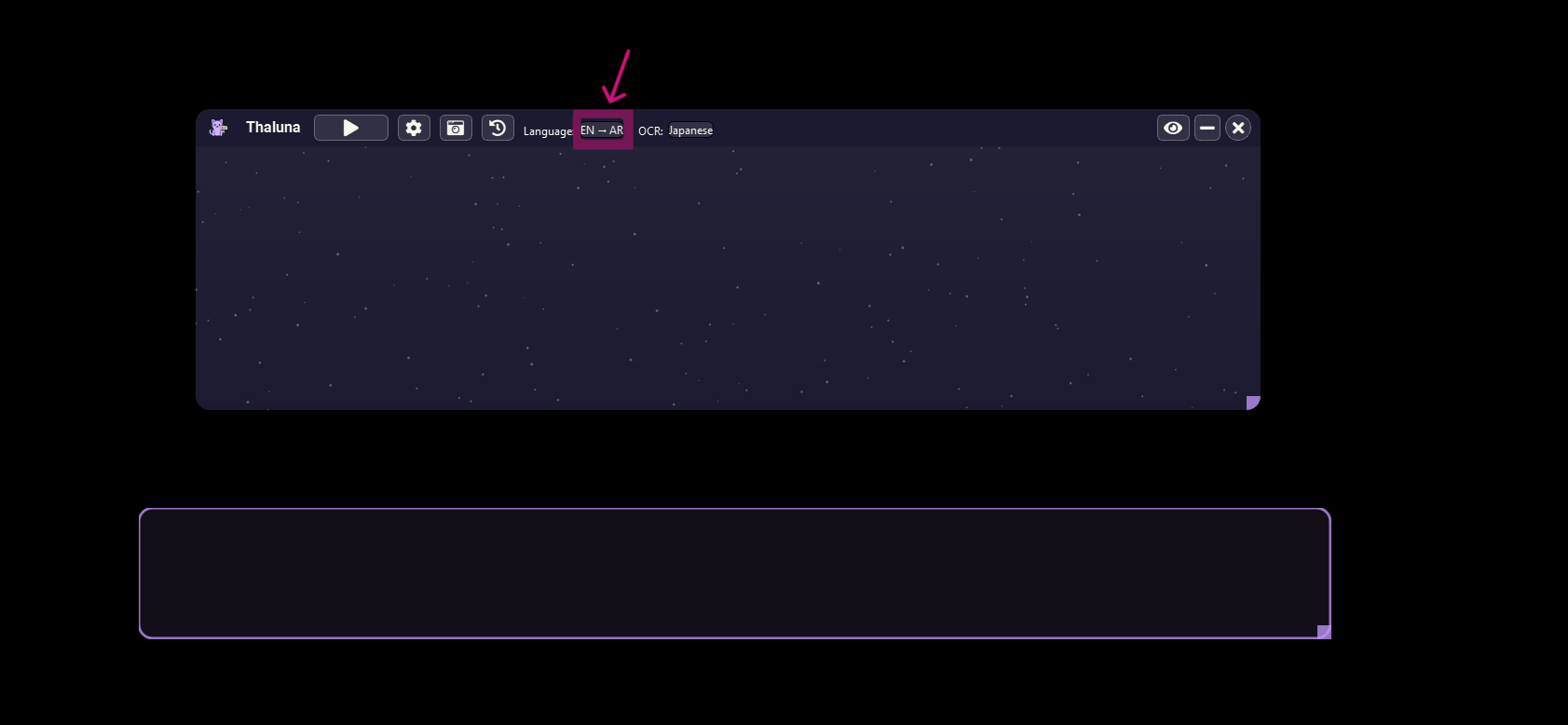
Go to Languages
- In the window that opens, switch to the OpenRouter (Cloud) tab.
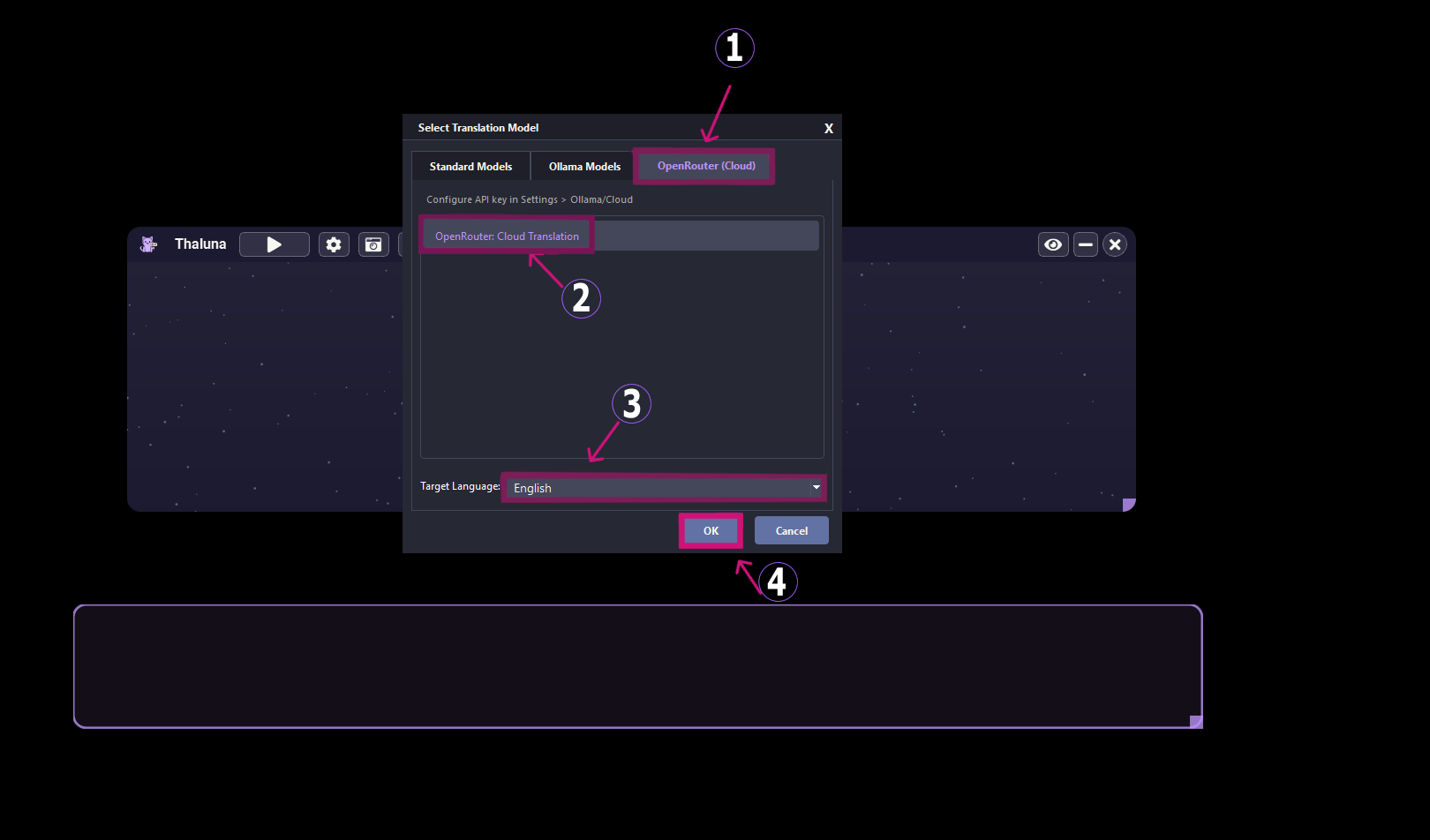
- Select OpenRouter as your translation source
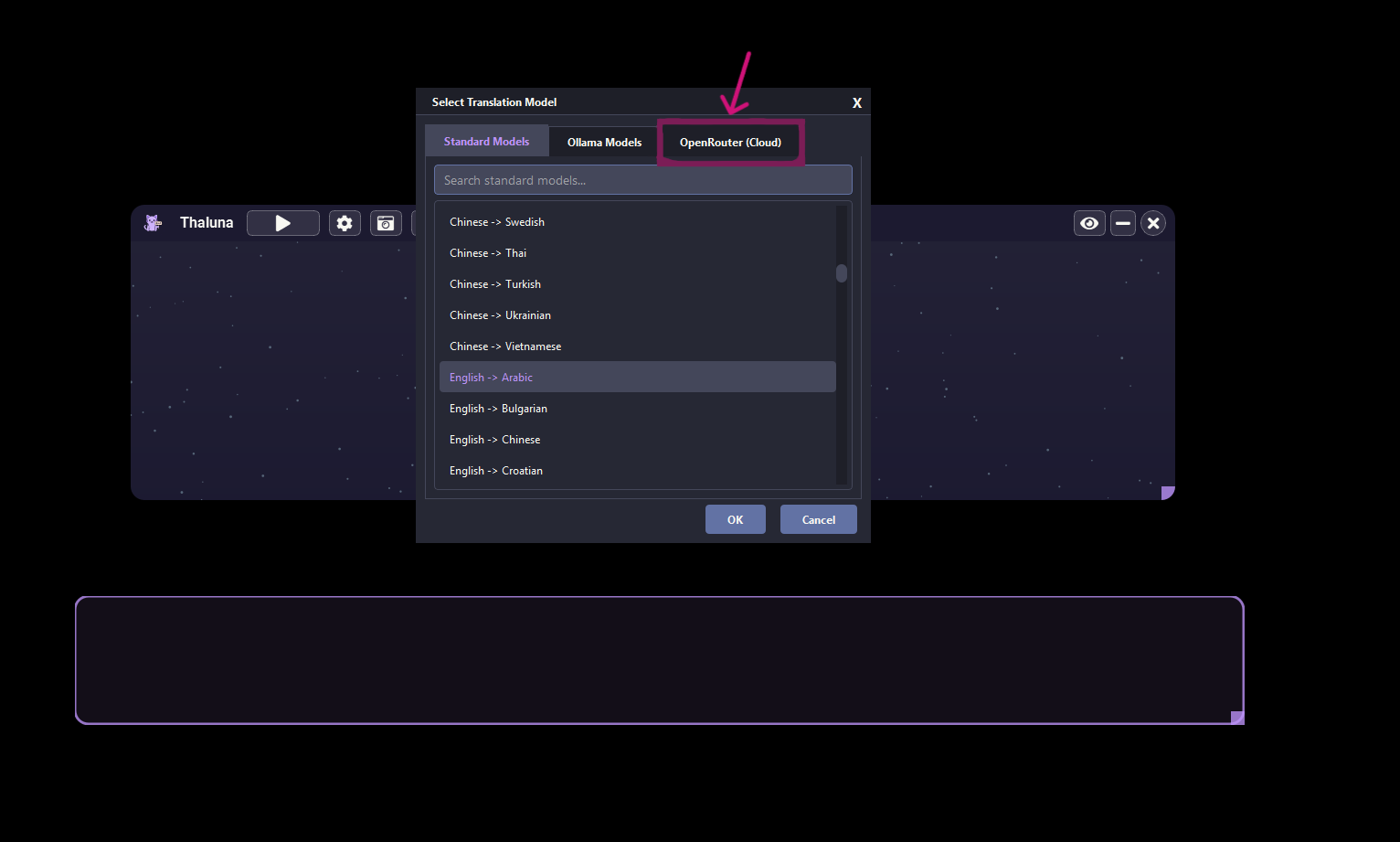
- Select OpenRouter as your translation source
Choose your Target Language (for example English)
-
Click OK
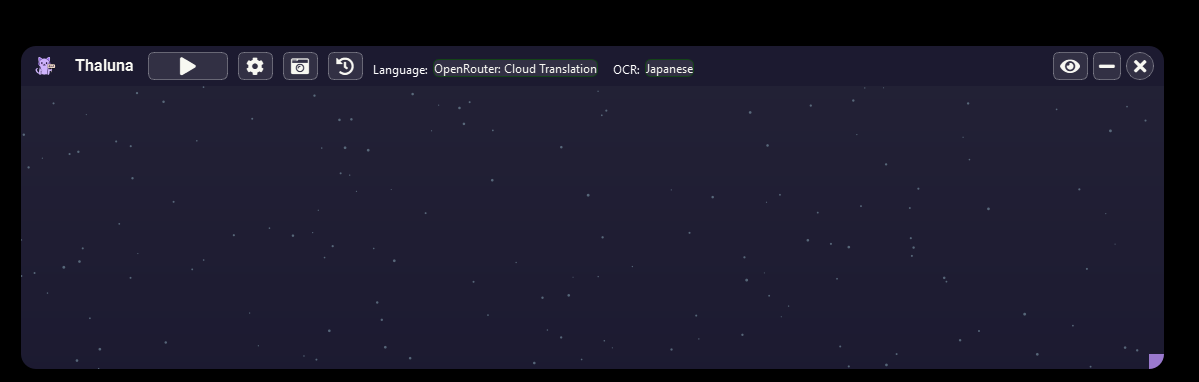
After that Thaluna will start translating using OpenRouter.
💡 Recommended for Real-Time Use
For best balance of speed and cost:
-
Fast & Cheap → Gemini Flash Lite
-
Balanced → GPT-4o Mini
-
Multilingual Strength → DeepSeek
(You can also enter any custom model ID supported by OpenRouter.)
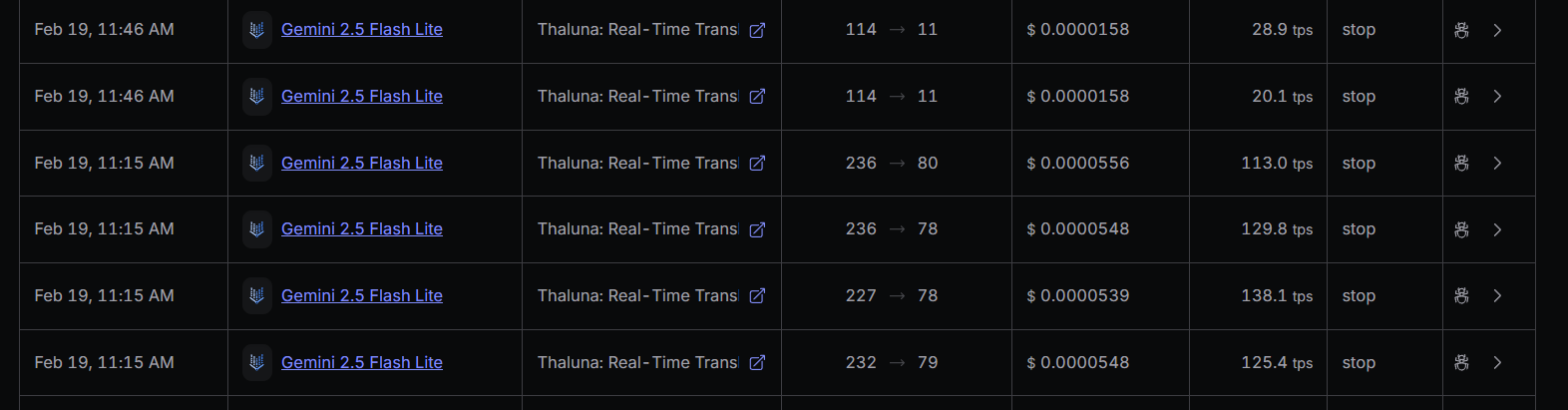
💰 Cost Example
Cloud translation is extremely affordable for normal real-time use.
For typical real-time text (games/anime), costs are usually only a few cents per hour depending on model and usage.
👉 Always check your OpenRouter dashboard for live pricing.
🔒 Security
-
Your API key is stored locally on your system (per-user).
-
Thaluna does not host or distribute any third-party models.
-
All usage is performed through your own OpenRouter account.
🛠 Troubleshooting
If Cloud Mode is not working:
• Check your API key
• Make sure you have internet access
• Verify your OpenRouter balance
• Try switching to a different model
If issues persist, post logs in this forum section.
To disable Cloud Mode at any time, simply switch back to Local Mode (built-in or Ollama).