


For a better user experience, there are settings you can change to alter the appearance of AJ Audio in a variety of ways.
Customising the Library
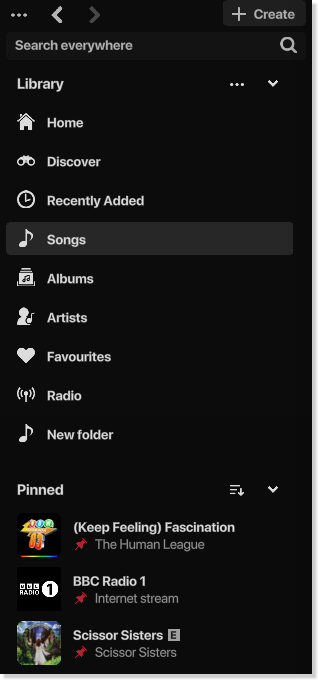
The "Library" is the full-length panel on the left side of the app which displays links, pinned items, and playlists. Here's how it looks:
Collapsing the Library
The Library can be collapsed, which gives you more viewing space on the main page. To do this:
- Click the Options button (...) > Dock sidebar
Resizing the Library
You can change the width of the Library by simply dragging the edge of it. The Library will automatically dock itself if you make the width small enough
Pinning items
You can pin any item to the Library for quick access. These items will be shown underneath a designated "Pinned" tree which you can collapse. To do this:
- Right-click on any item and select "Pin to Library"
You can also pin items by dragging them to the Library:
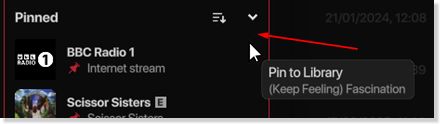
To remove a pinned item:
- Right-click on the offending item and select "Unpin from Library"
Sorting pinned items
You can sort pinned items by clicking on the sort button:

You can sort by:
- Alphabetical
- Recents
- Date added
Customising the Now Playing panel
You can toggle how the now playing panel looks. This is the bar at the bottom of the app which displays the current track information as well as the media buttons. By default, this panel is rounded and floating, like so:

You can also choose to make this panel the full length of the window, like how it looks on Spotify and other media players. This setting will also align the buttons to the center, with the current track information being displayed on the left with a larger image:

With this look, there is another setting which allows you to view the album art in the very large format, which occupies the space within your Library. Here's how it looks:
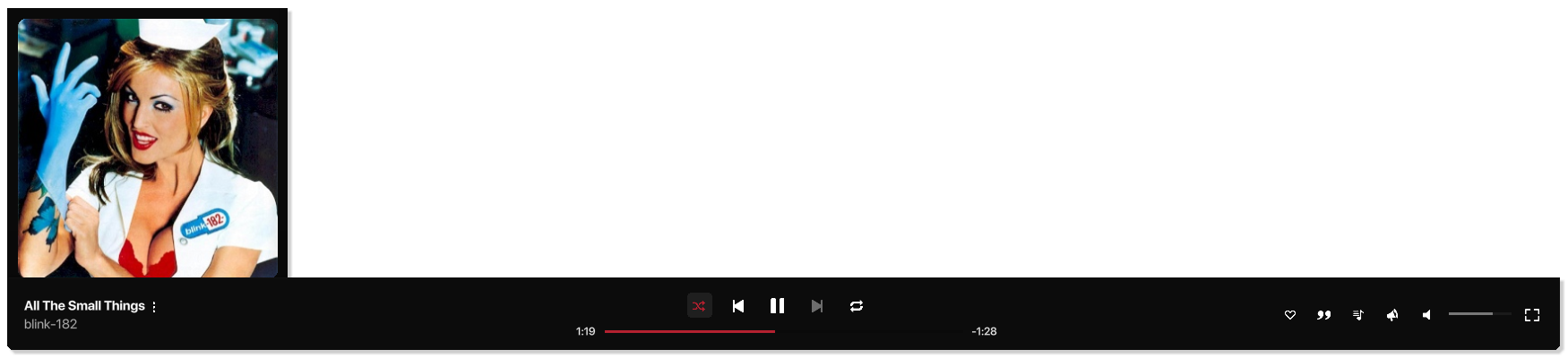
- These options can be found in the Settings page in the "Now Playing" section
Changing themes
By default, the app theme is "Dark". You can choose different themes in the Settings page. To do this:
- Click Options (...) > Settings > Theme
Viewing your themes
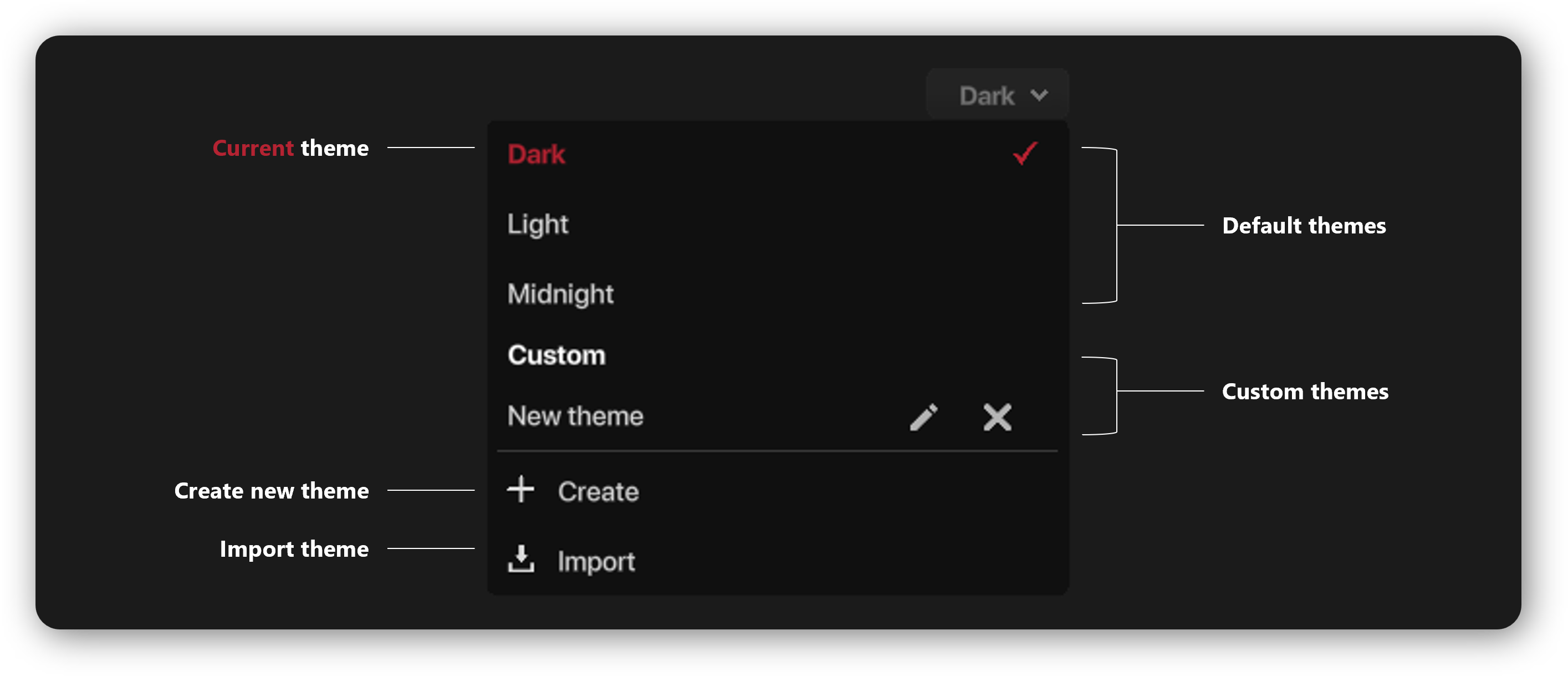
In the drop-down box in the "Theme" section in the settings, you can view a list of installed themes:
Creating a theme
You can create a custom theme yourself, where you can change the colours of specific UI elements.
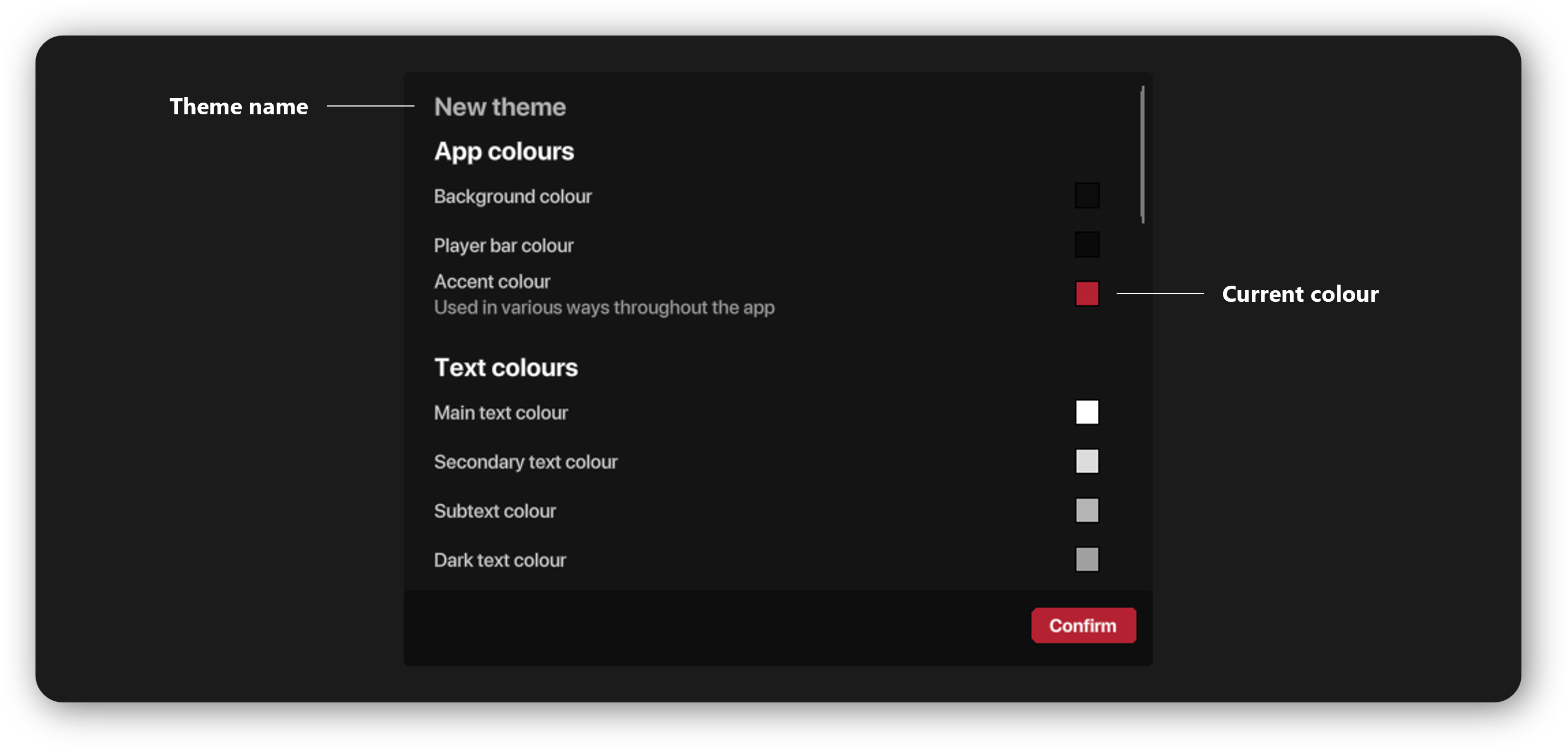
- Changes made to a theme are instantly apparent, and will be saved instantly. You can also revert the colour back to the default
Importing themes
Simply select "Import" as shown above. This will open a File Explorer window, where you can select the .ini file. Once loaded, it will be available in the above list.