


This tutorial will allow WolfRPGEditor games to be played on a web browser.
1. Download BrowserWoditor.
After downloaded and extracted, It will have, among other things, 3 folders. The most important are a folder containing a BrowserWoditor.dat file and the "public" folder.
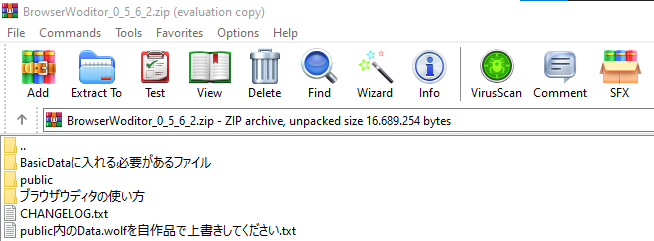
The folder named "BasicDataに入れる必要があるファイル", contains the .dat file.

Put this file in the BasicData folder of your game.
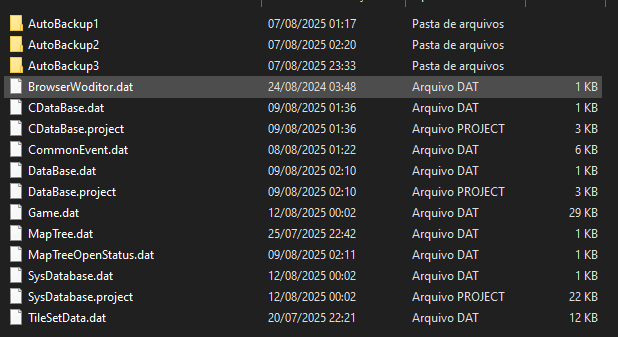
2. Create the Game data
Now create the Game Data, make sure to encrypt all folders.
Copy the .wolf game file and put it in the "public" folder.
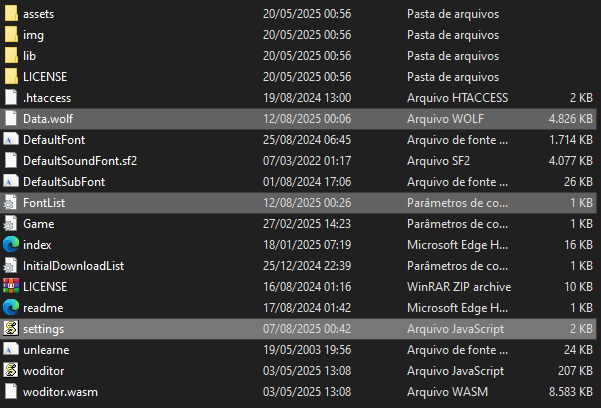
3. Zip it and play!
Now zip the "public" folder.

In Itch.io, when editing a game, The Kind of project must be HTML.
Upload the file and check the box:
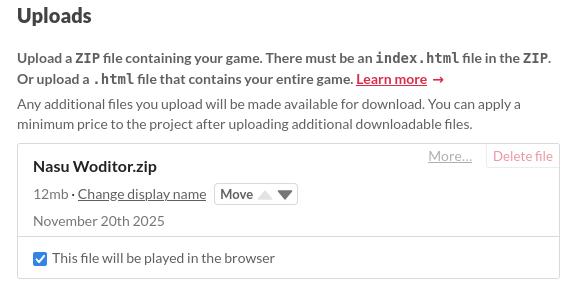
Change the Screen Size in Embed options.

Save and now you will be able to play on your web browser!
If you did all the steps above and tested the game, probably noticed the four buttons on the sides.
To disable it, edit the settings.js file. It's located in the "public" folder.
In the file, change to following config:

hideSideButtons:false -> true
There are other config, but I will not explain it, though their functions I believe are self-explanatory.
4. Load font
To load your own font, add them into the "public" folder. Then insert the font name in the FontList.ini. file.
Must look like this:
[File font name]=[Font name]
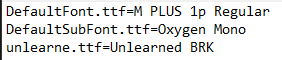
You can find the font name by opening the font file.
There are some other fonts in the file, but you don't need to do anything with them.
All right! That's basically it! This tutorial was meant to be simple, so let me know if you have any question.