Indie game storeFree gamesFun gamesHorror games
Game developmentAssetsComics
SalesBundles
Jobs
TagsGame Engines

WoditorTrans2000

26
Posts
7
Topics
4
Followers
A member registered May 29, 2025 · View creator page →

Creator of

Recent community posts

This Game Jam was created as a space to bring together those who create games with the WolfRPGEditor Engine.

The games will not be ranked and there's no prizes; the objective of Game Jam is to showcase your games.

If you're interested in learning a new Game Engine then give a try!
/jam/wolf-rpg-editor-game-jam-2

Hi. I'm hosting a second Game Jam.

/jam/wolf-rpg-editor-game-jam-2

(1 edit)

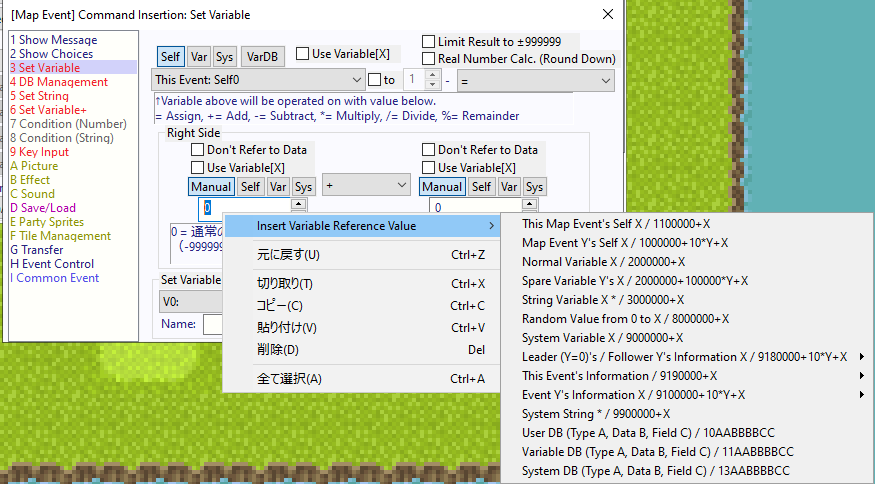
Special Character (Shortcut)

Special character allow you to read specific variables, or change text proprieties.

If you used the Woditor version 2, then you probably remember that you could open a window showing a list of all Special Character. However since the version 3, you can't do it anymore.

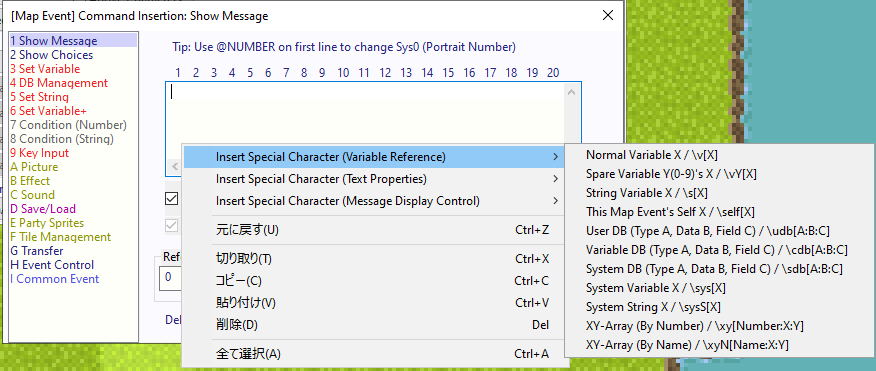
You now need to right-click on the field where you insert number or string.

In field where you put a string (Show text, Show Choices, Set String).

In field where you put a number.

Base RPG System: A Brief Introduction

What's the Base RPG System?

The Base RPG System is a ready-to-use system with features found in a typical 2D RPG!

Features include: Menu (items, skills, equipment, and more), Battle System, Shop System, Leveling System, and more.

The system consists of commons events and databases. The system's “code” consists of various commands.

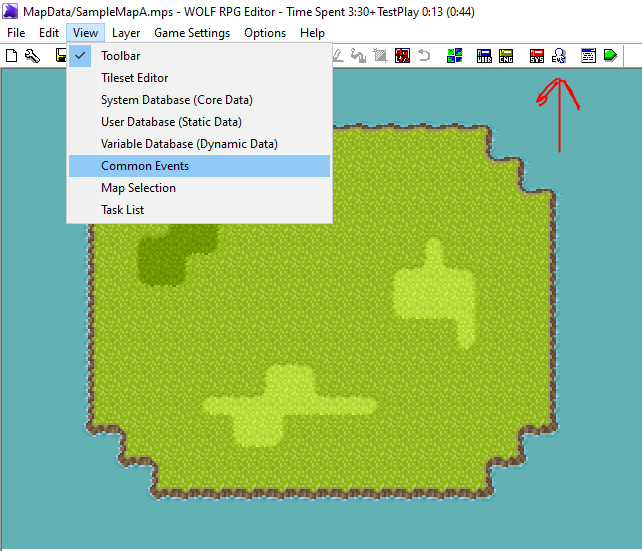
If you want to check how it works internally, do the following:

When you click, a window will appear where you can see the code. If you're a beginner, you don't need to do anything! And don't even think about in adding or removing something!

Now let's learn how to use it, as an example: 

Giving a item

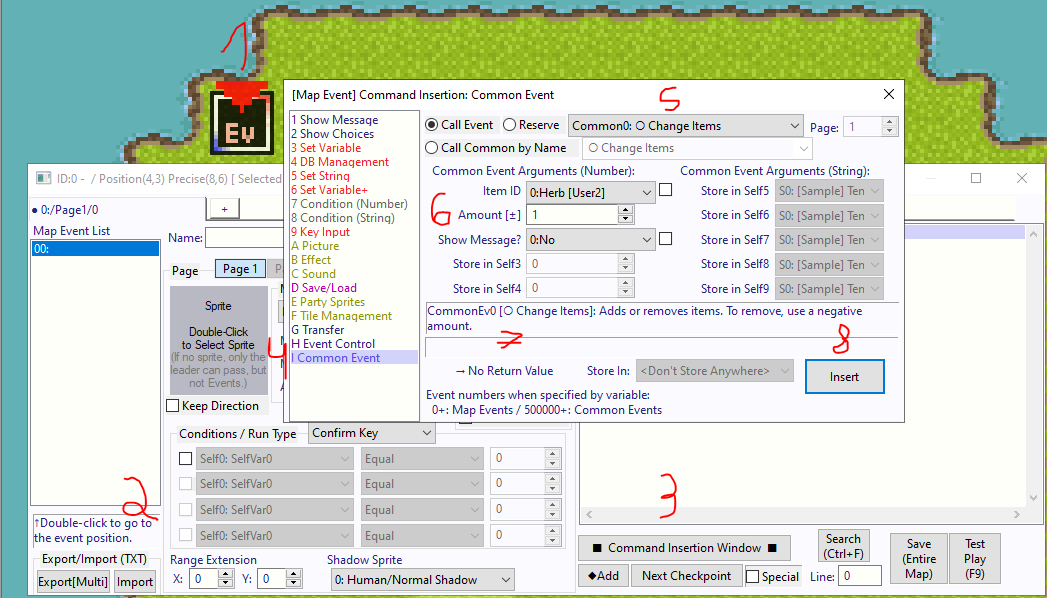
  1. With the events layer selected (press 4), double-click an empty space to create an event, or right-click and then create a new event.
  2. Now, double-click the event; this will open a window where you can set the sprite, the conditions, and, most importantly, the code
  3.  Click the Command insertion window button.
  4. When you do this, you'll see a list of commands on the left. Look for the “Common Event” command (the last one on the list).
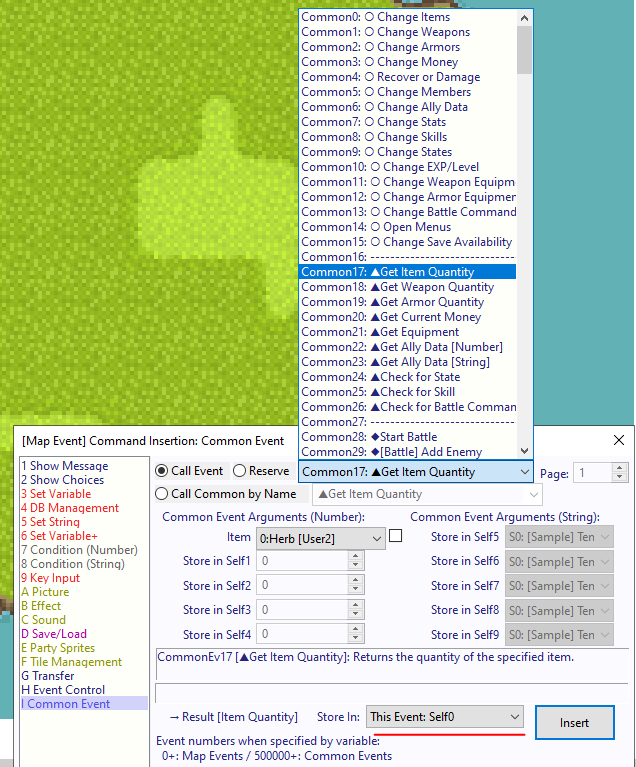
  5. Do you see the option with an arrow on the right? That's where you choose other commons. But we want to give an item, so choose “Common 0: O Change Items.
  6. The other options below the arguments are parameters that define what will happen when the code is executed.

Item ID = Which item will be added or subtracted.

Amount +- = Value of the addition or subtraction.

Show message = Whether a message will appear.

   7. Each common will have a note; please read it so you can understand them!

   8. When you done, click insert!

Now set the condition to the Confirm Enter, add a sprite, and test it (F9)!

When interact with the event, you will get a item!

In some commons, you'll need to choose which variable the result will be stored in. So don't forget to look for it!


Warning! The Commons 0 through 43 are the ones for which you want to make a call event; the rest are system codes!

OK! Now let's move on to another important point!

Database

If you want to create an item or a skill, disable a command, or set a character's sprite, you'll need to do so in the database.

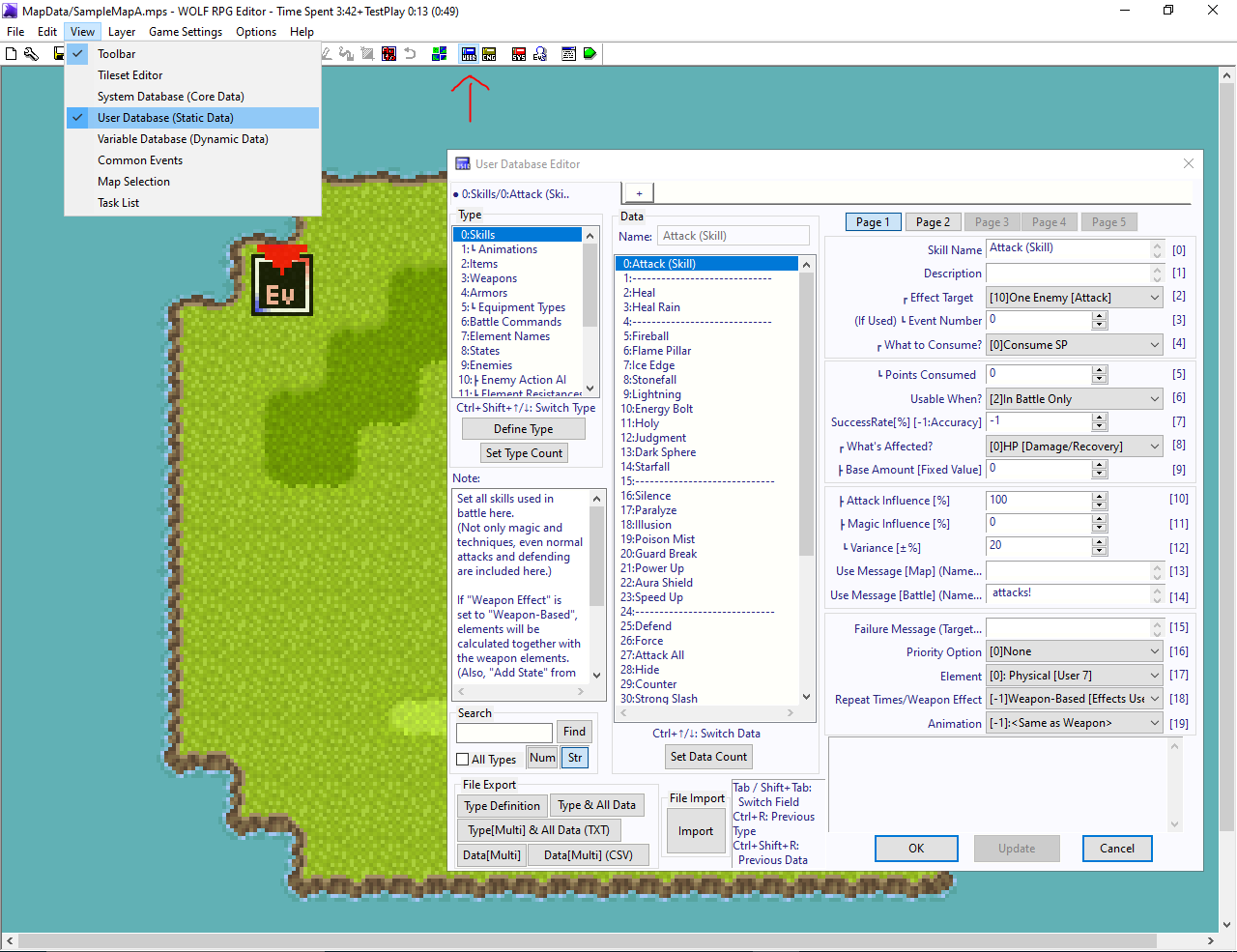
UserDatabase ( To set item , skill, weapons, armors and others)

To create a new item, click the “Set Data Count” button (below the data list). Then, set the attributes on the right.

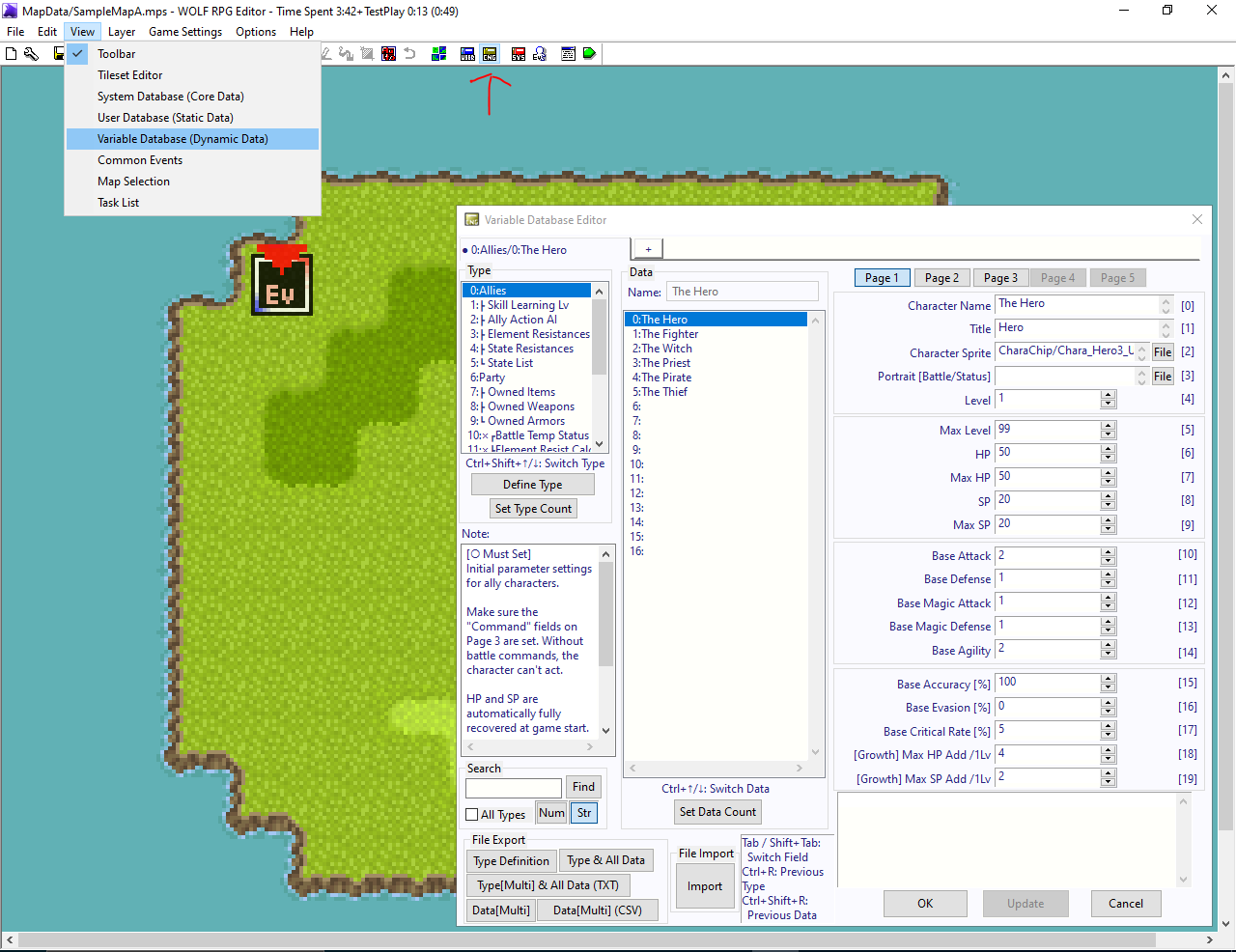
VarDatabase (To set Character sprite, title and name)


This database also stores information about HP, SP, states, owned items, and more.

There is a note for each type (below the list of types); please read it!

Oh, right, that's it! I hope this helps you understand the system, even if just briefly.

(1 edit)

◆ Official Guide

Official guide being translated by Anya.

https://anya-and-lolo.github.io/wolf-rpg-editor/guide/index.html

◆◆◆

◆ Tkool2WOLF+

Converts RPGmaker chips to be used in Woditor. Support RPGMaker 2000, XP, VX, MV e MZ. (JAP)

https://www.silversecond.com/WolfRPGEditor/Data/Rikka/

◆◆◆

◆ MapChipFusionMaster

Create Mapchips! (JAP)

https://subara3.gonna.jp/tool/MapChipFusionMaster/MapChipFusionMaster.html

◆◆◆

◆ TukunEditor

Allow to create complex animation. (JAP, ENG)

http://sprishri.nobody.jp/tool_tukune.html

◆◆◆

◆ Yado Woditor Manual

Contains a vast information about the Editor and the Base RPG System

http://yado.tk/wolf/

◆◆◆

◆ Common List created by the community.

A list of common events created by the community. Please check if you can use on your game!

https://silversecond.com/WolfRPGEditor/CommonList2/

◆◆◆

◆ Material list created by the community.

Assets created by the community. Please check if you can use on your game!

https://silversecond.com/WolfRPGEditor/MaterialList2/

The Wolf RPG Editor Game Jam #2 is up!


/jam/wolf-rpg-editor-game-jam-2

The page is still in progress! The submission date may change in the future.

I know not many people will join, but honestly i don't care, I want to do this anyway.

(6 edits)

Playing an animation with Auto-Pattern Switch

How to play an animation? You perhaps used the character sprites and by changing the direction sprites with route command, you made a very simple animation. (or not)

It works! Downside... very limited frames.

There's however another way, it allow more frames to be played.

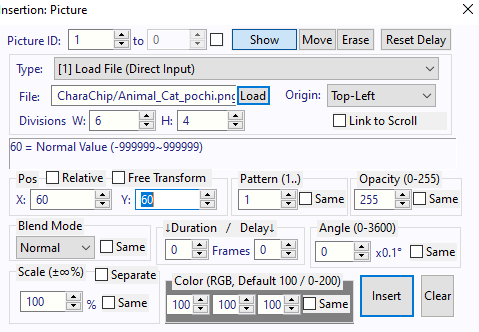
First, let show a random sprites (with 8 directional pattern) on the screen, with the picture command.

Make sure everything it exactly has showed above!

Now, when you test it, a cat or other sprites will appear in the upper corner.

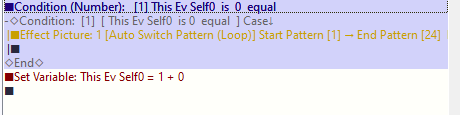
Insert a condition (number) command, it can been any self variable.

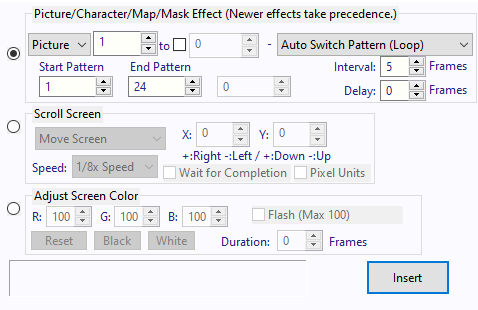
In the condition branch, we put an effect command.


Once again, make sure everything is exactly as showed above. 

Then add a set variable at the end, it should look like this;

After this, when you test it. The sprites will be played.

But how?

Did you notice on the Picture command, when set the division as W:6 and H:4?

It essentially divided the sprites images in 6x4. Why? Because the Sprites sheet is 6x4!

And the Auto Switch Pattern allow to switch the "frame" of the sprites! Notice that it switch to left to right! (You can also change on the "Pattern (1..)" in the Picture command.)

If you know how to make a Sprites sheet, then you can play any animation you want! By to way, The Sample Game use it for attack and effects.

*The animation count is done by left to right, meaning the first sprite sheet on the upper-left corner is number 1!

(1 edit)

Turning off the Menu (Base RPG System)

You ever wish to make you own menu, while still using the Base RPG System?

You can actually do it and it's very simple.

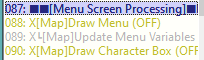
On the Common Events and look for the following:

All you need to do is write something, like I did here! Do it in common 88 and 90.

Now! When you press esc to open the menu. The game will freeze, but nothing will appears on the screen! 

Perfect, if you don't want to modify the common event and have a chance to break it.

Should notice through that the sound still play.


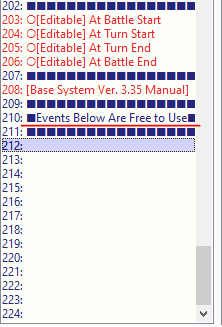
Lastly, if you going to create your own menu, please do it here:

These empty events can be used freely! Just like 210, it says.
(2 edits)

Creating a new Data folder

In Woditor version 3, it's possible to create a new data folder.


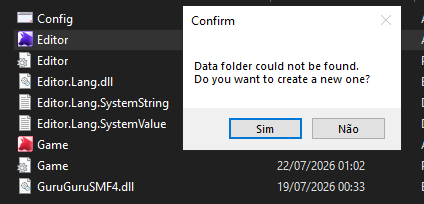
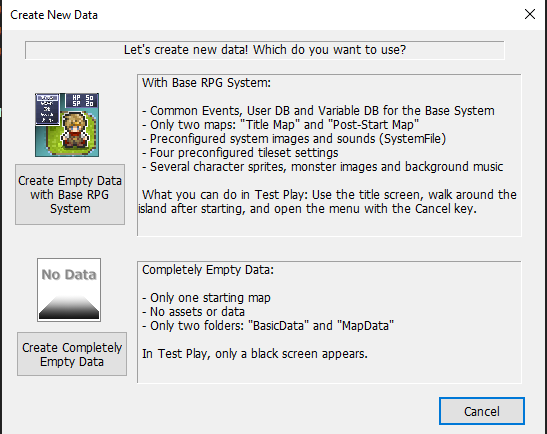
When running the Editor without the Data folder on the same location. A popup will appears asking if you like to create a new one.

Clicking in the yes option will popup another window.

Here you can choose either both option.

Choose Empty Data with Base RPG System for a system already made, meaning it includes Menu (Skill, equipment, item and others), battle system, xp system and others.

Choose Completely Empty Data to have more creative freedom. However! All the stuffs mentioned previously in Base RPG System, it will not be included, meaning that you have to create from scratch. (And it's not easy!)

(5 edits)

Post your tutorial here!

That way, others peoples can learn more about the Woditor and some tricks!

Please include a title in your post so I can edit it later and add it here.

Current tutorial posted.

  • Creating a new Data folder
  • Turning off the menu (Base RPG System)
  • Playing an animation with Auto-Pattern Switch 
  • Base RPG System: A Brief Introduction
  • Special Character (Shortcut)

Tips: Having difficulty to find the post? Try using the Web browser's search function! (Ctrl+F) 

This tutorial will allow WolfRPGEditor games to be played on a web browser.

1. Download BrowserWoditor.

Download Link

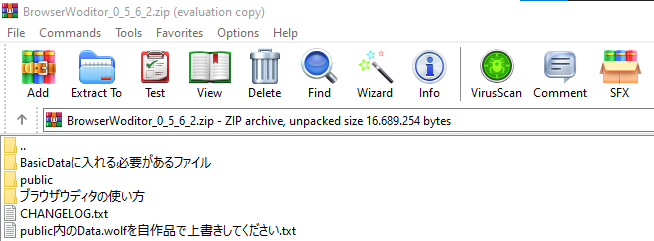
After downloaded and extracted, It will have, among other things, 3 folders. The most important are a folder containing a BrowserWoditor.dat file and the "public" folder.


The folder named "BasicDataに入れる必要があるファイル", contains the .dat file.


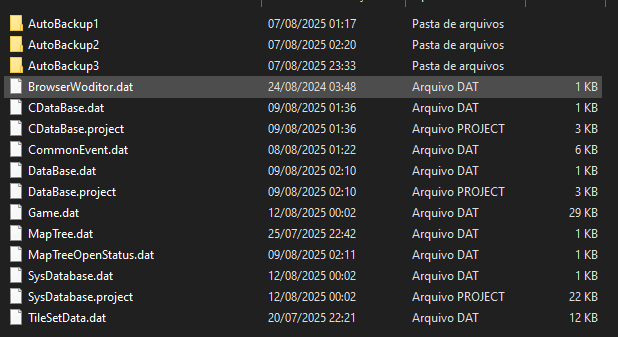
Put this file in the BasicData folder of your game.

2. Create the Game data

Now create the Game Data, make sure to encrypt all folders.

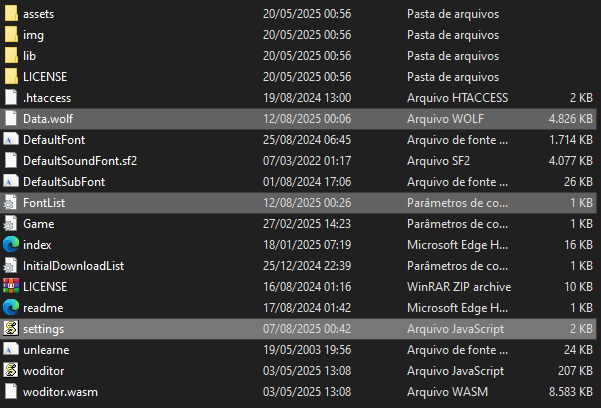
Copy the  .wolf game file and put it in the "public" folder.

3. Zip it and play!

Now zip the "public" folder.


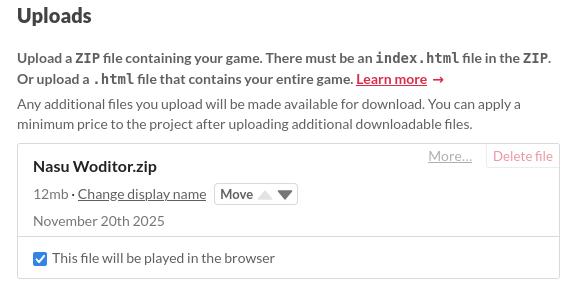
In Itch.io, when editing a game, The Kind of project must be HTML.

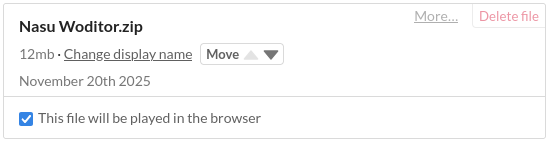
Upload the file and check the box:


Change the Screen Size in Embed options.


Save and now you will be able to play on your web browser!

If you did all the steps above and tested the game, probably noticed the four buttons on the sides.

To disable it, edit the settings.js file. It's located in the "public" folder.

In the file, change to following config:

hideSideButtons:false -> true

There are other config, but I will not explain it, though their functions I believe are self-explanatory.

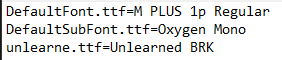
4. Load font

To load your own font, add them into the "public" folder. Then insert the font name in the FontList.ini. file.

Must look like this:

[File font name]=[Font name]


You can find the font name by opening the font file.

There are some other fonts in the file, but you don't need to do anything with them.

All right! That's basically it! This tutorial was meant to be simple, so let me know if you have any question.

WolfRPGEditor 3.691 + Sample Game 3.6 release!! Check it out and share it with others.

https://github.com/WoditorTrans2000/WoditorTranslationGallery/releases/tag/v3.69...

Hi! Unfortunately, I can't help you that. You should try ask in another place for help.

Even so, I'd still like to try to help.

This only happen with the Calibiri font? Not others?

Does the stutters only occur when a text using that font is shown? or does it happen randomly?

How are you translating? Translator++? or in the Editor itself?

Sorry if the question is very obvious, because, as i said, I can't be of much help.

Open UserDatabase -> Choose the type 17:System Settings. 

On the right, the entries named "Menu command" is where you can change to others commands or disable.

Having a choice for english language is enough. You can still publish in Spanish.

HI! Yeah, you can ask here or in the discord (The link in the README file, if you downloaded from github or Moddb).

Download link

Github releases - From the WoditorTranslationGallery repository.

Moddb WolfRPG - From the Moddb site. 

Both contains the same zip file.

Some resources:

http://yado.tk/wolf/  - Explanation about the Editor, commands and Base System, you will need an auto-translator since it's in Japaneses.

Ahjhj - Tutorial video, it cover some basic stuff,

Manual 2.24Z - The manual explaining the Editor and Commands. Good place to start, as it's in English, however it only contain 2.24 features, meaning some new stuff are not explained and it has outdated terms. You can find the file by downloading from github or Moddb).

There is not a lot tutorial in english, so I recommend you look for japaneses tutorial.

Uh...yeah I can't say lot, there is barely anything it can help. Sorry! But if need help you can ask here.

Hello! Sorry no new release. But I'm hosting a Game Jam for us!

/jam/wolfrpgeditor-game-jam-1

Topic for questions and help.

This tutorial will allow WolfRPGEditor games to be played on a web browser.

1. Download BrowserWoditor.

Download Link

After downloaded and extracted, It will have, among other things, 3 folders. The most important are a folder containing a BrowserWoditor.dat file and the "public" folder.

CDN media

The folder named "BasicDataに入れる必要があるファイル", contains the .dat file.

r/Udita_wolfrpgeditor - Browser-Woditor: Tutorial on how to use and load custom fonts.

Put this file in the BasicData folder of your game.

r/Udita_wolfrpgeditor - The file must be together with other files.

2. Create the Game data

Now create the Game Data, make sure to encrypt all folders.

Copy the  .wolf game file and put it in the "public" folder.

r/Udita_wolfrpgeditor - The .wolf file is your game data.

3. Zip it and play!

Now zip the "public" folder.

Now let's make playable.

In Itch.io, when editing a game, The Kind of project must be HTML.

Upload the file and check the box:  

Change the Screen Size in Embed options.

Save and now you will be able to play on your web browser!

If you did all the steps above and tested the game, probably noticed the four buttons on the sides.

To disable it, edit the settings.js file. It's located in the "public" folder.

In the file, change to following config:

r/Udita_wolfrpgeditor - In the settings.js file will have the following parameters.

hideSideButtons:false -> true

There are other config, but I will not explain it, though their functions I believe are self-explanatory. 

4. Load font

To load your own font, add them into the "public" folder. Then insert the font name in the FontList.ini. file.

Must look like this:

[File font name]=[Font name]

r/Udita_wolfrpgeditor - Browser-Woditor: Tutorial on how to use and load custom fonts.

You can find the font name by opening the font file.

There are some other fonts in the file, but you don't need to do anything with them.

All right! That's basically it! This tutorial was meant to be simple, so let me know if I've made any mistakes.

WolfRPGEditor 3.662 + Sample Game 3.6 release!! Check it out and share it with others.

https://github.com/WoditorTrans2000/WoditorTranslationGallery/releases/tag/1st_S...

WolfRPGEditor 3.648 + Sample Game 3.6 release!! Check it out and share it with others.

https://github.com/WoditorTrans2000/WoditorTranslationGallery/releases/tag/v3.64...

WolfRPGEditor 3.626 release!! Check it out and share it with others.

https://github.com/WoditorTrans2000/WoditorTranslationGallery/releases/tag/v3.62...

(1 edit)

WolfRPGEditor 3.618-2 release!! I forgot to put here. Check it out and share it with others.

https://github.com/WoditorTrans2000/WoditorTranslationGallery/releases/tag/v3.61...

This version has improved translations and translations for the System variable.

If you are a Portuguese user, I recommend that you use this version, as the UI has been adjusted.

WolfRPGEditor 3.618 release!!  Check it out and share it with others.

https://github.com/WoditorTrans2000/WoditorTranslationGallery/releases/tag/v3.61...

Hiiii! For everyone who found this or is still here, version 3.6 of WolfRPGEditor has been fully translated! So check it out and share it with others.

https://github.com/WoditorTrans2000/WoditorTranslationGallery/releases/tag/v3.61...