Indie game storeFree gamesFun gamesHorror games
Game developmentAssetsComics
SalesBundles
Jobs
TagsGame Engines
(+1)

Hooray! I'm so glad!

Things are sometimes a little quieter here in the forum during August because one of the official decker jams just happened in July. But there's always enough people stopping by to make sure that questions get answered.

Feel free to reply here or leave a new comment on the thread, I'll keep an eye out for you. :)
Hi again! Yeah it wasn't so long as I thought I would text you, but yeah.

Could you help me again please? 😅

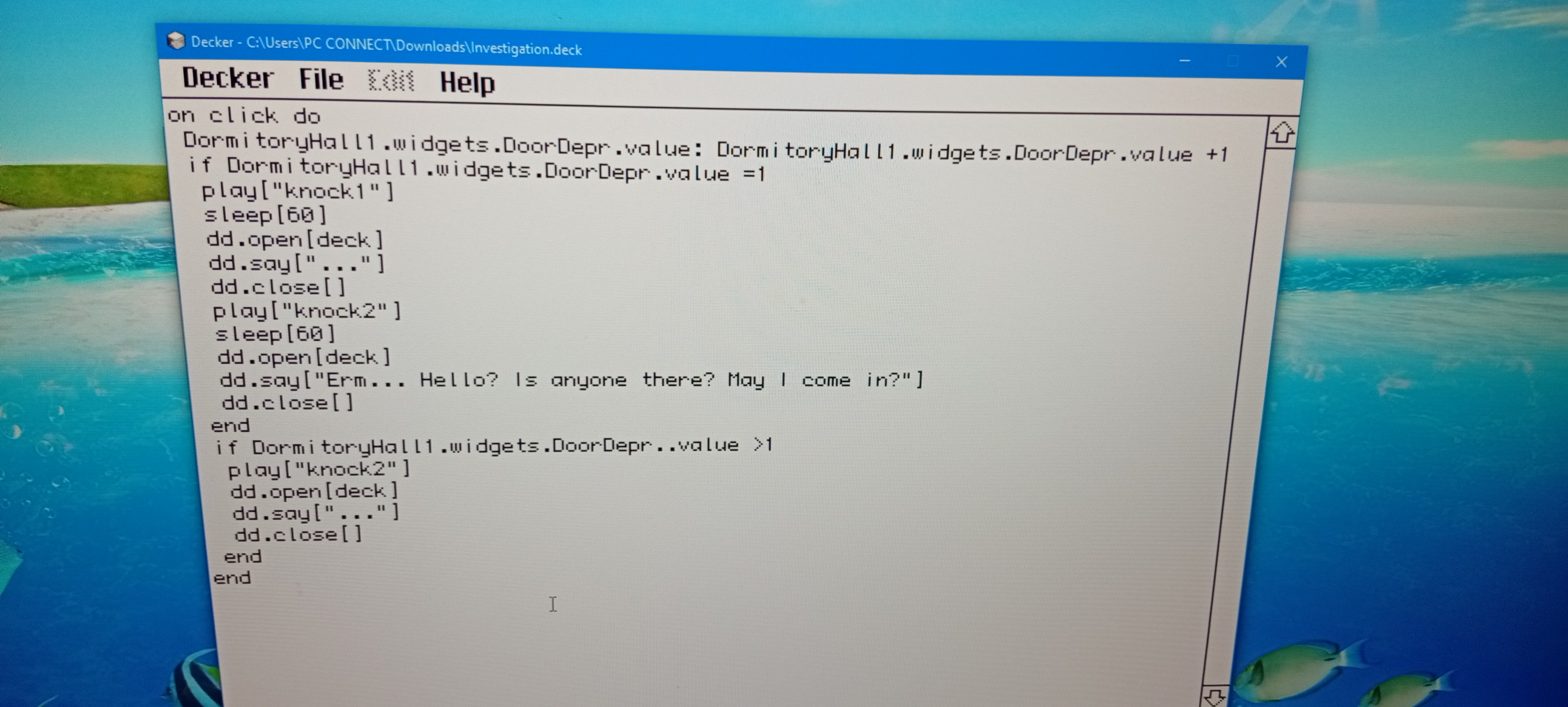
So eventually I ran into the problem with the need of usage a variable that needs to be changed and saved, but it would have a different event at each number.

By the way... I used it only in this script but it doesn't want to work. Firstly it was called in a short nickname, but it came to "DormitoryHall1.widgets"...... and so on because I tried to make it be saveble since I guess Everytime script ends widget forgets it.

SO how do I make a variable that has more than 1/0 in it that can be saved... or just work at least in this script how I wanted it to?.. But I know you might say that in this situation I could use just 1 and 0, but in the end I want to use 1,2,3 here! 

Also a question I got is how can I make a >= (≥) and ect, cause I read in the doc that this engine don't have that? Or maybe I just misread that...

Thanks in advance, my saviour! ;3

(+1)

Hello! And yeah absolutely!

For starters: referring to widgets by a shorter nickname. I think you were on the right track already, but I'll explain it in more detail anyway.

One option is to create a variable which is just the full path to a widget somewhere else in the deck:

doorknock: DormitoryHall1.widgets.DoorDepr

And that should make it possible to use "doorknock" as a shortcut for the longer name.

Or a project that has many info tracking widgets on a secret storage card could just simplify part of the path:

status:secretstoragecard.widgets

And then be able to use that in your scripts like this:

if status.pickedflower.value

And while you can define these shortcuts in the specific scripts where you're using them... you could also put them in the Deck-level script if you use them a lot. Just like Widgets and Cards can have scripts, you can also define events and variables at the Deck level.

Things put in the Deck script are always visible to every widget in the project (unless overridden more locally, but that's a different subject).

You can access this script  with File > Properties > [Script...]

Or if you're already in a script editor for something else you can use File > Go to Deck to move there directly.

And this kind of nickname variable doesn't need to be in an event handler or anything, just define the variable and you're done.

Okay, now on to your real questions....

Just like a checkbox can hold 1 and 0 as true/false... other widgets are good at holding other kinds of information.

In this case I recommend a slider widget, specifically. They're very good at storing numbers within a specific range, and you can choose the minimum and maximum of that range, and how big of a step is allowed between each point on the slider.

They're my go-to widget when I'm keeping count of something!

I'd recommend setting the style of your slider to "Compact" in the properties dialog to make the number easier to read while you're testing, and then you can also set the min and max of the range of numbers you want to use.

A nice thing about using a slider for this job is that your existing script doesn't need to change much.

The current number stored in a slider is also called .value in scripts. 

And you can adjust it by doing things you already understand how to do:

yourslider.value: yourslider.value +1

If you need to reset it back to the beginning you can just assign it the number you want to start at. Assuming that's zero at the beginning of the game, just do this:

yourslider.value:0

(And, as always, make the names match your actual project)

For the other part... It's true that we can't use combined operators but you can usually get the effect you need by writing things a little differently. I'm not completely sure all the ways you were thinking about using >= so this may not fully answer your question...

But for this script example... I think things could be simplified a little with the power of "else".

(I'm not copying your full script here so I'll just leave placeholders for the different scene possibilities, okay?)

if doorknock.value =1
 # "Erm, Hello?"
else
 # "...."
end

Basically else is "If the condition wasn't true...  do this other thing instead." 

Or you could add more possible outcomes with elseif

The first true thing in the series of possibilities will be the one that happens, so if two things could technically be true at the same time, make sure to put the higher priority one earlier in the list:

if doorknock.value =1
 # "Erm, Hello?"
elseif doorknock.value =20
# "Please stop knocking!!"
elseif doorknock.value > 15
# "...!! >:O"
else
 # "...."
end

20 is more than 15, so the event for ">15" could have happened at value=20..... but =20 was earlier in the order of possibilities, so only that one will happen. It's kind of a silly example, but I hope it makes sense.

And while I'm thinking about it, you can also move your dd.open[] and dd.close[] lines to be before and after your branching dialog possibilities if you want. Like this:

on click do
dd.open[deck]
 if doorknock.value =1  
 dd.say["Erm, Hello?"]
 else  
 dd.say["...."] 
 end
dd.close[]
end

I've got to stop here for now but I'm happy to come back and clarify if I wrote things in a confusing way, or if I didn't answer your real question!

(1 edit) (+1)

Hey! Wanted to tell thank you again, you're extremely nice person!

I didnt understand first part at frst glance cause I was sleepy that time, but now I understand! Thanks for bonus knowledge ;)

(+2)

Well, gosh, thank you too! :D 

I love to share bonus knowledge, even when I'm not sure how helpful it will be. I'm very glad it was helpful this time!

(2 edits) (+1)

I have a new quite bad problem.

So I have an inventory on each card. And as I said on the picture, when the card change - the placement of the objects will change too! Also while the animation of the cards changing is playing the game will not rethink whether an object should be already there or not, so it takes a second for it to show up or to disappear if it was already used.

So I thought there might be a solution wich requires a some sort of group? Like a calendar in the example deck or a palette in wiggly paint... Maybe it will fix all of it? Or at least make the process easier for me cause I'd not have to copy each new object to each card again and again?..

Another solution might be easier and it's just to make the objects to somehow remember where they are on each card and when the card changes they will teleport into the previous card's position..? But I'm not sure how to make this either. I mean if both of these are super hard to do, I can just leave it like that, but my inner perfectionist will be a bit triggered ":D

(+2)

Hi again! Sorry for the late response, it's been a busy week.

This is just a short reply for now, which may not fit everything you're doing.

I think the group idea you're thinking about is a Contraption. 

Basically it's a custom widget made of the other basic types to become something new. Contraptions are things that are meant to be reusable, whether it's something that many kinds of projects like the Calendar example you mentioned or something that can be used many times within one. Like using a contraption to keep track of what items you have. :) So you had the right idea.

Internet-Janitor has just recently posted a contraption version of an Inventory Bar that does some of the things you might want it to do, but not everything. 

For example, you can place an InventoryBar on every card and they'll all update each other. And it tracks whether or not something is stored in the inventory so you can write If statements that check it in your code.

But it doesn't use draggable canvases like your project is using doing now, so it would change your gameplay a little bit if you used it as it is.

Is this the kind of thing you were thinking about? (Even if it's not exactly this one.)

On the other hand, there are definitely ways to do this without contraptions. Like having a script that syncs up the locations of your canvases on different cards when you tell it to. But I'd have to come back to write an example.

(+1)

Thank you for response anyway, But I would love if a game had draggable system, and the thing that InternetJanitor suggested is cool, I will try that, if I would be smart enough for that 😅. I would like to listen to your ways of doing it without contraptions for future though!

I thought about texting you again if you would not respond, just to see if you might've missed my response or itch maybe didn't tell you about it. I very glad you waste your time on lil old me! And it's for free too, so you're basically a hero! :)

(+2)

Ahmwma's suggestions offer one possible approach; here's another idea.

Let's say you have a widget on every card of your deck in the same position named "inventory". It could be a button set to "Show None", for example. Draggable canvases on each card will be considered "items", and any of those items that overlap the "inventory" bounding box are treated as being in the inventory and moved automatically as you go from card to card.

In the deck-level script (File -> Properties... -> Script... from the menu), we'll define a function named "organize[]" which removes any items in the inventory area of a destination card (!) and then copies over the items in the inventory of the card we're currently on:

on organize there do
 on overlaps a b do min(a.pos<b.pos+b.size),b.pos<a.pos+a.size end
 on items card do
  extract value
  where each v in value overlaps[v card.widgets.inventory] end
  where value..draggable
  where value..type="canvas"
  from card.widgets
 end
 there.remove[items[there]]
 there.paste[deck.card.copy[items[deck.card]]]
end

Previously, when we moved from card to card in our game our scripts might look something like:

on click do
 go["SomeCard" "BoxOpen"]
end

Now we need to call organize[] on the destination card before we go[] to it, like so:

on click do
 organize[SomeCard]
 go["SomeCard" "BoxOpen"]
end

Normally, pressing the left and right arrow keys will flip Decker between cards; this could break our inventory system. To prevent that problem, we can define a navigate[] function in the deck-level script as well which does nothing, like so:

on navigate dir do
 # this space intentionally left blank
end

Here's what the whole thing looks like together:


With a little extra animation for card transitions this could look a lot like the truck-bed inventory system of Horsey Game, for example.

(2 edits) (+1)

Thank you so much for response! :3

Though it all seems a bit hard, I will try this and text you later!

I have a question though, if I have an icon of a backpack, will it copy automatically? It is halway there and might cause some problems with the code or it's okay?