Indie game storeFree gamesFun gamesHorror games
Game developmentAssetsComics
SalesBundles
Jobs
TagsGame Engines
(1 edit)

Hi! I'm new to AI image generation, and I actually used your comment as a tutorial to get started with it. I'm running into a problem, though, and I can't figure out what I'm doing wrong.

While the image is generating, it looks like it's going to turn out really well, but it starts off extremely blurry. As the steps go on, it gradually becomes clearer, but never fully sharp. Then, by the end, the final image just looks bad.

I'm not sure what I'm doing wrong or what I should change to fix it.
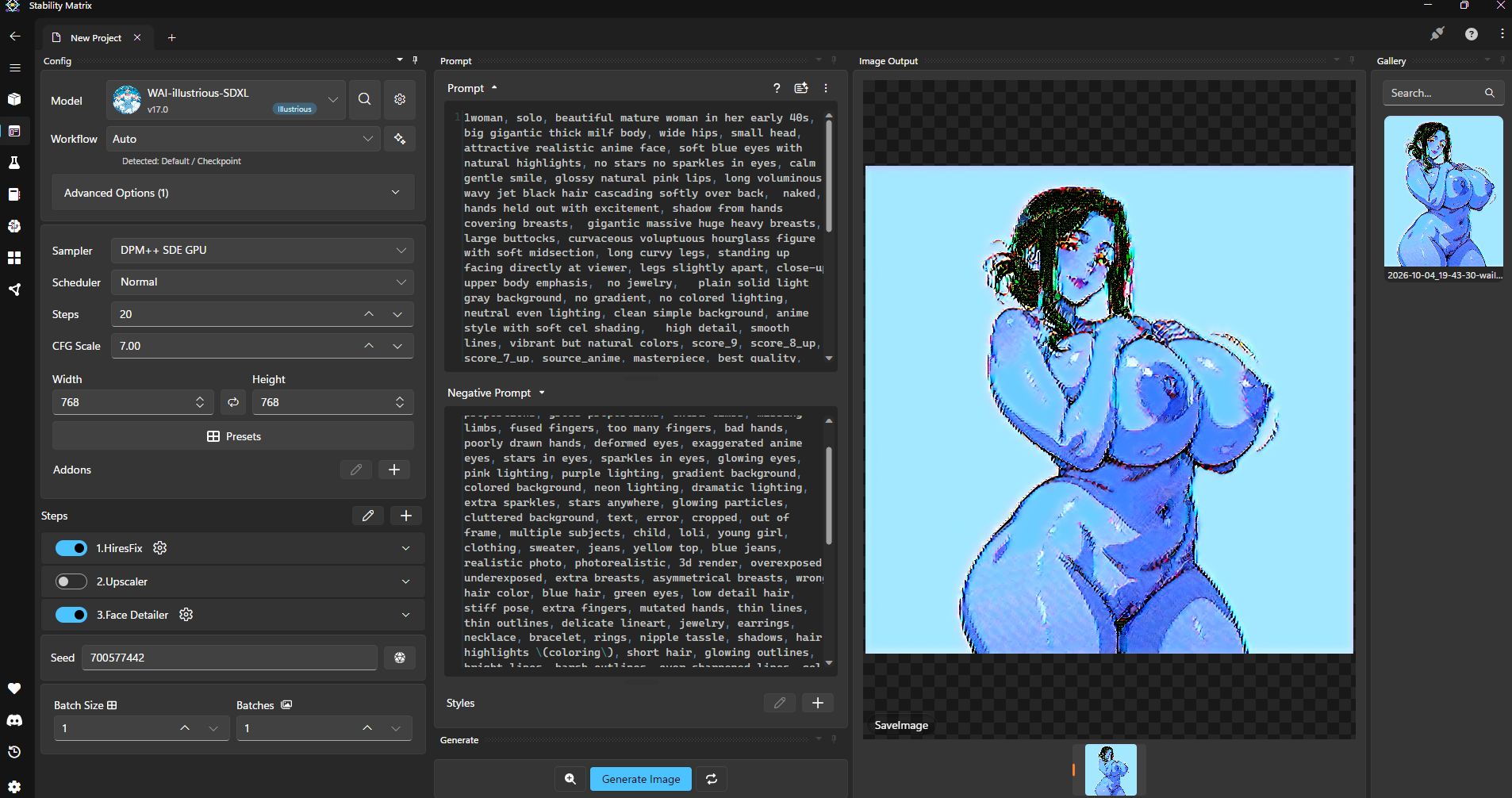

I experimented a bit more by generating images without the “hires fix” and doing some manual adjustments. I think there might be an issue with the upscaling process. I wonder what could be causing it?

This and foremost start super simple, use 


and start from there and build up. 

Then in the same way, start building up your configuration and prompts until you get the desired results. 

The main thing, is you are missing most of the latest flow and config for the Starmaker outputs, see the guide below for which models and LoRas you will need, and then super simple prompts and negatives to get a baseline: 

Quick getting started workflow: 

1. Download & Install Stability Matrix

  • Search for “Stability Matrix” (by LykosAI) and download the version for your OS.
  • Extract and run it. Choose a data directory when prompted (keep the path short).

2. Install ComfyUI

  • Inside Stability Matrix, go to the Packages tab.
  • Click Add Package → select ComfyUI → install.
  • Launch it when ready. (Use the built-in Inference tab in Stability Matrix for simpler generation.)

3. Download the Anima Model

  • Search Hugging Face for “circlestone-labs/Anima”.
  • Download the needed files (usually from the split_files folder):
    • Main model (anima-base-v1.0.safetensors or similar) → place in Stability Matrix’s Models/DiffusionModels (or the equivalent ComfyUI diffusion_models folder)
    • Text encoder (qwen_3_06b_base.safetensors) → Models/TextEncoders
    • VAE (qwen_image_vae.safetensors) → Models/VAE
  • Stability Matrix’s model browser can often handle the downloads directly.

4. Download Starmaker Story Style LoRA(s)

  • Go to CivitAI.
  • Important: Enable 18+ / NSFW content in your account settings so restricted models appear.
  • Search for “Starmaker Story” (or “Starmaker Story Style”). Look for the one by tang1qt and similar style LoRAs.
  • Download the .safetensors LoRA file(s).
  • Drop them into Stability Matrix’s Models/Lora (or LyCORIS) folder. Stability Matrix usually auto-detects them for ComfyUI / Inference when starting the service.

5. Generate

  • Go to the Stability Matrix’s Inference tab.
  • Load the Anima model + the Starmaker Story LoRA.
  • Example prompts and recommended settings (CFG, steps, weight, trigger words) are listed on the individual LoRA pages on CivitAI,  copy those.
  • Common starting point for style LoRAs: weight around 0.7–1.0, add the trigger word if the page lists one, and use tags/natural language that match the game’s pixel / anime look.

Simple Prompt

SMSAnna, Starmaker Story Style, mature woman, thick milf,
 long wavy jet-black hair, soft side-swept fringe, crown volume, inward waves covering the ears,
 large bright blue eyes, dark winged liner, soft rounded face, full cheeks, soft jawline, small smile, lips slightly parted,
 pale fair skin, 
 extremely  low-sitting heavy round breasts, very wide, breasts resting on the upper belly, deep cleavage, large brown-pink areolas, nipples, heavy underboob,
 soft chubby belly protruding under the breasts, visible navel, thick soft waist, not a narrow waist,
 naked, big hard nipples, areola, thick pussy, 
 natural pose,
 close to viewer, 
 standing, facing viewer, plain white background,

Simple Negatives

blue-black hair, straight hair, brown hair, short hair, bangs covering eyes, wide grin, toothy smile, red eyes,
small breasts, flat chest, skinny body, masculine, futa, penis,
kitchen, 1boy, pixel art, photorealistic, 3d render, bad anatomy, extra fingers, blurry, watermark, text
 

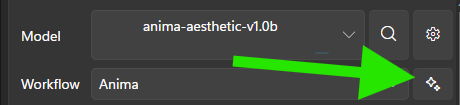
Turn off  HiRes Fix, you can use it once you are happy with your output once you have the base output by selecting the icon next to Gen