

SIMPL 1.1 is out! It's the first big update since launch, and it's about two things: seeing what your program does while it runs, and getting help while you write it. Programs written for SIMPL 1.0 run unchanged.
https://simpl-pseudocode.itch.io/simpl
What's new
Trace tables, filled in for you
Tick View > Trace Table and a new Trace tab fills in your program's trace table while it runs, just like the ones you draw by hand in a dry run: one column per variable, OUTPUT last, a new row at each round of a loop. Hover over a row to see which lines wrote it, double-click a cell to jump to its line, and export the table to a spreadsheet, a CSV file or a printed page next to the program. It's made for short programs, like the exercises of the manual.
Debugger: Step Over, Step Into, Step Out
Step (F10) now steps over routine calls, Step Into (F11) follows a call inside, and Step Out (Shift+F11) comes back to the caller. At every pause, the variables that just changed are highlighted, locals and globals are shown apart, and you can click any call in the Call Stack to look at its own variables. Recursion has never been easier to follow.
Mistakes caught as you type
A second after you stop typing, SIMPL underlines the first syntax error in red and tells you what's wrong, often with a "did you mean...?" for a misspelt keyword or name. Keywords are written in capitals and <- becomes ← as you type, closing words like ENDIF line up with their block by themselves, and the block the cursor is in is shaded and named above the editor. Every one of these can be turned off in the new Options menu, to practise as in the exam.
From an error to its explanation
Error messages are clearer and all have the same short shape: what went wrong, where, the line quoted with ^^^ under the words in question, and a hint. At the end of each one, More › opens the User Manual at the explanation of that kind of error.
A better User Manual
The manual now has a window of its own that you can keep on top of the editor. All 205 exercises were reviewed (96 rewritten or replaced, with their solutions), the Bigger picture sections were rewritten, and the appendix for Cambridge students follows the 2027-2029 syllabus.
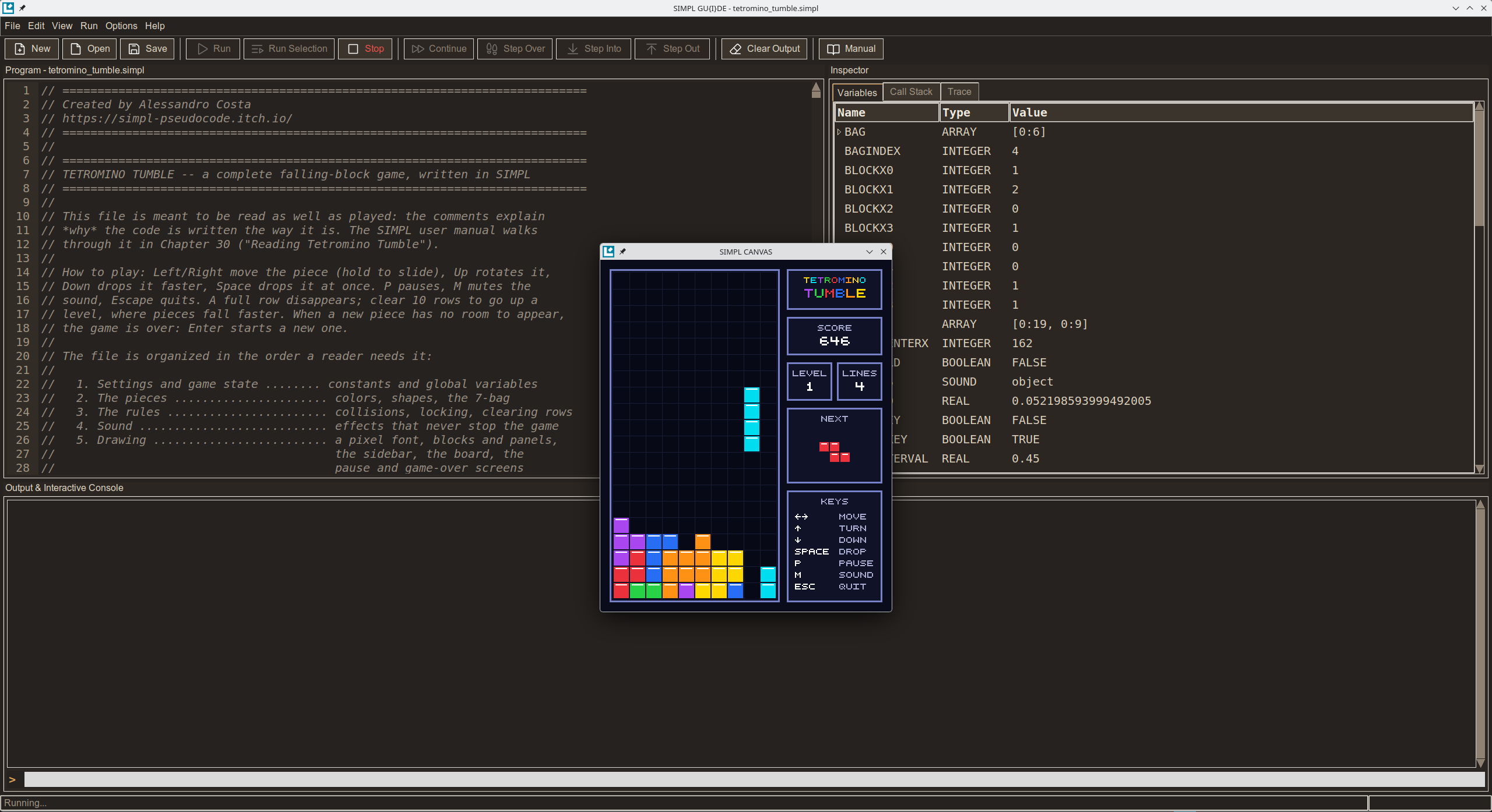
Tetromino Tumble, remade
The sample game has a brand-new look. If you're upgrading from 1.0, see below how to get it.
And also
File > Open Recent and Save As, Go to Line, Toggle Line Comment, a right-click menu in the editor, reorganized menus, more checks in Cambridge Strict Mode, colors reviewed for legibility, and a long list of fixes. Everything is in the full list at the end of this post.
Upgrading from 1.0
- Download SIMPL 1.1 and put the new
simpl.exe(Windows) orsimpl.appimage(Linux) in the same folder as the old one, replacing it. Your settings, programs and libraries live next to it, and they are kept. - To get the new Tetromino Tumble: SIMPL never overwrites a file that is already in your
programsfolder, because it might be one you changed. So rename the old one first, for exampleprograms/tetromino_tumble.simpltotetromino_tumble_1.0.simpl, then start SIMPL 1.1: it copies the newtetromino_tumble.simplinto the folder at startup. Your renamed copy stays as it was.
If you put SIMPL 1.1 in a new, empty folder instead, it starts with fresh copies of everything, Tetromino Tumble included: just copy your own programs over from the old programs folder.
Thanks for using SIMPL! If you find a bug or have an idea for the next version, leave a comment below.
Full list of changes
Writing code
- Syntax check as you type. About a second after you stop typing, the first syntax error is underlined in red, its line number turns red, and the status bar says Syntax error, line N: hover for the message, click to go to the line. What you are still writing is not reported yet. Turn it off in Options > Check Syntax While Typing (to practise as in the exam).
- "Did you mean...?" A misspelt keyword (
OUTPT X,ENDIFF) or a name close to an existing one gets a suggestion: did you mean OUTPUT?, Did you mean Total? - Keywords in capitals and
←as you type.ifbecomesIFand<-becomes←as soon as the word is finished, never inside strings or comments. Options > Uppercase Keywords and ← While Typing turns it off. - Closing words line up by themselves.
ENDIF,NEXT,ELSE,UNTIL... move back to the indentation of their block as soon as you type them. - The block you are in. The lines of the block around the cursor are shaded, and the title above the editor lists the blocks you are inside (
average.simpl › FOR I (line 4) › IF Mark >= 50 (line 6)). Options > Show Current Block turns it off. - Format Code (Ctrl+Shift+F) now also writes keywords in capitals and
←, and puts one statement per line. - Toggle Line Comment (Ctrl+/) comments or uncomments the selected lines; Go to Line (Ctrl+G) jumps to a line by its number.
- Right-click menu in the editor, the console and the search boxes: Undo, Redo, Cut, Copy, Paste, Select All.
- Typing. Quotes are paired only in code (not in comments, strings or words like Newton's); Enter at the start or in the middle of a line no longer leaves stray spaces.
- Breakpoints follow their lines when you add or remove lines above them, and go away with a deleted line.
Running and debugging
- Step Over, Step Into, Step Out. Step (F10) is now Step Over: a routine call runs in one go. Step Into (F11) goes inside the routine; Step Out (Shift+F11) finishes it and pauses back where it was called. F5 means Continue while paused.
- What changed is highlighted. At each pause, the variables whose value changed are highlighted in the Variables panel, and the status bar lists them.
- Local and global variables apart. Paused inside a PROCEDURE or FUNCTION, the Variables panel shows Local and Global groups; a global hidden by a local of the same name is greyed out.
- Every call can be inspected. The Call Stack lists every call in progress with the line it is waiting at; click one to see its variables and its line. The tab's title counts the calls.
- Clearer cues. An arrow ▶ marks the line about to run; the line number under the mouse shows where a click sets a breakpoint (also F9 on the cursor's line, and Run > Remove All Breakpoints).
- Stop has a key of its own: Shift+F5.
- The editor is read-only while a program runs (you can still select, copy and set breakpoints), so what you see is always what is running.
- The debugger no longer stops inside
IMPORTed libraries: their routines run in one go.
Trace Table (new)
- View > Trace Table adds a Trace tab that fills in the program's trace table while it runs, like the ones drawn by hand in a dry run: one column per variable (and per array element or field that gets a value), OUTPUT last, a new row at each round of a loop.
- Hover over a row to see which lines wrote it; double-click a cell to go to its line; while stepping, the row being written is highlighted.
- Right-click a heading to hide, show or move columns. Export copies the table (it pastes as a table into a spreadsheet), saves it as CSV, or prints it with the program.
- It suits short programs, such as the manual's exercises: a program runs more slowly while the table records. It records up to 1,000 rows and 60 columns; programs with graphics (
CANVAS) andIMPORTed libraries are not traced. A short window explains this the first time.
Error messages
- Clearer reports. The heading says what kind of error and where (Runtime error on line 7: the program stopped); the line is quoted with
^^^under the words in question; the hint is set apart. Every report has the same short shape, in the IDE and from a terminal. - From the error to its explanation. More › at the end of each report opens the User Manual at that kind of error. Appendix C now explains each of the 13 kinds of error.
- Names as you wrote them. Messages say Cannot assign to Age, not AGE.
- An unterminated string is reported at its opening quote, not at the end of the program.
Cambridge Strict Mode
- Now also reports several statements on one line,
&used with a value that isn't text ("Age: " & 13), andSELFinside a class. - The menu entry is now Options > Cambridge Strict Mode.
Files, menus and toolbar
- File > Open Recent lists the last ten programs; File > Save As (Ctrl+Shift+S) saves under another name.
- File > Open clears the console and the variables, as File > New does.
- Menus reorganized, as in VS Code: commands in the menu of what they act on, settings together in a new Options menu; Trace Table is in View; Edit has Cut, Copy, Paste and Find.
- One name per command: the toolbar uses the menus' names (Run, Stop, Step Over...). Clear Variables is in the Run menu, Find in the Edit menu (Ctrl+F).
- Find bar more compact, always at the left of its panel.
- New keys: Shift+F5 Stop, F9 breakpoint, F11 / Shift+F11 Step Into / Out, Ctrl+Shift+S Save As, Ctrl+G Go to Line, Ctrl+/ comment, Ctrl+Q Exit, Ctrl+Shift+Z Redo. Help > Keyboard Shortcuts lists them all.
User Manual
- A window of its own: it can go behind the IDE, be minimized, or stay on top (Keep on Top); F1 brings it back where you left it. In a narrow window, the contents become a drawer.
- Title page entry at the top of the contents, to get back to the beginning.
- Tables in the text's font, fitted to the page; the manual opens faster.
- Content. The bigger picture sections rewritten (other languages, history, the real world); all 205 exercises reviewed, 96 rewritten or replaced, with their solutions; new A SIMPL extra boxes; Appendix H, for Cambridge students, rewritten for the 2027-2029 syllabus; every message quoted as SIMPL writes it now.
Look and feel
- Colors reviewed for legibility in both themes: strings green, numbers purple, every text at least 4.5:1 contrast.
- Empty panels say what will appear in them; scroll bars appear only when needed; the open Inspector tab stands out; the number of the cursor's line is shown in full-strength text.
- About lists the features in four groups.
Programs
- Tetromino Tumble has a new look (panels, a sidebar with score, level, next piece and keys). Same gameplay and scores. See Upgrading from 1.0 to get it.
Fixed
- The IDE did not start with Tk 9.
- A line starting with the word
EOFsilently ended the program. - A selection was hidden under the line highlights.
- Undo after opening a file emptied the editor; Redo after New brought the old program back.
- Paste did not replace the selected text (Linux); Ctrl+Y pasted instead of redoing, Ctrl+W cut, Ctrl+O split the line (Linux).
- F10 also opened the File menu.
- Step paused twice on a line with
NEWor a method call. - A routine of your program called by a library was reported as an error in the library.
- Saving a new program while paused broke stepping.
- Run Selection highlighted the wrong words in an error.
- The mouse wheel over the line numbers did not scroll the editor.
- Table headings and selected console text were hard to read.
- A minimized User Manual stayed in the taskbar when F1 asked for it.
- The manual's contents did not follow the last sections, and its bar showed only symbols at first.
- The printed page colored numbers inside strings and comments.