Hello,
if you are a maya user or blender (with idustry standard shortcuts) then you already know how to use morgana !
Viewport
control viewport through navigation cube and ALT+Left click.
F - focus on selected mesh/curve
Shift+ Gizmo Drag >>> Duplicate object, also CTRL+D
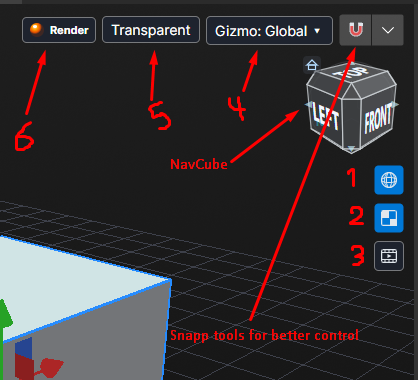
1-Hide/show your mesh wireframe.
2-Hide/show viewport textures
3-Hide/show Animation Timeline
4-Gizmo orientation
5-Transparent mesh (selected only), if you want to model on reference image.
6-Render in viewport directly (Just to showcase your model)
-----
Modeling:
Use keys to move between modeling modes (1-vertex, 2-edge, 3-Face, 4-Object again, 5-rig if you have bone modifier)
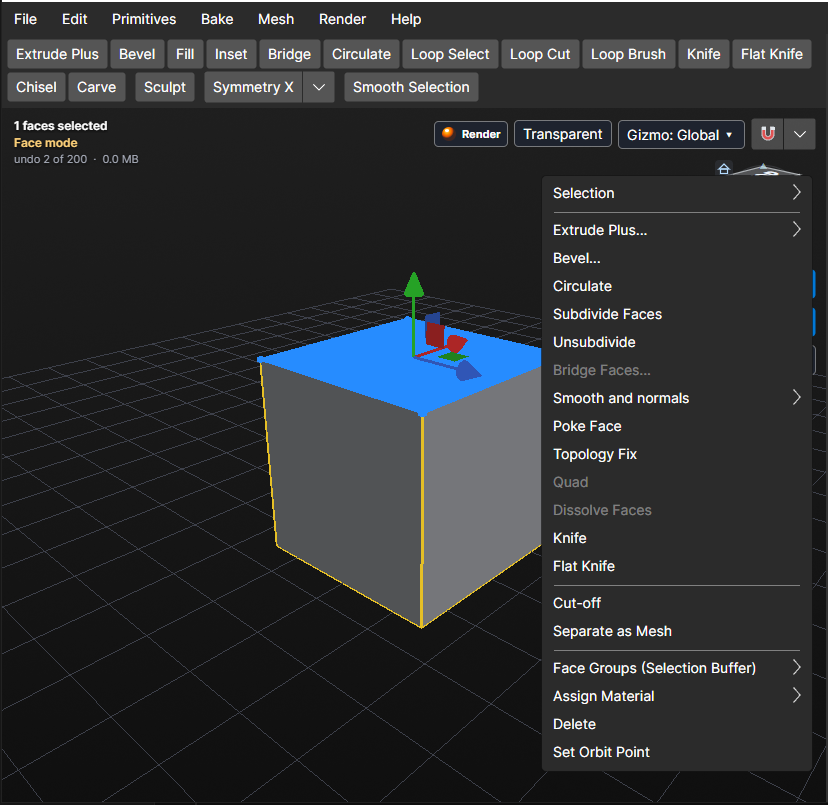
Every mode has its own right click menu and top toolbar
Double click face/edge to loop select (based on your mouse direction)
Press arrow key to grow selection in direction (TIME SAVING).
Press tab to select whole connected part of mesh, or area marked by seams
Now lets talk about face mode tools,
Face Toolbar:
Extrude plus: extrude face in direction its pointing to (Normal)
Bevel: make face top a smoother look
Fill: if you have a whole in your mesh thats what fixes it the correct way (clean topology)
Inset: inner frame selected faces / makes new face inside it
Bridge: if you have two faces/edges you want to connect them with topology/ if they are both on mesh and connect through it , bridge will simply make a hole and that is useful sometimes.
Circulate: select a face and start moving with mouse to make it like a circle (based on face edges of course, the more the smoother it gets)