
Indie game storeFree gamesFun gamesHorror games
Game developmentAssetsComics
SalesBundles
Jobs
TagsGame Engines

There is one pattern set/palette per deck, but as demonstrated by the above materials it can be manipulated on the fly; it's a matter of scripting to give cards their own palette. Some of the submissions to the most recent Decker game jam, including (Don't) Save Me and I Lost My Duck take advantage of this.

There is no grouping mechanism for widgets upon a card other than Contraptions.

Decker's image encodings are described in The Decker File Format. It's also possible to use Lilt to programmatically manipulate decks, encode/decode various resource types and import/export a handful of conventional file types.
(+1)

Hi! Could you help me out with the copy paste for making palimport have one palette specific to one card, rather than to the whole deck? 

The following is deck-specific:

%%WGT0{"w":[{"name":"palImport1","type":"contraption","size":[137,100],"pos":[334,171],"def":"palImport","widgets":{"button1":{},"button2":{},"p":{"value":"2e222f\n45293f\n7a3045\n993d41\ncd683d\nfbb954\nf2ec8b\nb0a987\n997f73\n665964\n443846\n576069\n788a87\na9b2a2\n"}}}],"d":{"palImport":{"name":"palImport","size":[137,100],"margin":[0,0,0,0],"description":"a tool for importing color palettes in the .hex format as used by lospec.com.","image":"%%IMG2AIkAZAACAYUAAwEBDYUBAQABAQENhwECDYcBAg2HAQINhwECDYcBAg2HAQINhwECDYcBAg2HAQINhwECDYcBAg2HAQINhwECDYcBAg2HAQINhwECDYcBAg2HAQINhwECDYcBAg2HAQINhwECDYcBAg2HAQINhwECDYcBAg2HAQINhwECDYcBAg2HAQINhwECDYcBAg2HAQINhwECDYcBAg2HAQINhwECDYcBAg2HAQINhwECDYcBAg2HAQINhwECDYcBAg2HAQINhwECDYcBAg2HAQINhwECDYcBAg2HAQINhwECDYcBAg2HAQINhwECDYcBAg2HAQINhwECDYcBAg2HAQINhwECDYcBAg2HAQINhwECDYcBAg2HAQINhwECDYcBAg2HAQINhwECDYcBAg2HAQINhwECDYcBAg2HAQINhwECDYcBAg2HAQINhwECDYcBAg2HAQINhwECDYcBAg2HAQINhwECDYcBAg2HAQINhwECDYcBAg2HAQINhwECDYcBAg2HAQINhwECDYcBAg2HAQEAAQEBDYUBAQADAYUAAg==","widgets":{"button1":{"type":"button","size":[60,20],"pos":[6,74],"script":"on click do\n p.text:read[]\nend","text":"Import"},"button2":{"type":"button","size":[60,20],"pos":[71,74],"script":"on color_dist a b do\n aa:\"%2h%2h%2h\" parse \"%06h\" format a\n bb:\"%2h%2h%2h\" parse \"%06h\" format b\n sum(aa-bb)^2\nend\n\non find_closest i n do\n g:patterns[i]\n r:first n\n each v in n\n  if color_dist[r g]>color_dist[v g] r:v end\n end\n patterns[i]:r\n (list r) drop n\nend\n\non click do\n n:16 limit (list \"%h\") parse \"\\n\" split p.text\n patterns[32]:16777215\n patterns[47]:0\n if (count n)>15\n  n:find_closest[32 n]\n  n:find_closest[47 n]\n end\n each c i in n patterns[33+i]:c end\nend","text":"Apply"},"p":{"type":"field","size":[125,62],"pos":[6,7],"scrollbar":1,"style":"code"}}}}}
 
(+2)

Because Decker project can only have one color palette at a time you'll have to use a script to change the palette for a specific cards.

Here's one example in the All About Color deck, here, on the page about Palette Transitions.

Or you could also check out the palettefade module for some additional tools to change colors in cool ways.

But while you're making your project you probably need an easy way to switch between your palettes whenever you want to.

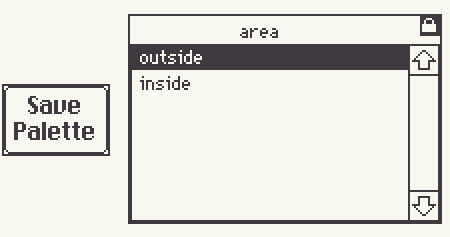
Personally, I tend to use these two widgets for my projects: a button and a grid (styled as a listbox). The button will save your current palette as an option in the list, so you can just click it to switch between them anytime.


%%WGT0{"w":[{"name":"pals16","type":"grid","size":[155,103],"pos":[316,30],"locked":1,"script":"on click row do\n p:\"|\"split me.rowvalue.palette\n if 16~count p\n  background.text:p[0]\n  foreground.text:p[1]\n  red       .text:p[2]\n  pink      .text:p[3]\n  orange    .text:p[4]\n  yellow    .text:p[5]\n  green     .text:p[6]\n  darkgreen .text:p[7]\n  blue      .text:p[8]\n  cyan      .text:p[9]\n  purple    .text:p[10]\n  lightbrown.text:p[11]\n  darkbrown .text:p[12]\n  lightgray .text:p[13]\n  mediumgray.text:p[14]\n  darkgray  .text:p[15]\n  f:\"%06H\"\n  patterns[32]:f parse p[0]\n  patterns[47]:f parse p[1]\n  patterns[33]:f parse p[2]\n  patterns[34]:f parse p[3]\n  patterns[35]:f parse p[4]\n  patterns[36]:f parse p[5]\n  patterns[37]:f parse p[6]\n  patterns[38]:f parse p[7]\n  patterns[39]:f parse p[8]\n  patterns[40]:f parse p[9]\n  patterns[41]:f parse p[10]\n  patterns[42]:f parse p[11]\n  patterns[43]:f parse p[12]\n  patterns[44]:f parse p[13]\n  patterns[45]:f parse p[14]\n  patterns[46]:f parse p[15]\n  \n end\nend","headers":1,"lines":0,"widths":[128,82],"format":"ss","value":{"area":["outside","inside"],"palette":["F8F8F0|3F3A3F|807173|C6AFA5|DAC3BC|F0DFBC|23493C|337650|82B26E|715A49|5D463C|FFBB66|D7A371|94C6FF|82ADE6|5566A8","E4E9F3|1A1C2C|5D4650|82695D|444667|947B76|2B499E|38B764|305553|263A6E|3B5DC9|41A6F6|73D0F7|2D3C73|1E2637|1E2128"]},"row":0},{"name":"button5","type":"button","size":[52,34],"pos":[228,67],"script":"on click do\n colors:(\"%06H\" format deck.patterns[32]),\n (\"%06H\" format deck.patterns[47]),\n (each  i in range 14 (\"%06H\" format deck.patterns[33+i]) end)\n newpal:\"|\" fuse colors\n newpalname:alert[\"Please name your palette\" \"string\" \"New Palette\"]\n pals16.value:insert area palette with newpalname newpal into pals16.value\nend","text":"Save\nPalette"}],"d":{}}

I hope this helps a little! Feel free to start a new thread if you have more questions about how to do specific things with multiple palettes, I think it's something that a bunch of people are interested in.