RPG Maker MV has unfortunately stopped receiving updates to its runtime in 2018, and the Linux deployment target for Windows installations of the editor specifically has not been updated since 2015, which causes performance and compatibility issues on modern systems.
(Additionally, developing plugins for the 2015 runtime is unnecessarily painful due to missing features, so to spare my sanity, I require the 2018 runtime for my plugins.)
Fortunately, RPG Maker MV uses an unmodified copy of NW.js as its runtime for desktop deployment, which means it’s pretty easy to update it manually! The process isn’t really different between development OS, so I’ll go through it target by target.
NW.js, “(previously known as node-webkit)”, is a program to develop desktop apps using JavaScript. It combines the Node.js runtime (for, among other things, local file system access) with the Chromium browser runtime (for rendering HTML-based user interfaces, though RPG Maker mostly renders into a single <canvas> element).
Current versions of this runtime come with large improvements to JavaScript performance and much wider support for hardware-accelerated (WebGL mode) rendering in RPG Maker, so if your players are reporting performance issues, even on older devices, updating NW.js can fix many of them.
Additionally, all versions of NW.js that come with RPG Maker MV are incompatible with current versions of the gconf package on Linux, which prevents the deployed games and the editor playtest from starting entirely on this system. (When run from the terminal, this will usually report “Fontconfig warning:” errors.)
To check which NW.js version an RPG Maker game uses, rename the package.json file in its folder and then start it normally. You should see a window like this, listing a few version numbers:
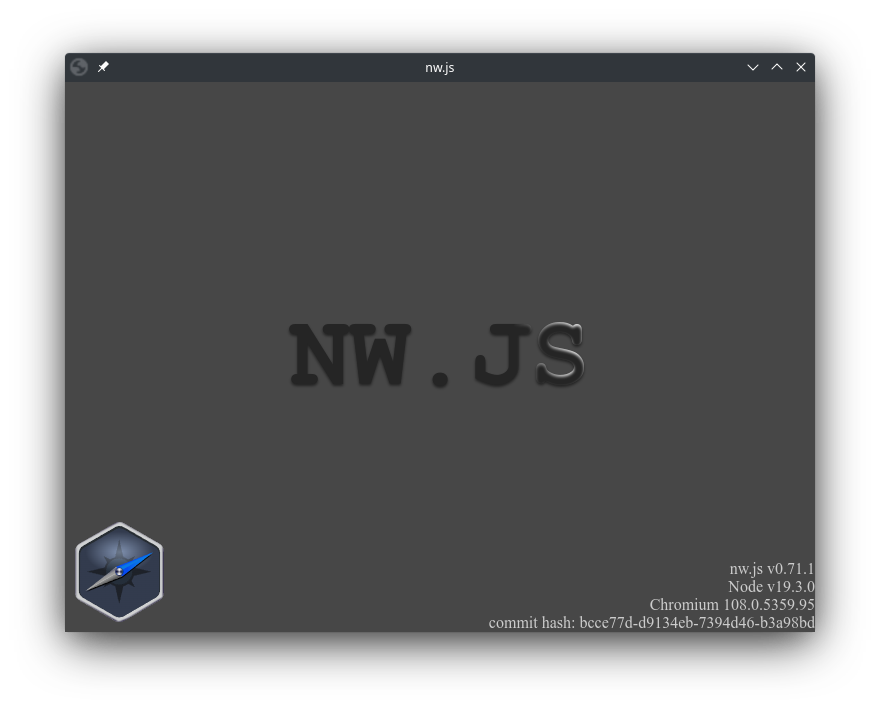
As of writing this, the most recent stable nw.js version is v0.72.0.
If your project was newly created with RPG Maker MV, it may have an empty name entry in its package.json file, like this: "name": "",, or it may have a generic name. While this name isn’t directly shown to the user, it’s important to choose a somewhat unique value here to avoid errors.
It’s customary to format it like "project-name-in-lowercase-with-dashes", but of course please use your actual project name here instead.
If you leave value empty or use special characters, you may get an error message like this:
Error Loading Extension
Failed to load extension from: (path to your game). Required value ‘name’ is missing or invalid.
Unfortunately, RPG Maker MV also resets this to KADOKAWA/RPGMV during deployment, which can cause the following warning when later playing other RPG Maker MV games:
Profile error occurred
Your profile can not be used because it is from a newer version of NW.js.
Some features may be unavailable. Please specify a different profile directory or use a newer version of NW.js.
[ ] Send feedback to help us fix this issue.
[OK]
For this reason, please remember to edit this file with a unique name in your deployed game too.
If the error is already occurring on your system, you can clear it by removing or renaming the following folder:
Windows: %LOCALAPPDATA%/KADOKAWA/RPGMV/
Mac: ~/Library/Application Support/KADOKAWA/RPGMV/
Linux: ~/.config/KADOKAWA/RPGMV
(source)
(Paste the path into the address bar of your file browser to navigate there.)
When using RPG Maker MZ, the name is aggressively reset to rmmz-game each time you load the project.
This means you don’t have to edit it in your project files, but you should still edit in the deployed game to avoid the second error above on your players’ computers.
If the error is already occurring due to RPG Maker MZ, this is the folder to delete or rename:
Windows: %LOCALAPPDATA%/rmmz-game/
Mac: ~/Library/Application Support/rmmz-game/
Linux: ~/.config/rmmz-game
Sadly, this is likely something that can’t be easily properly fixed with a plugin.
You can download the current versions of the runtime from https://nwjs.io/downloads/, but some extra files are necessary to make the games work properly. For now, download the “Stable”, “Normal” version of each OS your game should support. Additionally, download the matching “SDK” version for the OS you are using the editor in. The latter is used for playtesting.
(For Windows, the 32-bit version may be preferable, as it supports both x86 and x64 systems and requires less RAM. The version of NW.js for Windows originally included with RPG Maker MV is the 32-bit version, too. Additionally, NW.js versions newer than v0.72.0 are incompatible with Windows 7 and 8/8.1. You can find nwjs-v0.72.0-win-ia32.zip at https://dl.nwjs.io/v0.72.0/ in order to still support these systems. It’s most likely safe to use this older version as long as your game doesn’t connect to the internet.
For Linux, the latest stable 64-bit version likely has the best compatibility with up to date systems.)
Open the installation folder of RPG Maker MV. In Steam, you can find this by right-clicking on the entry in the games list and choosing “Manage” > “Browse local files”. You should see, among others, the nwjs-lnx and nwjs-win folders, as well as, at least on those operating systems, one nwjs-…-test folder.
These are the folders that need to be modified. (You can always reset them by deleting them entirely and verifying your RPG Maker MV installation through Steam, but it’s helpful to copy them elsewhere now, too, in case you’d like to quickly change runtime versions later.)
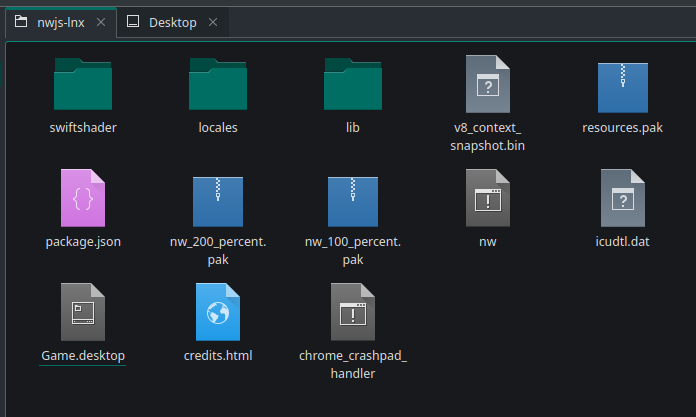
Open the lwjs-lnx folder and delete all except the following files:
package.jsonGame.desktop(icon/icon.png appears to be unused here, as is www/icon/icon.png if you have it. The actual icon is, or should be, in your game project folder.)
Then, extract the runtime files from the nwjs-v…-linux-x64.tar.gz archive so that the new folder contents look like this:
(If you can’t open the archive on Windows, 7-Zip is a great archive tool there.)
Please double-check that you have deleted the Game executable (without file extension). It is not needed in the updated runtime but is the main file of the old runtime, which may be confusing to players as it may still work after the other files are replaced.
Done, you can now deploy your games for modern Linux systems.
Your players can run either nw or the ….desktop file to start the game after extracting it.
If you create a .itch.toml app manifest, it becomes much easier for players to start your game from the Itch app.
If you upload the contents of the output folder directly to itch.io without wrapping folder inside the archive, then the following nwjs-lnx/.itch.toml file works for all RPG Maker NW games:
[[actions]]
name = "play"
path = "nw"
platform = "linux"
sandbox = true
(Platform and sandbox opt-in are optional, but probably nice to have. Enabling the sandbox means that plugin scripts won’t get access to your players’ document folder, but can still read and write the game folder just fine.)
You can freely rename and edit the ….desktop file with a plaintext editor to suit your game, ideally after deployment.
(Best leave the Exec= and Type= keys as they are.)
Unfortunately, the format doesn’t understand relative paths, so you can’t easily set up a nice icon for it. Looks like app icons on Linux are quite tricky for unpackaged software!
(The included desktop file is slightly misused, in that regard, but I suppose it mostly works?)
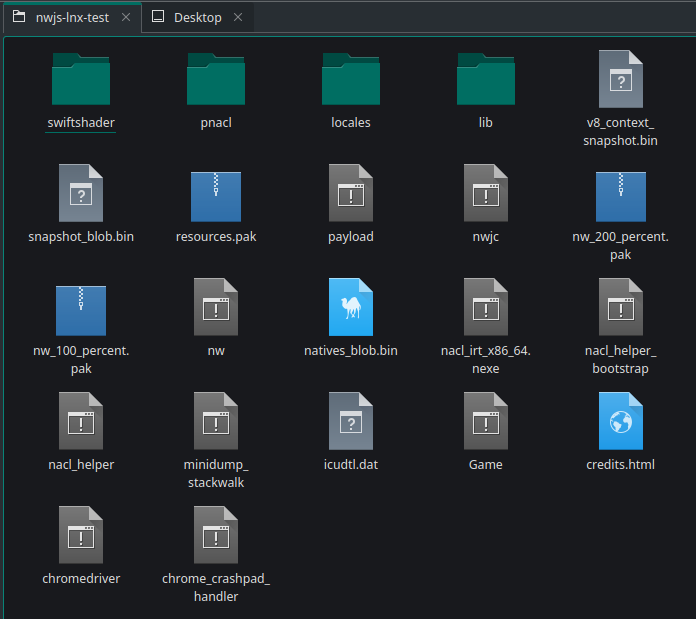
Since the nwjs-lnx-test folder isn’t deployed to the player, there’s no need to clean it. Just extract the files from nwjs-sdk-v…-linux-x64.tar.gz and choose ‘Write into’ and/or ‘Overwrite’ when prompted.
The folder should look about like this:
Done, you can now playtest on Linux from the editor.
(Coming soon, but much like Linux (deployment target) above. Game.exe is essentially just a renamed nw.exe from the nwjs-v…-win-ia32.zip archive. RPG Maker should be able to apply the icon as before if you rename that file to replace the older one. I’ll look into and test this once I’m able to.)
Much like for Linux (playtest) above, extract the contents of nwjs-sdk-v…-win-ia32.zip into nwjs-win-test, overwriting files. The folder’s contents should now look like this:
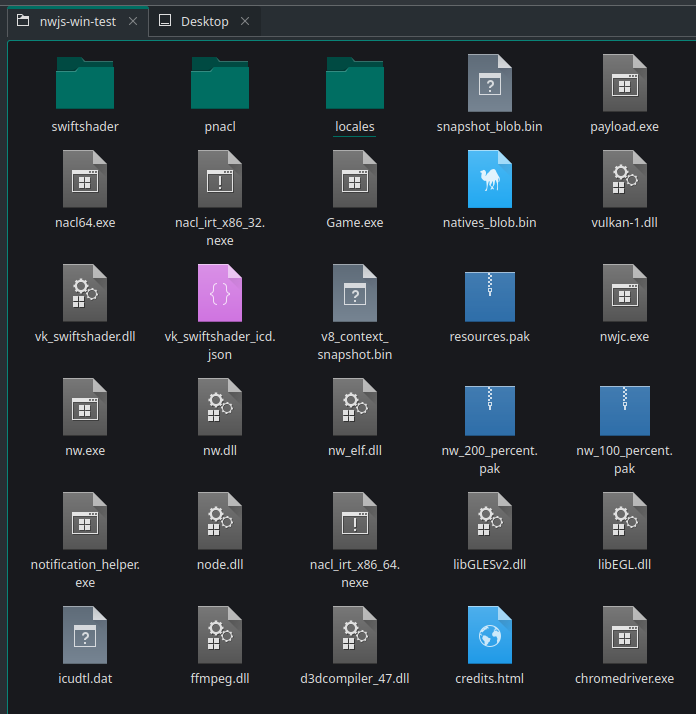
You should probably also delete the original Game.exe and rename nw.exe to Game.exe. I’ll check if this is the case once I can, or leave a comment if you do.
I can’t help with this target since I don’t own any Apple devices, and Apple has recently increased the restrictions on sideloaded apps. If you know more about this, please let us know in the comments!
Did you like this post? Tell us


Leave a comment
Log in with your itch.io account to leave a comment.
Thankyou!
It's random, but after playing a game someone else made, weeks later I realised that all my own RPGMaker game projects could no longer be test played properly, and could not understand why.
It turns out, the other game I played, it had messed up NW.js in my file system somehow. I searched around a long while not understanding, but this article gave me the needed information to discover the issue! Plus also now a better understanding of various other things. :D
Need info about:
"download the “Stable”, “Normal” version of each OS your game should support. Additionally, download the matching “SDK” version for the OS you are using the editor in."
I have two, one normal and the others sdk. Where I unzip the normal and SDK? Tell me the folder names please
This is explained in the following paragraphs. It depends on the operating system and whether you’re updating the Maker’s versions or a published game, so I can’t give you a direct answer here.
In general though, for published games you only need the “Normal” version. The “SDK” version goes into the
-testfolder, for other runtime folders use the “Normal” version.Thanks ^^ A lot!
Today, on my windows machine, it seemed I successfully upgrade nw js from 0.29.0 to 0.99.1. Two things:
I’ll try later to build for macos and linux.
You can likely replace the icon using this old program: https://www.angusj.com/resourcehacker/
I remember using that to get my hands on executables’ icons as a child 😄
That warning is most likely just because RPG Maker picks text colours from the window skin image. It’s not optimal, but as far as I know doesn’t happen anywhere close to frequently enough that it would cause a noticeable slow-down.
Thanks a lot for this tutorial!
I’m a Mac user of MV and following your instructions for Windows and with a little bit of trial and error, I managed to recently get a functional playtest in Mac OS Tahao 26.
You can achieve a functional Mac playtest by doing the following:
Step 1: Download and prepare to copy NM.js SDK files
Step 2: Preparing RPG Maker MV
Step 3: Updating the NW.js of the playtest
Unlike the Windows and Linux solutions, there is a bit more to drag and drop to the correct place. I’d recommend making a copy of the nwjs-osx-test folder just in case!
Now from the SDK ‘nwjs.app’ Contents folder, do the following.
From
Copy
To
Paste/Overwrite Location in Game.app
njws.app > Contents
‘Frameworks’ folder
->
Contents
njws.app > Contents > MacOS
‘nwjs’
->
Contents > MacOS
njws.app > Contents
All files within ‘Resources’
->
Contents > Resources
Finally: Delete ‘Versions’ folder [FROM] Contents > Versions [IN GAME.APP]
Your end result should look something like this:
Now you’re done! (: Run a playtest in RPG Maker MV to see if it works!
----------------------------------------
There's probably a more optimised solution out there waiting to be discovered, but this is just what seemed to work for me.
I want to mention that in my first playtest I encountered an ‘Error Loading Extension’ but it was quickly solved thanks to the above tutorial.
Lastly, while the above solution I’ve given solves the issue of playtesting on more recent versions of Mac OS, it doesn’t fix problems with deployment/exporting. The ‘nwjs-osx-unsigned’ folder that Windows, Linux and Mac all have in ther RPG Maker MV folder are what MV seems to use to make the Mac version of a user’s game. I tried manually updating the zip with different parts from the SDK but I could never achieve a half-usable result like what happens with the out of date version that’s there already.
The work around I found was to use m5kro’s ‘RPG Maker Launcher’ which patches your app for you with an up to date version of nwjs. It also works for turning Windows exports into running Mac apps which is a great bonus if your Mac export still doesn’t work! The app/program is available at the following link: https://forums.rpgmakerweb.com/index.php?threads/rpg-maker-launcher-for-macos-osx-3-3-2.174332/
Hope this is half helpful and thanks again for the tutorial! (:
Thanks a bunch for the write-up!
Have you tried using the normal/non-SDK version on deployed games? As far as I can tell, that’s usually the one RPG Maker deploys games with. Maybe the folder structure changed too much between versions of NW.js to update it directly in the install directory though.
You’re welcome!
No, I hadn’t tried that yet! I’d been totally focused trying to get the ‘unsigned’ zip to function, so I hadn’t thought about if fixing an already deployed version manually was even possible!
I gave it a go with the SDK version first and it ran without any trouble. The Normal NW.js also works but asks permission for network access as well as Keychain/Passwords. I denied both and it still functioned fine with my own test game. It might be relevant though for games that need internet access.
In summary, updating the NW.js of a deployed MV Mac version is doable without any other apps/programs! The method is the same as updating the Mac playtest mentioned above and can be done with either the SDK or Normal versions.
I tried it on my Windows desktop PC and this method can also be used by Windows users (and most likely Linux users also) to update a deployed Mac version of their game while on their preferred OS.
Your suggestion that the folder structure has changed is probably correct, though I think I should clarify my results from trying to update the 'unsigned' zip as I’ve probably explained it poorly. Unzipping it, placing the NW.js files in what should be the correct places, removing the ‘Versions’ folder and re-zipping everything back together, always results in three very odd deployments as you can see below.
The first Game.app is an empty shell at 0 bytes.
The second .app is the MV game exported with only the resource files and nothing else.
The third .app is an unconfigured version of NW.js that runs but does nothing else.
The file sizes of the .apps fluctuate by several hundred megabytes depending on what I try. You can make the second and third .apps function normally by adding the missing files of one to the other, but it’s about the same amount of steps as exporting an out of date one and fixing it.
I still couldn't find a solution to updating the unsigned zip for ease of automation, but I suppose the nice thing with being able to update the deployed version instead is that at least you'll always have the latest NW.js installed.
Thanks for the suggestion!
Important update:
NW.js versions newer than v0.72.0 may be incompatible with Windows 7 and 8/8.1.
Please see https://support.google.com/chrome/a/answer/7100626 and https://nwjs.io/blog/ for information.
As long as your game doesn’t connect to the Internet, it’s most likely safe to use v0.72.0 of the runtime in order to support these systems. I’ve added this information to the instructions.
Please note that for Linux systems, the most recent runtime without known issues is still recommended.
Important update: I now recommend the 32-bit version of NW.js for Windows.
It’s marginally slower, but has better system compatibility and lower memory requirements than the x64 version.
For Linux, please continue to primarily use the 64-bit version, as not all modern Linux systems still come with the required 32-bit libraries.
Currently (as of NW.js 0.88 and 0.89), there seems to be an issue where the process may sporadically not exit at least when playtesting, which prevents further playtests until RPG Maker MV is restarted.
NW.js 0.80 is reported to not have this problem. Certain versions in-between may work fine too - I recommend using the most recent version that is unaffected by this issue.
Hey, it's a post a year into the future!
I'd like to say thank you for sparing me a headache trying to get newer node modules working in my games.
I'm new to Linux so I had no idea where to update NW.js and this was just the thing I needed.
Thanks a million for writing this up, and best of luck with your future works!
Thank you, glad to help 😊
I haven’t been able to test this, so unfortunately I still haven’t been able to include a Mac section yet, which is a little irksome. However, in case you are looking to publish for that platform too, the “64-bit” download of NW.js corresponds to “Intel” Macs and the “ARM64” version should work for any “M1”/“M2”/… Macs.
Thanks for the Tutorial. It is actually something I wanted to do. But i must say, I am kinda stuck... when I do your way I do have some files like payload, snapshot_blob.bin and natives_blob.bin which are not included in the downloaded files. When I am running the tests there is always an error that I could not be started because the "name" variable is not valid.
Do you have a hint for me?
regards Afaryz
This is an issue with the default package.json file I believe, which you have to edit in your game project folder. (I forgot about this step, thank you for pointing it out!)
Check if the start of the file looks like this:
The updated runtime requires that the name value isn’t empty, so you can change it to something like
or such. (Edit: Please use a unique value! See above.) I don’t think it really matters beyond not being empty, since the title shown to the user is loaded from index.html instead.
It does not seem to be the problem. I used the 49.2 Version now. This Version has the payload.exe File and the others. I think they changed something in the higher Version. For me it is working now perfectly.
Thanks a lot.
Hm… please tell me if you figure out what exactly the issue was. I generally wouldn’t recommend using an older version, since hardware acceleration may be supported on fewer systems.