
Indie game storeFree gamesFun gamesHorror games
Game developmentAssetsComics
SalesBundles
Jobs
TagsGame Engines

Vertex Studio

Godot plugin for editing, managing and painting vertex colors and vertex normals of 3D meshes. · By Alfred Baudisch (Pardall)

My "Split Vertices" Brush isn't splitting anything? Also, how to unlit with texture splatting?

A topic by Local_Dingus created 15 days ago Views: 65 Replies: 7
Viewing posts 1 to 3

Godot 4.5. I've checked the documentation for FAQs and explanations, how to set up my materials, etc. I don't see what I'm doing wrong, but I'm sure it's something simple.

View post on imgur.com

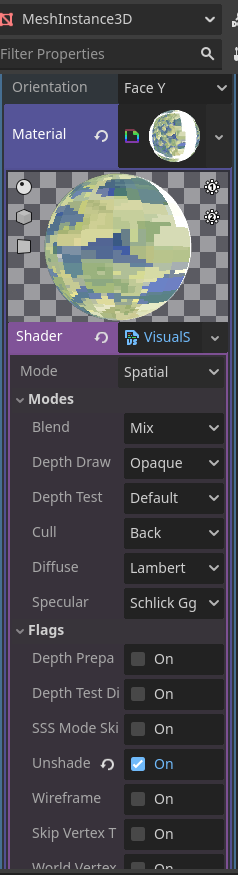
In case this is relevant: I made a mesh instance 3D with a quad mesh applied so I could add as many verts to a flat subdivision that I wanted (for testing purposes). I've also got the material combination left over from the multi-texture blending tutorial, which I've also applied a made-unique copy of the same material on the "next pass" setting of that material; both sides are set to cull their respective sides. This way I can have the same material splat mapped on either side of the quad, but splatted and painted differently as per the needs of the scene.

Also, I'm sure this will sound dumb but I'm not really sure how to combine unlit and splat mapping here? As you can see in this video, I have a mesh that is currently affected by light in the scene, and I want it unlit. But the tutorial for splat mapping just explains why we're using "original material." Why doesn't our original material in this example start out unlit? Is there a way to make it unlit before painting on it in the vertex shader add on? I know vaguely how to do it on a standard shadermaterial3D, but not really how to do it with these custom made shader materials.
Developer(+1)

Hey, before I answer you everything, can you please send me the model, material and texture you are using in the gif you attached? It could also be good to send the model Godot scene as well. Then I can investigate your first case of why the hard brush wasn't painting. 

I'm happy to. How do you prefer I send it to you?

Developer(+1)

No need anymore, thanks. I figured out from the GIF.

Developer (1 edit) (+1)

Hey,

I'll answer by numbers, so it's easier to follow:

  1. It's not possible to change the normals of a plane (this is not a limitation of the tool, it's just how 3D works, because the normals are all the same on a plane. If you create a plane on Blender and set Shade Flat or Shade Smooth you can see it doesn't make a difference).
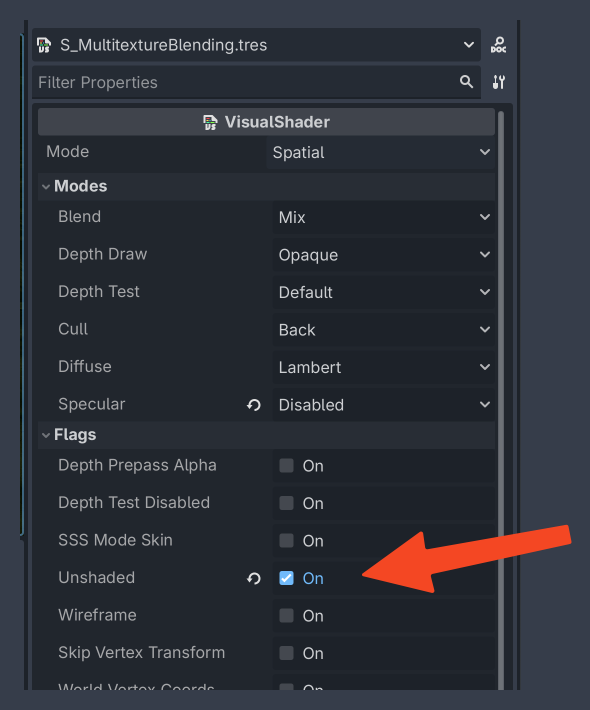
  2. "how to combine unlit and splat mapping here" - since you are painting in a custom material, you have to keep using "Original Material", otherwise you won't see your texture blending. In this case to have it unlit, you have to change the shader to Unlit. If you created the shader following the tutorial, it's a Visual Shader, so double click it and set to Unshaded:

(+1)

Thank you for both of these. I'm now scratching my chin trying to decide how to approach this problem... I might just put two flat planes with backface culling riiiight next to each other, facing opposite each other, and try to pass it off as double sided. I'm doing all this for a background prop that you might notice if you're swinging the camera around to deliberately look for it, but if you're just progressing through the scene, it shouldn't be noticeable. 

(1 edit) (+1)

One other question for you alfred, as I'm still getting used to using Godot and thinking about materials like this. How do I enable "Alpha scissor" transparency for the custom shader we made? I found "unshaded" and it's great, but I'm also trying to apply some fancy effects to some textures with transparency and I just can't seem to make it work right.


Developer

Scroll down here, there's a section about Alpha Scissor in visual shaders: https://danielilett.com/2024-02-06-tut8-1-godot-shader-intro/