Indie game storeFree gamesFun gamesHorror games
Game developmentAssetsComics
SalesBundles
Jobs
TagsGame Engines

Managing Variables in Decker [GUIDE]

A topic by Missooni created 10 days ago Views: 217 Replies: 9
Viewing posts 1 to 7
(6 edits) (+3)

Intro

I've noticed a  substantial amount of people wondering how variables are managed in Decker, so I thought it might be helpful to start a write-up about some of the patterns I've been using to create, store, and edit variables in both a global and local environment.

For those just starting out - don't be too intimidated by the length of these scripts; Most have been made longer with intentional spacing / comments.  It's always been a difficult task to write things that are both concise and informative, but I'll do my best!

Creating Global Variables

If you're already familiar with Lil operations, you'll know that It's possible to store a string within a field, and access it locally via 'fieldname.text' or globally with the exact path: 'cardname.widgets.fieldname.text'. In Decker, it's standard practice to store data within widgets using their .attributes. However, if you're working on a larger project with a lot of variables, it might be helpful to keep everything within a single widget and make sure it can be accessed from anywhere using a name of your choice. Now, how can we set that up?

First, create a grid widget on any card. I'll be using 'grid1' on the 'home' card, populated with a few dummy variables:

{"fruits":[{0:"apple",1:"orange"}],"cats":[{0:"siamese",1:"tabby",2:"calico"}],"flag":[1]}
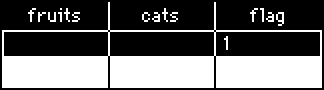

Next, we'll visit the deck script to add this line:

_G:home.widgets.grid1.value

In this context, '_G' is the name of the variable we're assigning our grid value to - any space-less string will work here.
Now from anywhere in our deck, we can type '_G.fruits' into the Listener and get '({0:"apple",1:"orange"})'. However, this arrangement isn't ideal, because these variables are returning as a (list), indicated by the surrounding parenthesis. Since this affects scope, we'd need to type '_G.fruits[0][0]' instead of '_G.fruits[0]' to return "apple", and there's currently no way to change these values unless we edit the grid directly.

Luckily, we aren't done yet; In the following section I'll show you how to create get[] and set[] functions, to serve as wrappers for viewing and adding new data.

'get' and 'set' Functions

Let's return to the deck script and redefine '_G' so that it refers to the grid itself, instead of the value it stores:

_G:home.widgets.grid1

In the same area, we'll start adding a few lines of code. The get[] function will return the value of the variable we look up, using the _G namespace to refer to the grid widget we populated earlier, and set[] will assign a value to a variable within a given table.

Here's a small setup for both functions, with a few comments (starting with #) for clarity:

# usage: get[_G "varname"] 
on get x y do 
    x.value[y][0]
    # return the variable y from table x
end
# get[_G "flag"] will return 1
# usage: set[_G "varname" value]
on set x y z do
    r: cols x.value
    # create a variable called r, comprised of the column data from x
    x.value: table r[y]:z
    # set the value of x to a new table where the variable y is changed to reference z, and return it.
end

Assuming we don't want to bloat up our global table with unused values, we can add another function to the end of set[] to cull nil values:

on set x y z do  r:cols x.value  x.value:table r[y]:z  cullnil[x] end
# the set[] function from above, condensed into a single line, with 'cullnil[x]' added
on cullnil x do
    r:() dict ()
    # create a new empty dictionary called r
    each v k in cols x.value
    # cycle through entries in table x, by column
    
        # copy all existing variables from x to r
        if v[0]
            r[k]:v
        end
  
    end
    # return r as a table
    table r
end

If you've followed along this far, try setting a variable using the Listener, and retrieve it using get[]! If you aren't sure how you can interact with something, the 'typeof' operator will tell you what type of data it is. Given the context of our dummy variables, 'get[_G "cats"][1]' will return "tabby", because it's a numbered dictionary. If you want to add an entry to that dictionary, we'd need to retrieve and edit the variable, like so:

d:get[_G "cats"]
d[count d]:"tuxedo"
set[_G "cats" d]

We've now created a place to store our global variables, and the functions needed to access them, but a few cases still might find 'global' variables unsuitable. What if you have identically named variables that need to be unique across cards? In that case, it might be wise to limit the scope of your data by...

Going Local!

Grids can also store data on a per-card basis, if they share a name. The deck script will run every time a card is visited, so the following line will assign '_v' to the grid widget named 'vars', if it exists.

_v:deck.card.widgets["vars"]

The get[] and set[] functions work as they would with the global variable table, except by using '_v' instead of '_G'. If the grid doesn't exist, isn't named "vars" or the variable hasn't been defined, get[] will return nil.
Developer(+2)

Declaring deck-level "shortcuts" to widgets and helper functions are definitely useful techniques!

For a simple key-value store, one alternative to using a grid widget is using the ".data" attribute of a field widget, which can directly represent numbers, strings, lists, or dictionaries, among other things.

Here are some equivalents to your grid-based helper functions:

on get x k do x.data[k] end
on set x k v do x.data:x.data[k]:v end

Used like so:

set[field1 "alpha" 5]
set[field1 "beta" 2]
get[field1 "alpha"]  # 5

For the specialized case of games that just need to keep track of a bunch of global boolean "game flags", you could make something like this:

flags:somecard.widgets.some_storage_field
on get   k do 0+flags.data[k] end
on set   k do flags.data:flags.data[k]:1 end
on clear k do flags.data:k drop flags.data end

Since these functions only take a single string argument, we can use an extra-concise syntax for calling them:

set["beta"]  # this works
set.alpha    # this also works!
get.alpha    # 1
clear.alpha
get.alpha    # 0

Thanks for helping share what you've learned, Missooni!

(+1)

I had no idea how to use the .data attribute of a field when writing this, so I'll get acquainted with that and remake this guide altogether. Thanks for the feedback.

(25 edits) (+2)

I’ll share 3 patterns that I find useful in my work, because there’s always more than one way to do things in Decker.

As explained above by Missooni and Internet Janitor, a grid as a key-value store is what most people are going to want or need. It’s like a Python/Lua dictionary, JSON, or even a SQLite database. So, it covers most use cases anyone will want.

The following three examples below are some alternatives that may be useful.

Pattern 1

Many times, I’ll have an artibtary field that I’ll name, and refer to it across cards like deck.cards[card_name].widgets[widget_name].value.

deck.cards["card1"].widgets["field1"].value: "my_value"
deck.cards["card2"].widgets["field1"].value: deck.cards["card1"].widgets["field1"].value

That gets pretty verbose quickly, so I usually have a helper function:

# get["card1" "field1" "value"] <- here "value" refers to the key/attribute on the object. it's 
# usually named .value - so:
# cards["card1"].widgets["field1"].value
# becomes
# get["card1" "field1" "value"]
get: on _ c w k do
  cards[c].widgets[w][k]
end
# set["card1" "field1" "value" "my_value"]
# same rules as get, where the 3rd argument is the key on the decker widget and the 4th is the value
# to set, so:
# cards["card1"].widgets["field1"].value: "my_value"
# becomes
# set["card1" "field1" "value" "my_value"]
set: on _ c w k v do
  cards[c].widgets[w][k]:v
end

which results in:

set["card1" "field1" "value" "my_value"]
set["card2" "field1" "value" get["card1" "field1" "value"]]

Or actually, most of the time, I’ll put the helper functions inside of a module, so the code is defined once and then I move it between my decks via the File->Resources menu:

# lib.get[deck "card1" "field1" "value"]
# when it's a module function you have to pass a deck reference,
# because the module doesn't have access to a deck otherwise
# so it's like before, except where:
# cards["card1"].widgets["field1"].value
# was
# get["card1" "field1" "value"]
# it now becomes
# lib.get[deck "card1" "field1" "value"]
lib.get: on _ d c w k do
  d.cards[c].widgets[w][k]
end
# lib.set[deck "card1" "field1" "value" "my_value"]
# similar rules to set and lib.get, except where:
# cards["card1"].widgets["field1"].value: "my_value"
# was
# set["card1" "field1" "value" "my_value"]
# it now becomes
# lib.set[deck "card1" "field1" "value" "my_value"]
lib.set: on _ d c w k v do
  d.cards[c].widgets[w][k]:v
end

then the previous example becomes (assuming we have a module named lib):

lib.set[deck "card1" "field1" "value" "my_value"]
lib.set[deck "card2" "field1" "value" lib.get[deck "card1" "field1" "value"]]

The benefit to doing it this way is imagine if we have structured card, with known names, and similar layouts: then it becomes easy to iterate over them. For example, say I have a deck to play a tabletop RPG and there are player characters statistics on each card. Then, imagine if I am the GM and want to “heal the players to full” with a button:

on click do
  # heal the players to full, if "health" is a widget on each card:
  # and "max_health" is one, too
  each p in "Alice","Bob","Charlie","Doug" # this could be a variable stored somewhere
    cards[p].widgets["health"].text: cards[p].widgets["max_health"].text
    # which can also be written as cards[p].health.text, or cards[p].widgets["health"]["text"], etc.
  end
end

That’s why I’ll manage data and state like this a lot of times, because the data I want to keep track of is spread across cards. But, each card is structured, so I know how to “address” the individual values on each card. It’s a lot like doing a JSON query or a path in a DOM. Once we know the “path” to the data that we are looking for, it’s easy to program repeatable patterns.

I use this pattern a lot in my web Decker+WebXDC+danger.js decks, because I only need to synchronize a small portion of the total data in a deck.

(10 edits) (+1)

Pattern 2

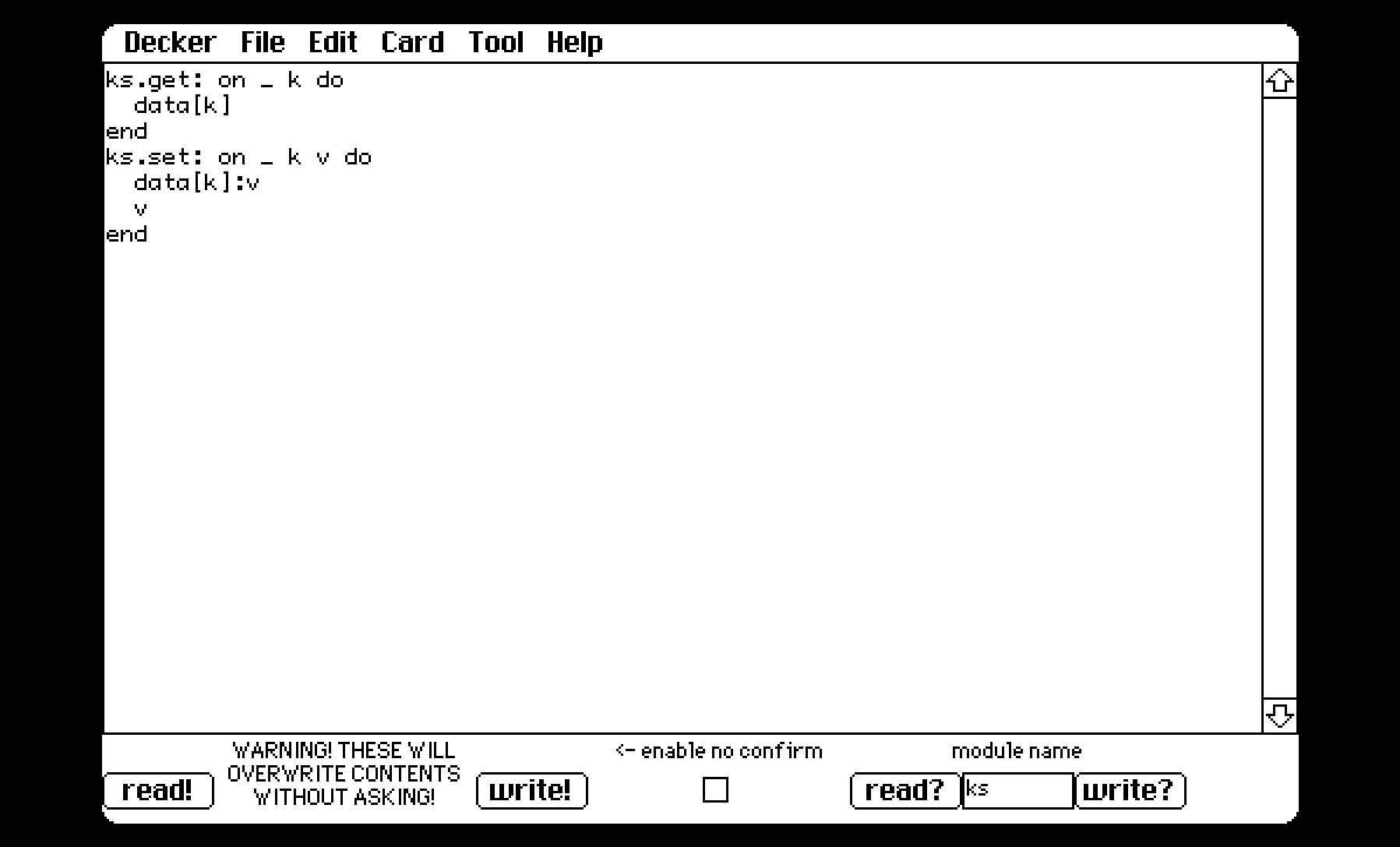
The another way is to use a module keystore. It’s good for “truly global” values. The previous example I showed is good for data that are spread across cards and we also know the card structure to get to the individual datum.

The following example really is an alternative to the grid method explained above by Missooni and Internet Janitor. I wouldn’t necessarily adopt the following if their pattern suits your needs.

If we have a module like this:

ks.get: on _ k do
  data[k]
end
ks.set: on _ k v do
  data[k]:v
  v
end

then we can do things like (assuming the module is named ks):

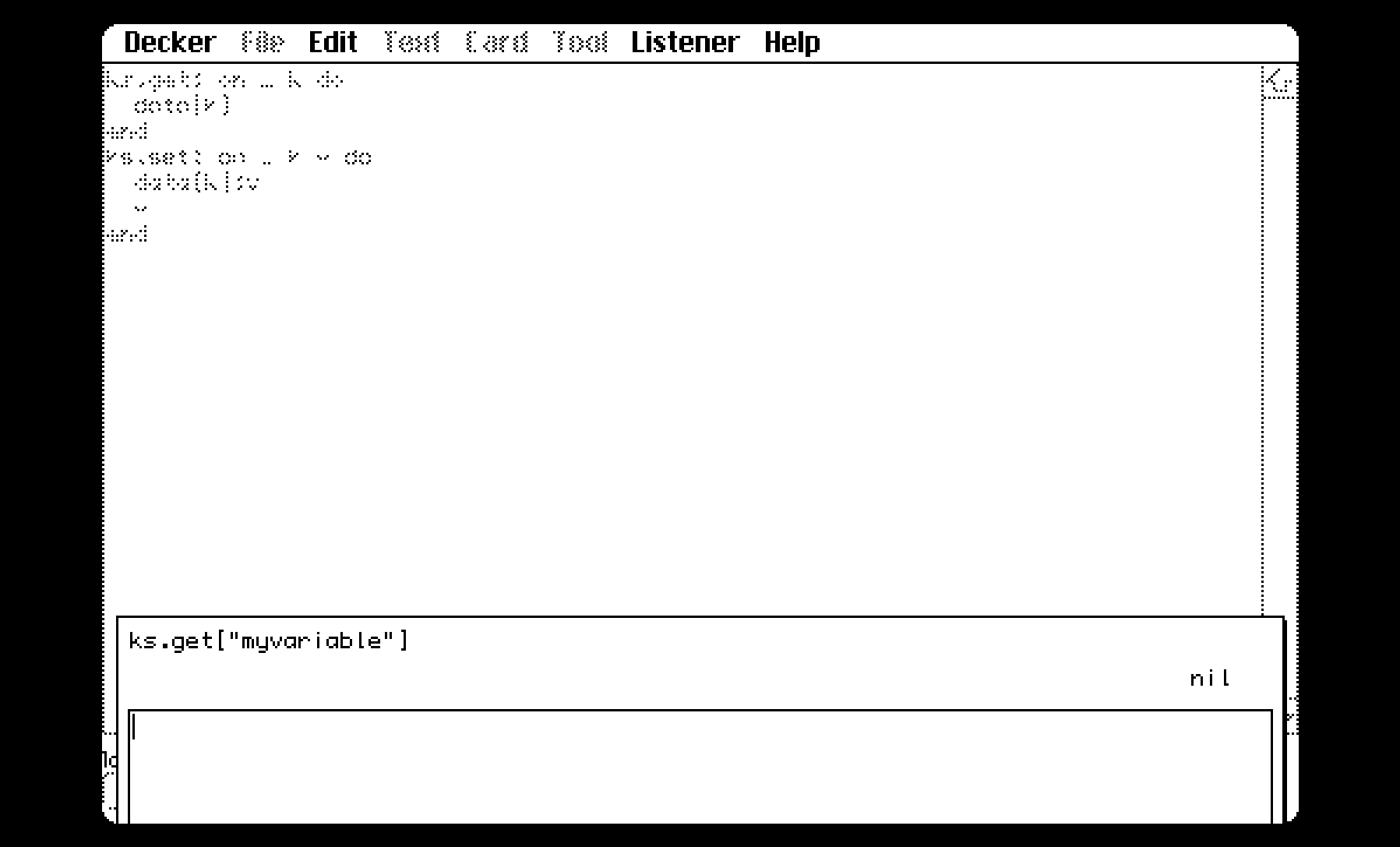
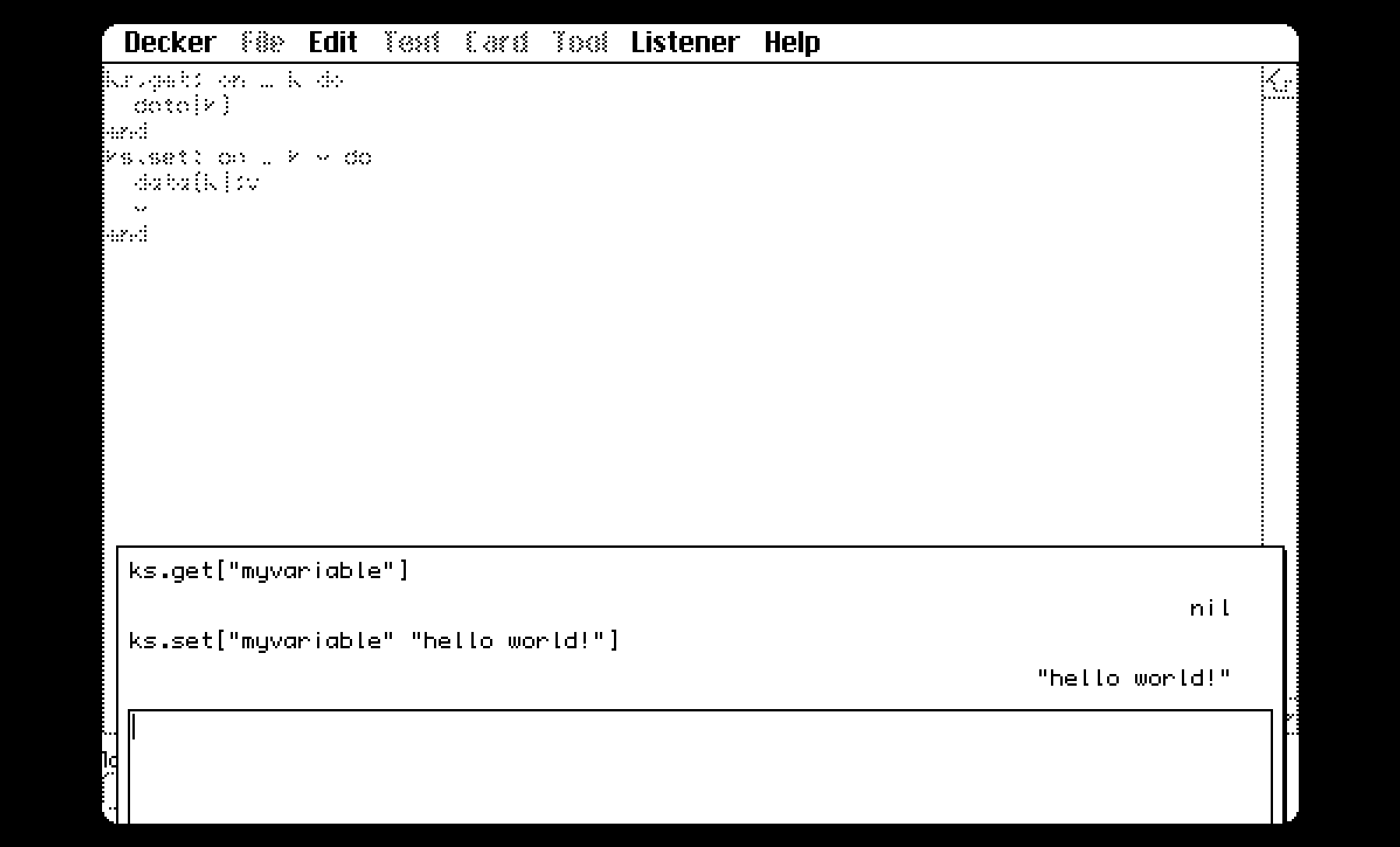
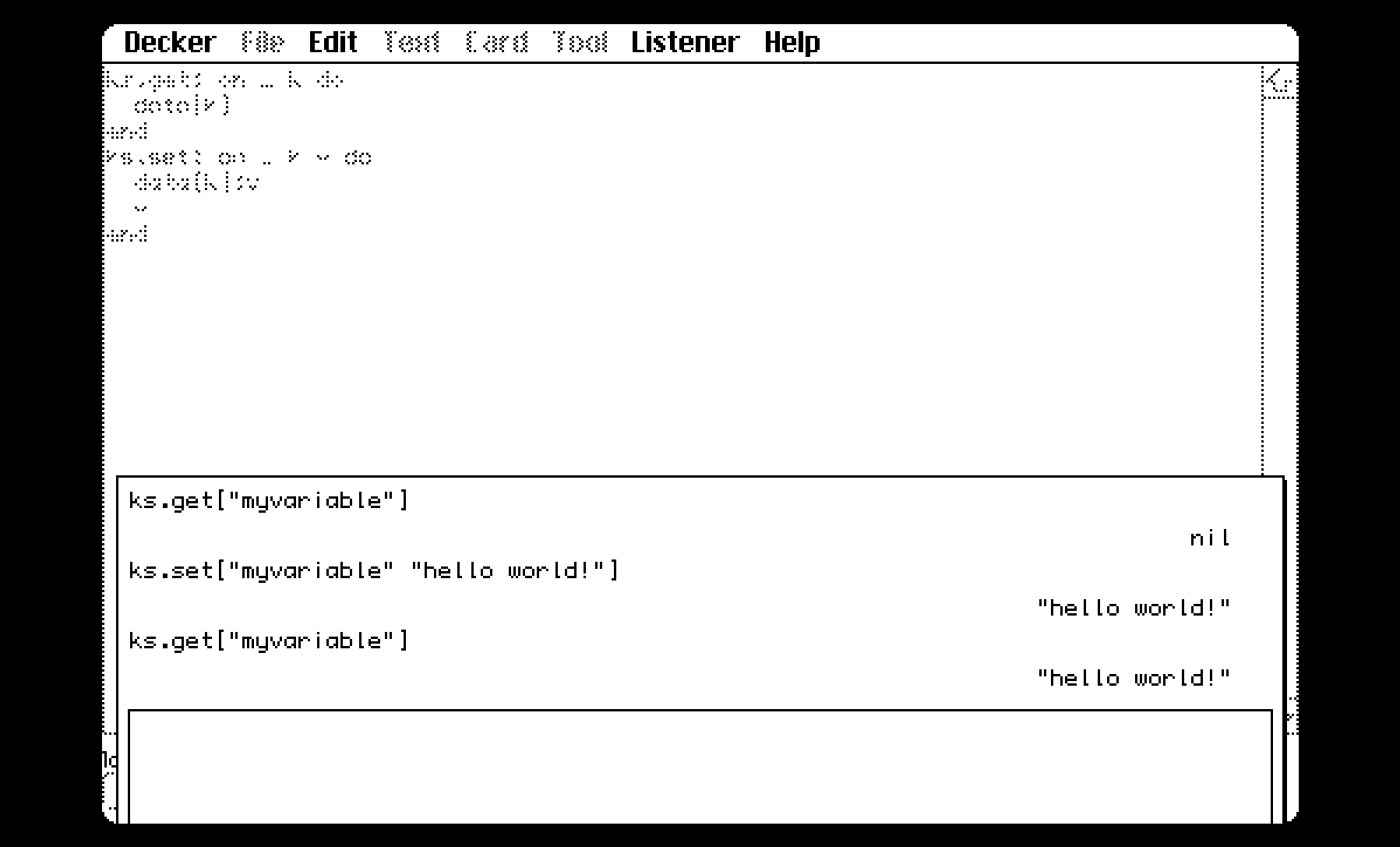
ks.set["this" "my_value"]
ks.set["that" ks.get["this"]]

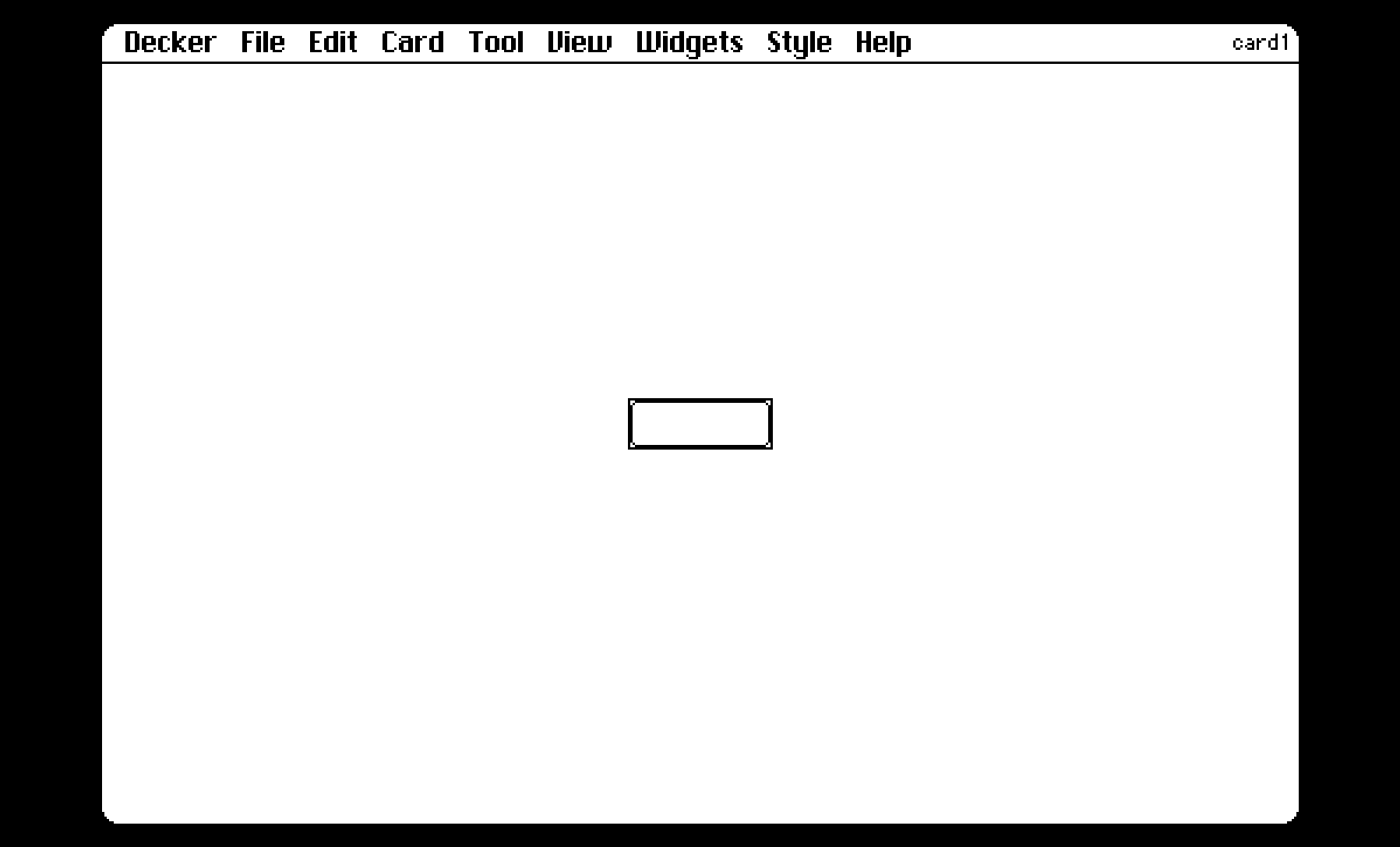
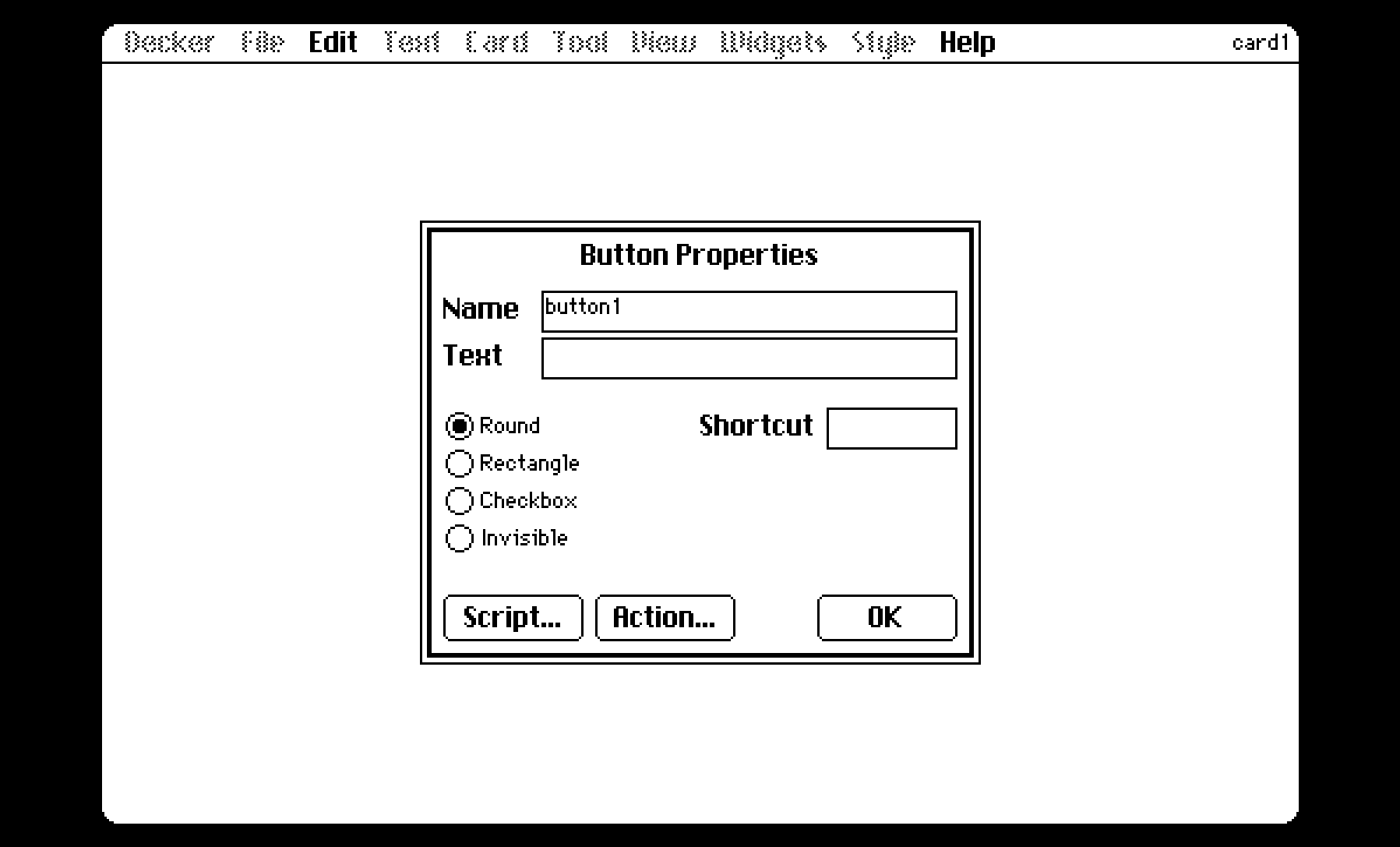
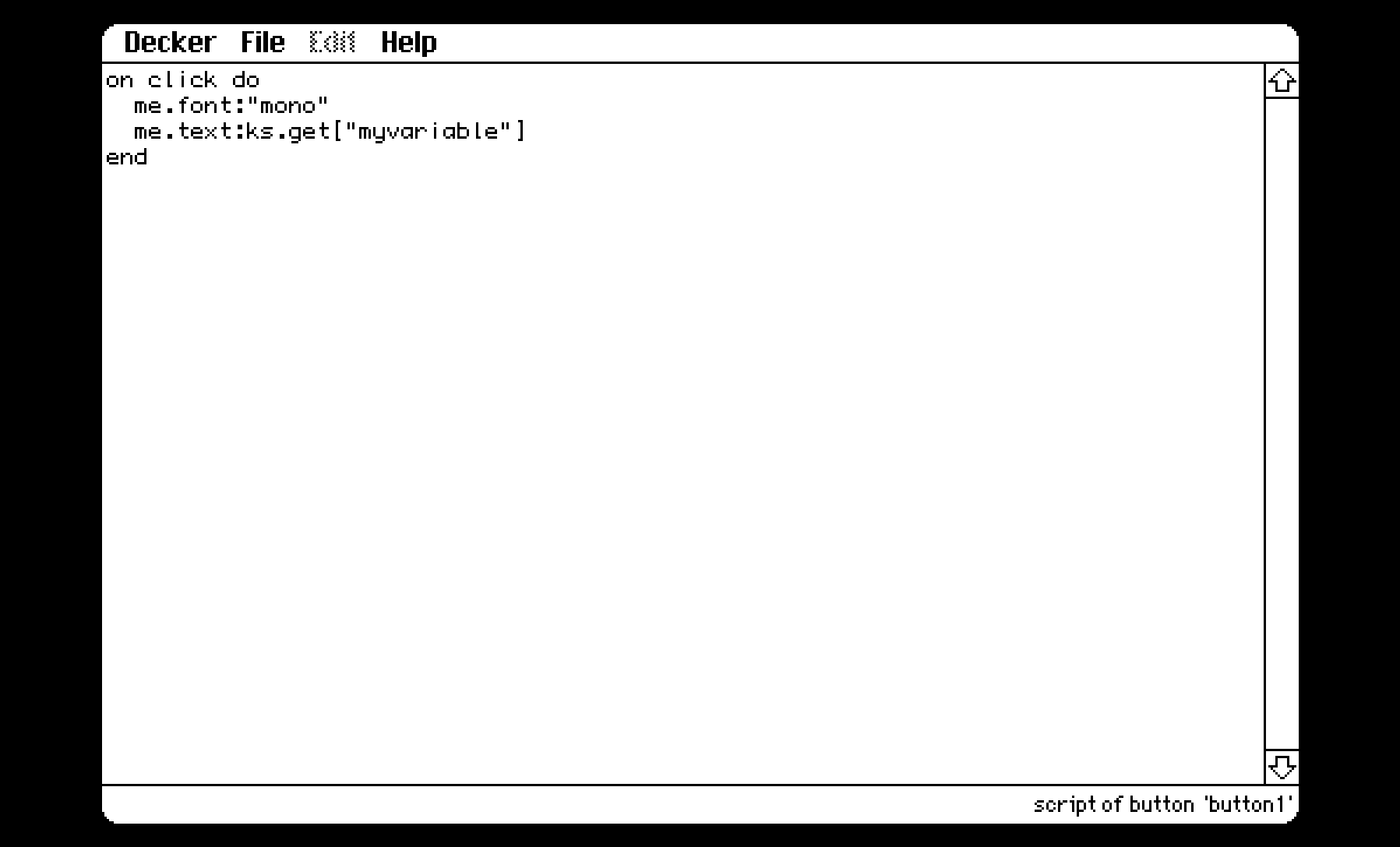
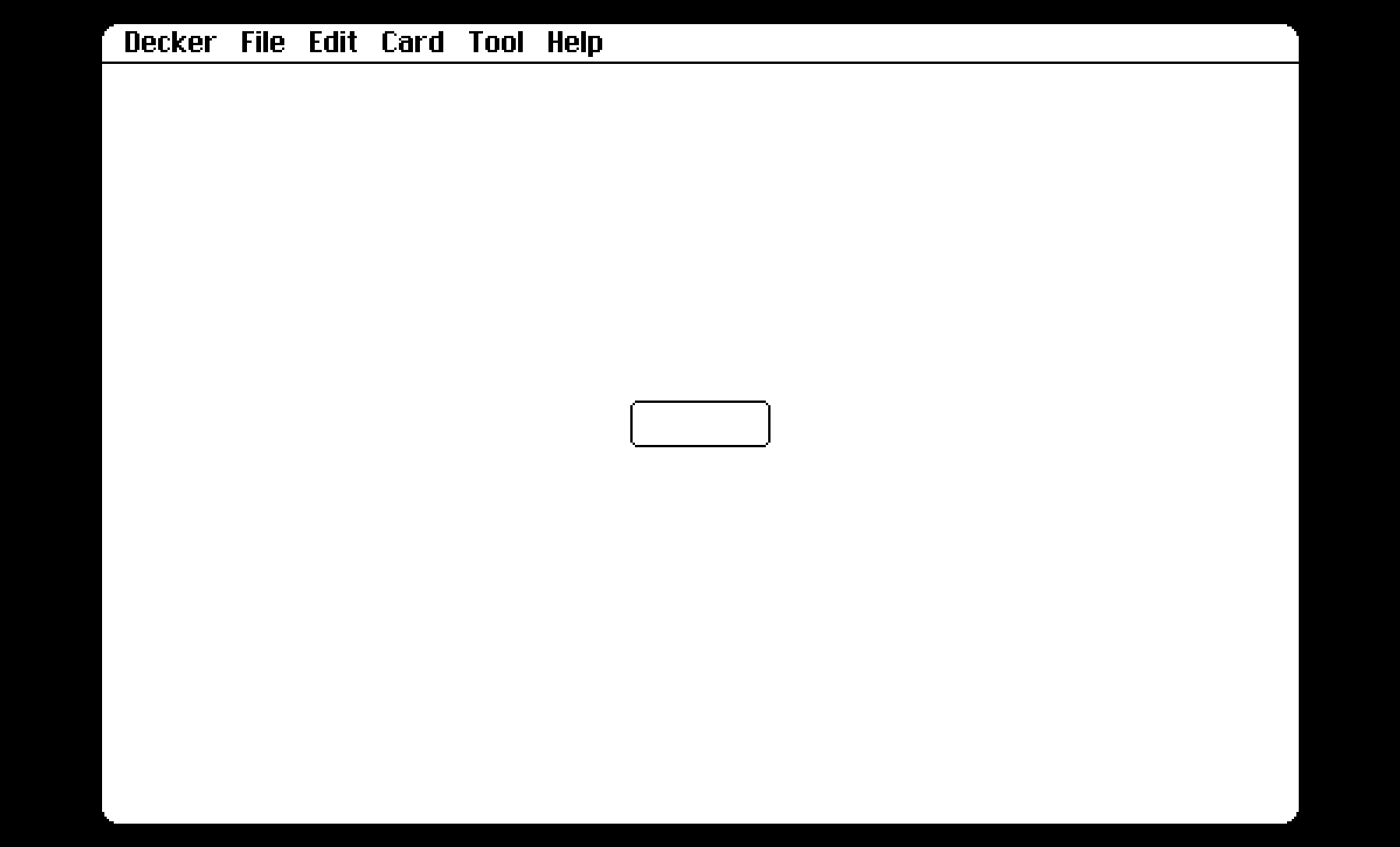
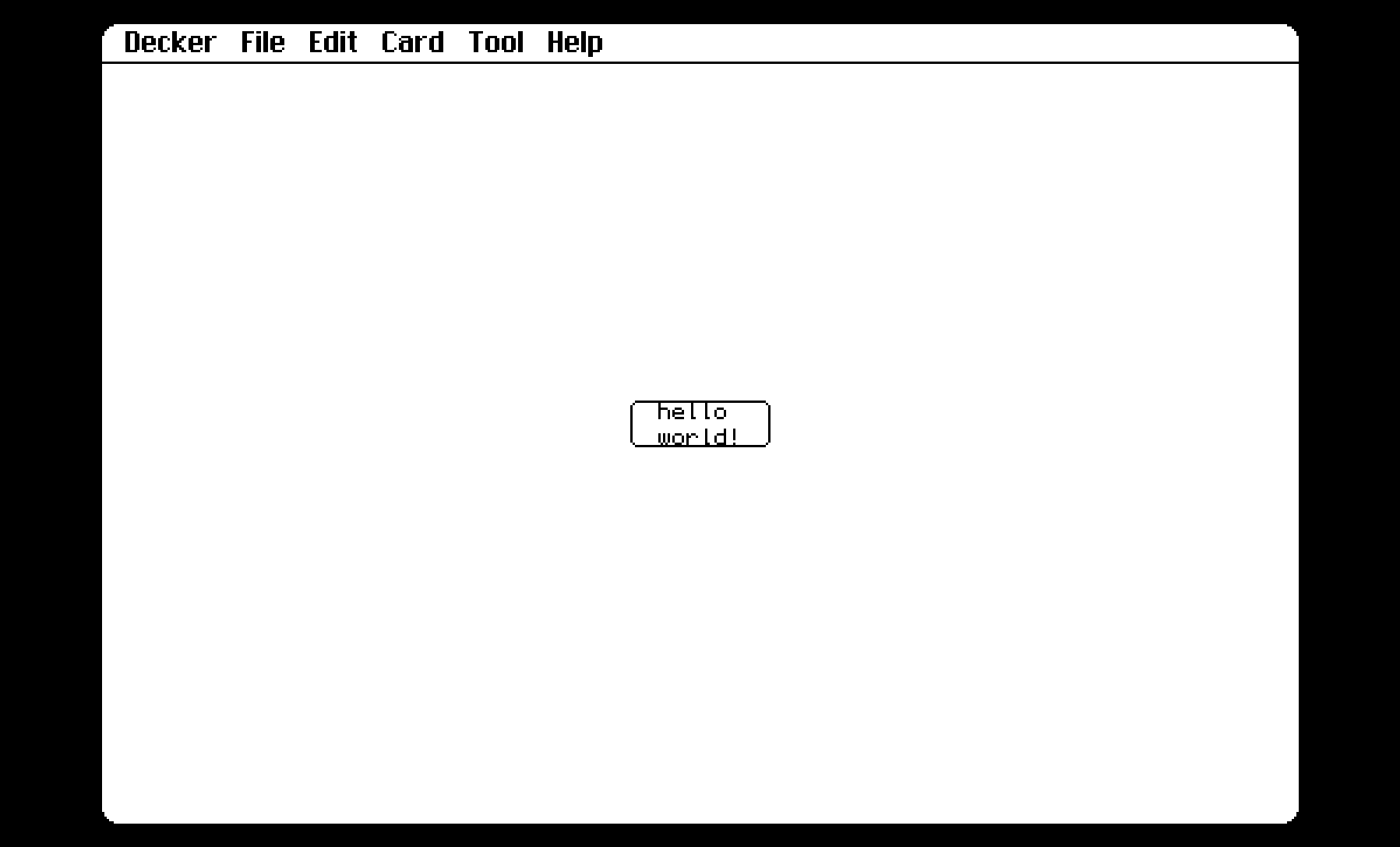
Here’s a series of screenshots of setting a variable and then naming a button on another card with that variable’s value:

Here’s a deck with the module, which can be copied via the File->Resources menu item or we can paste directly into a .deck file (copy everything from (and including) the {module:ks} line to the end into a another deck):

{deck}
version:1
card:0
size:[512,342]
name:"ks"
author:"woodring"

{card:card1}

{module:ks}
{script}
ks.get: on _ k do
  data[k]
end
ks.set: on _ k v do
  data[k]:v
  v
end
{end}
(12 edits) (+1)

Pattern 3

This a bit more advanced, but if you’re already delving into contraptions, it isn’t too bad to figure out.

The final way that I’ll store and manage data is to add an “internal” widget to a contraption and then expose setting and getting the widget’s data via a contraption attribute, whether it’s a field, grid, checkbox, etc. I’ll usually “hide” the widget that was added to the contraption off of its visible space.

The main benefit to storing “state” (our values, variables, data, etc.) in a contraption is (1) if we have some complex logic that is part of the a contraption itself manipluating the data (2) we also want access to that data “outside” of the contraption in another card and (3) we expect to have multiple instances of those contraptions and data.

For an example, if we have a “player contraption” that stores its health and we expect to have multiple players and there’s a bit of programming we added to make the player look injured: while we could store each individual player’s health on the outside in a global variable, hp_player1, hp_player2, hp_player3…

What if instead we have a contraption called player, with multiple copies of it named: player1, player2, player3. Then, the player contraption has a field that stores the player health in a widget named hp. And, we also allow access to their hp from the outside, per player, like player1.hp, player2.hp, player3.hp, etc.?

So, what we might say is here is this a “separation of concerns” or “encapsulation” or “modularity.” The data are “inside” each of the contraptions, where there might be lot of programming related to updating the appearance of a player (a canvas image showing that the character is injured, which is part of the contraption). But, we might also need the player’s health on the “outside,” too, for when we need to update a player’s health because they got hurt, player1.hp: player1.hp - monster1.harm

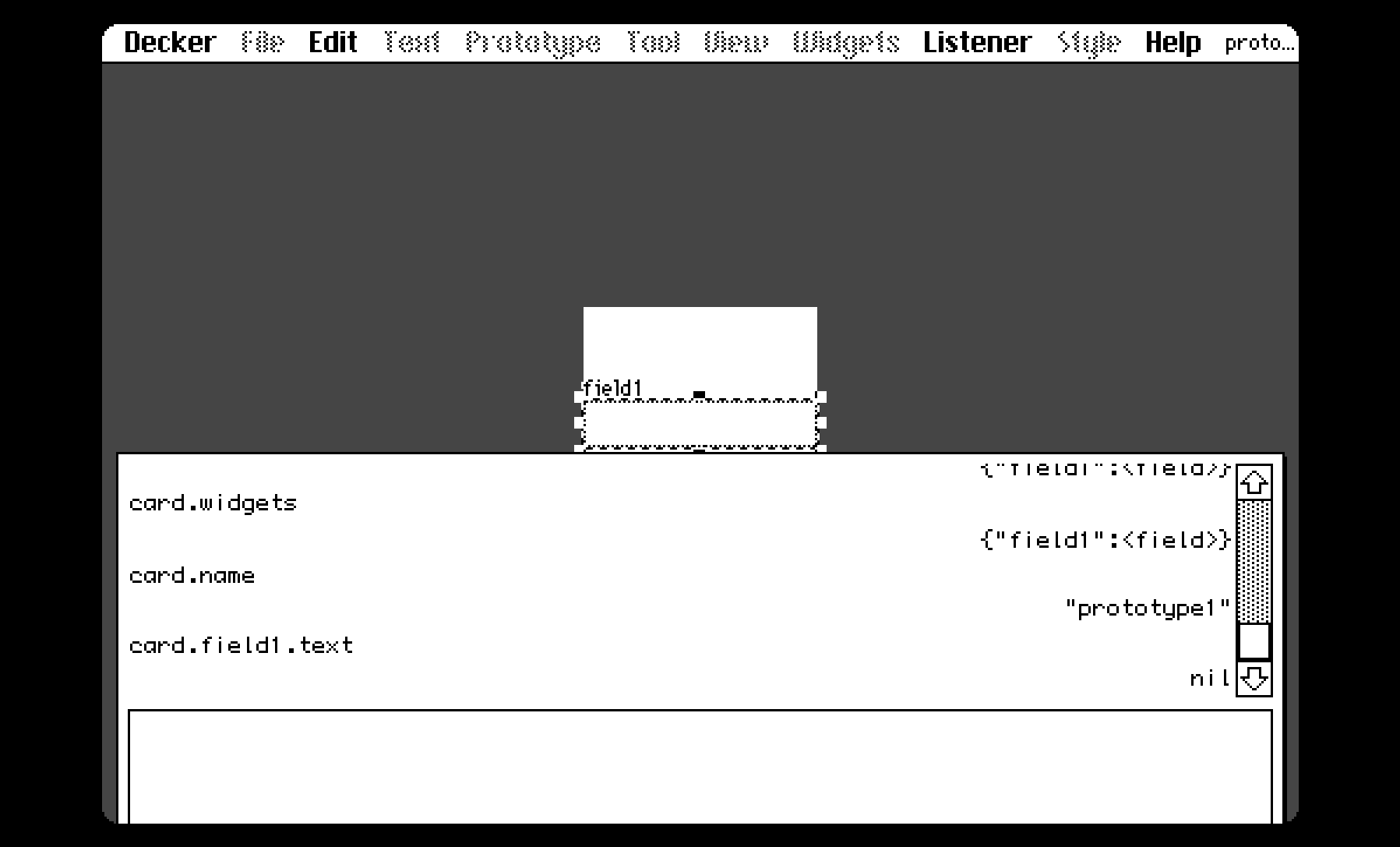
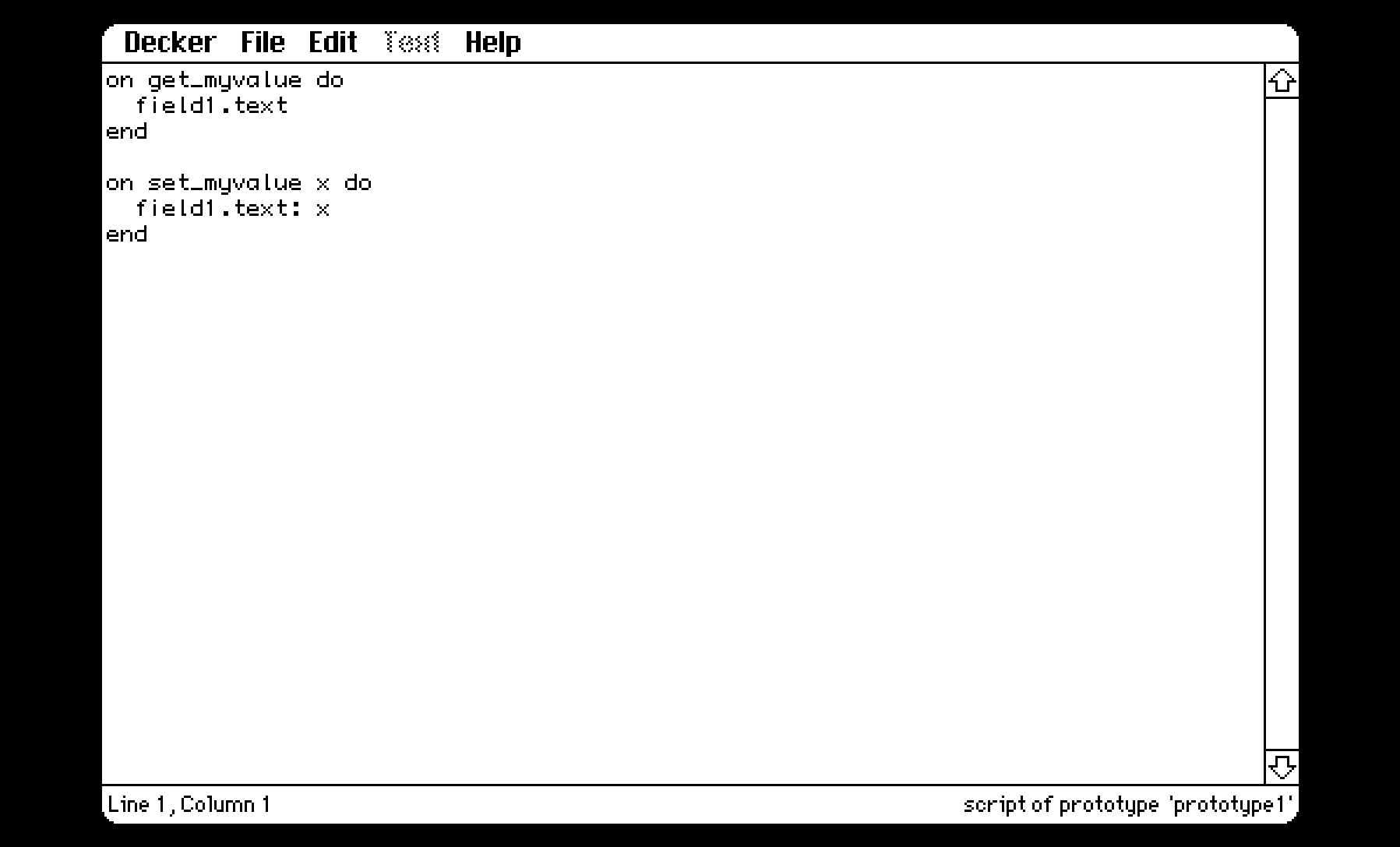
Here’s an example of a field inside of a contraption and having access to the field’s data from the outside. Assuming we have an internal field named “field1” inside of a contraption “prototype1”, we put this in the prototype’s (menu Prototype->Script…) script:

on get_myvalue do 
  field1.text
end

on set_myvalue x do
  field1.text: x
end

Then under the menu Prototype->Attributes, we add a new property named “myvalue” with type “text” (assuming we’re using the field for simple text storage via .text). The attribute name must match the “set_” and “get_” methods on the contraption script, i.e., “get_myvalue” and “set_myvalue”.

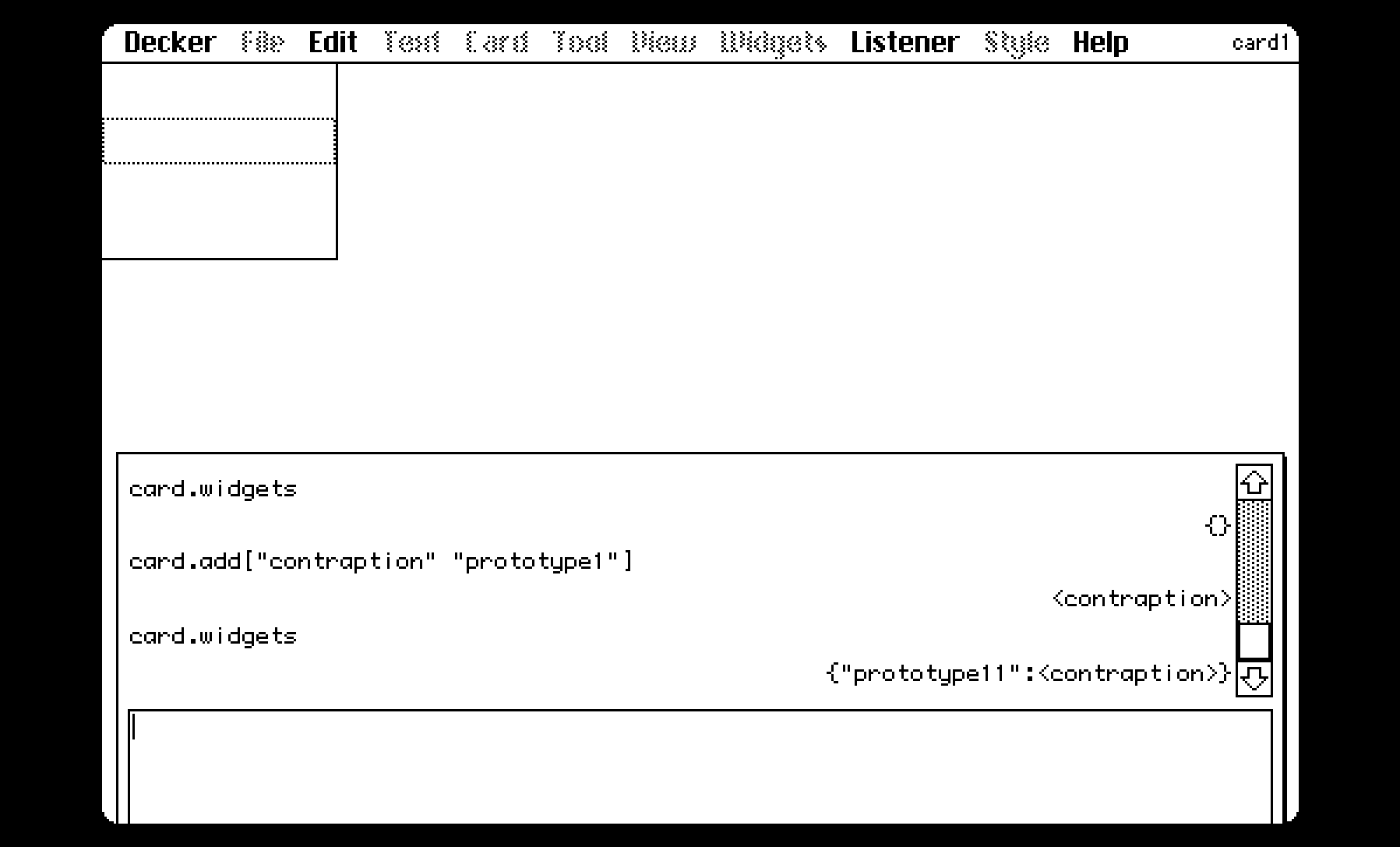
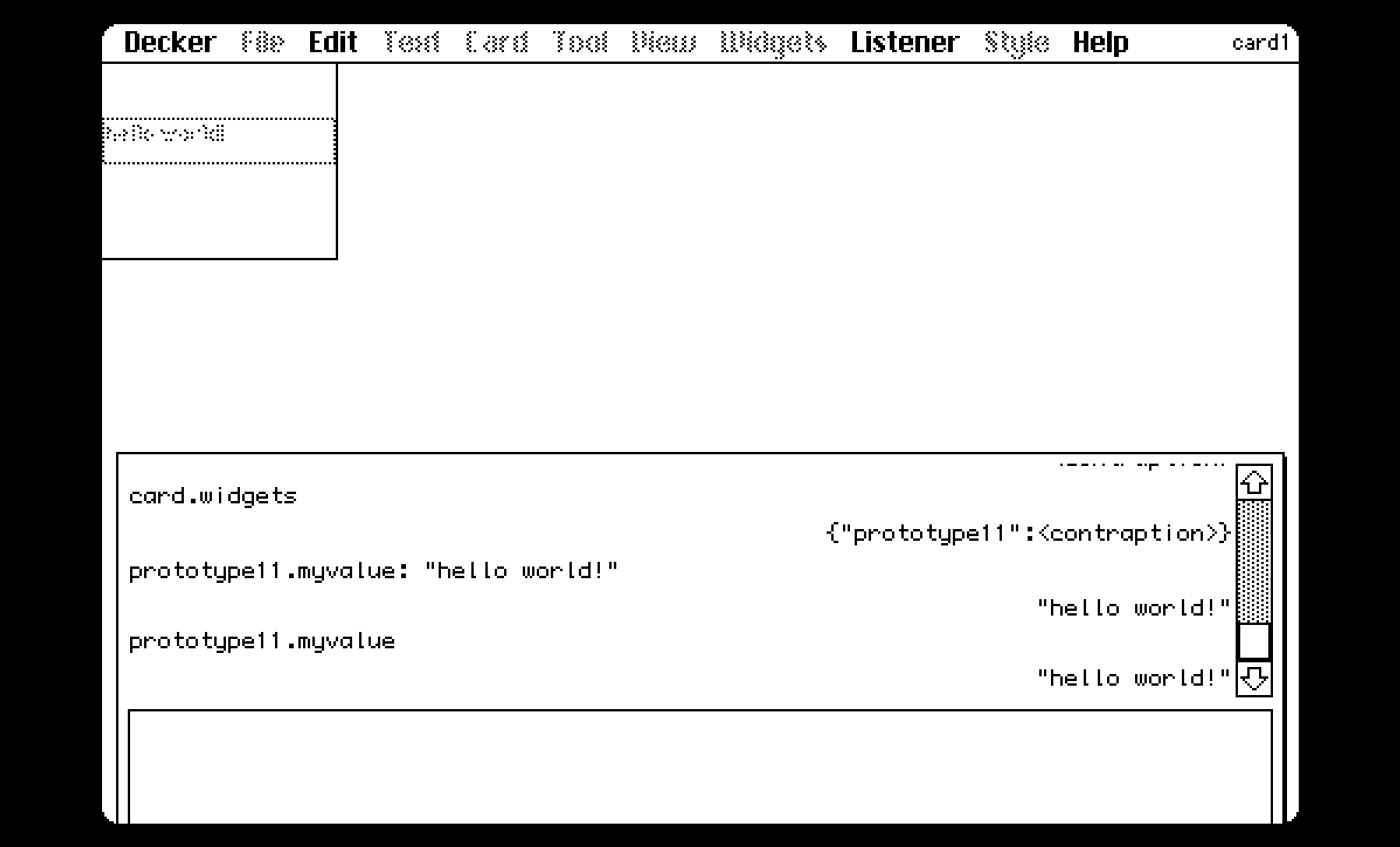
When we instantiate a contraption of “prototype1” named “prototype11” we’ll be able to do this:

prototype11.myvalue: "hello world!"
show[prototype11.myvalue] # console shows "hello world!"

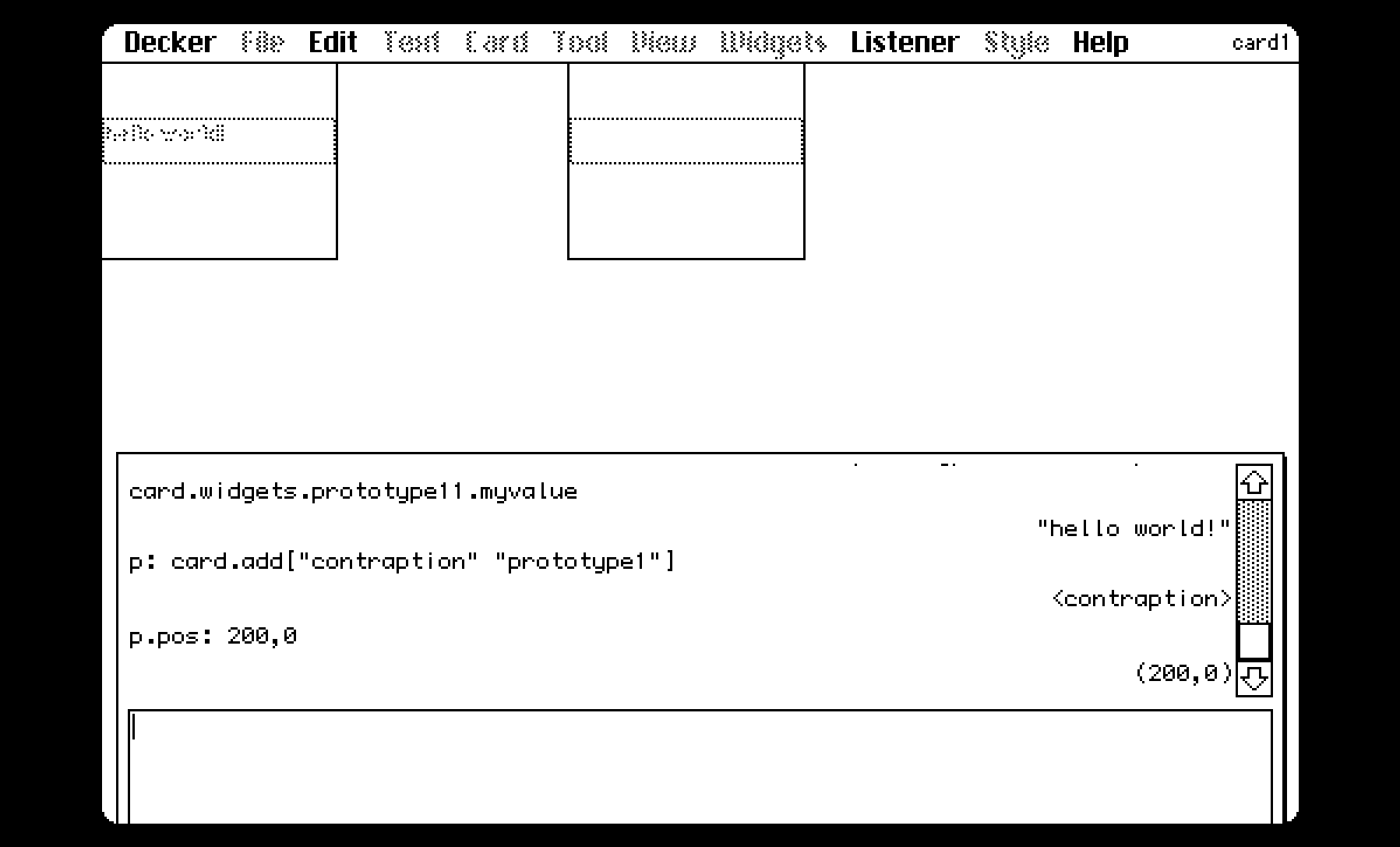
and then add another one:

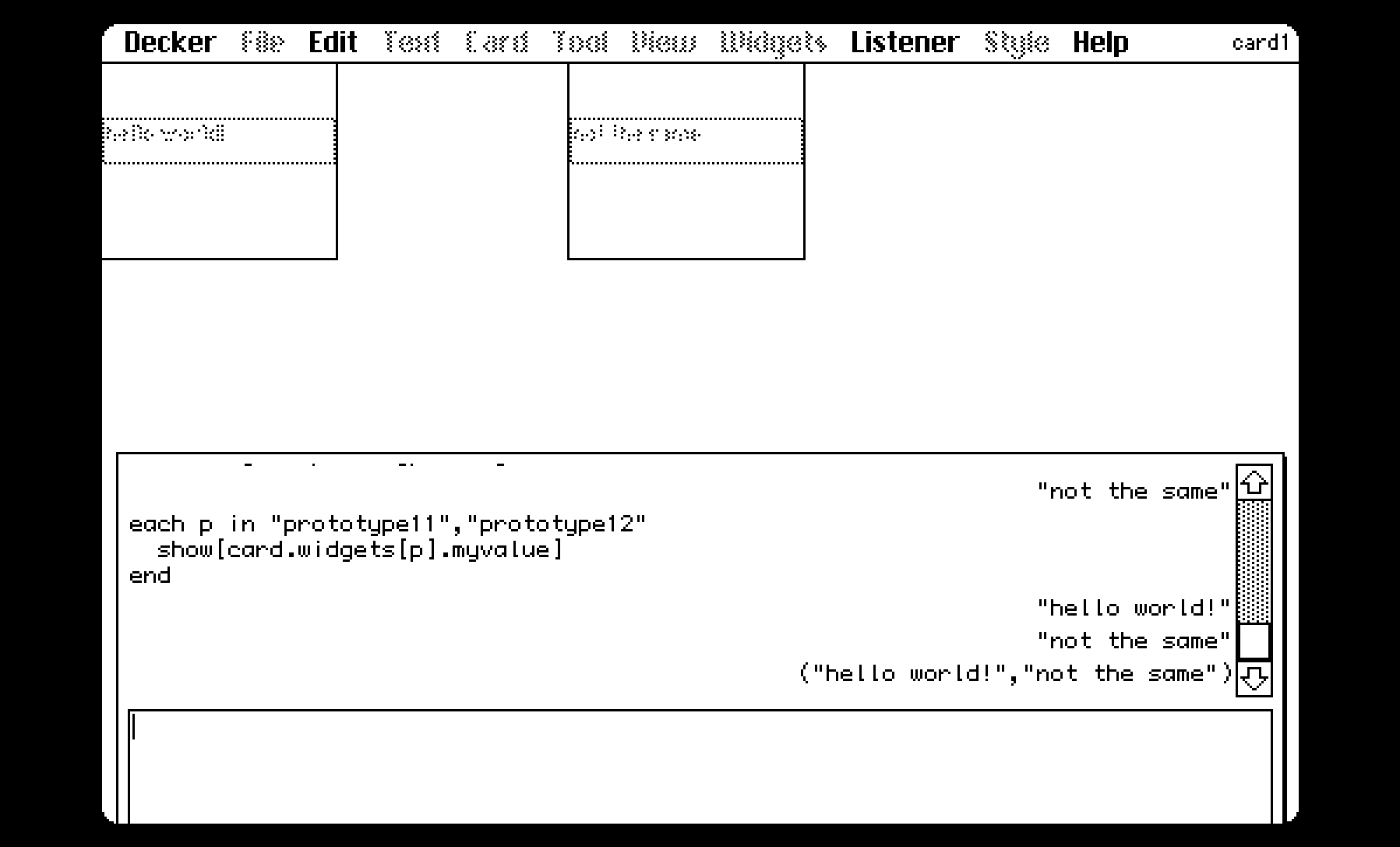
prototype12.myvalue: "not the same"
show[prototype12.myvalue] # console shows "not the same"

Where both contraptions have their own value of myvalue as it appears from the outside, but inside the contraption it is called field1.text. Their field1.text are separate “instances”. While they appear to be the same variable, they are not. They’re separate copies. Kind of like how prototype11 and prototype12 are similar (they inherit the same scripts), they each have their own data that the scripts operate on, making it different.

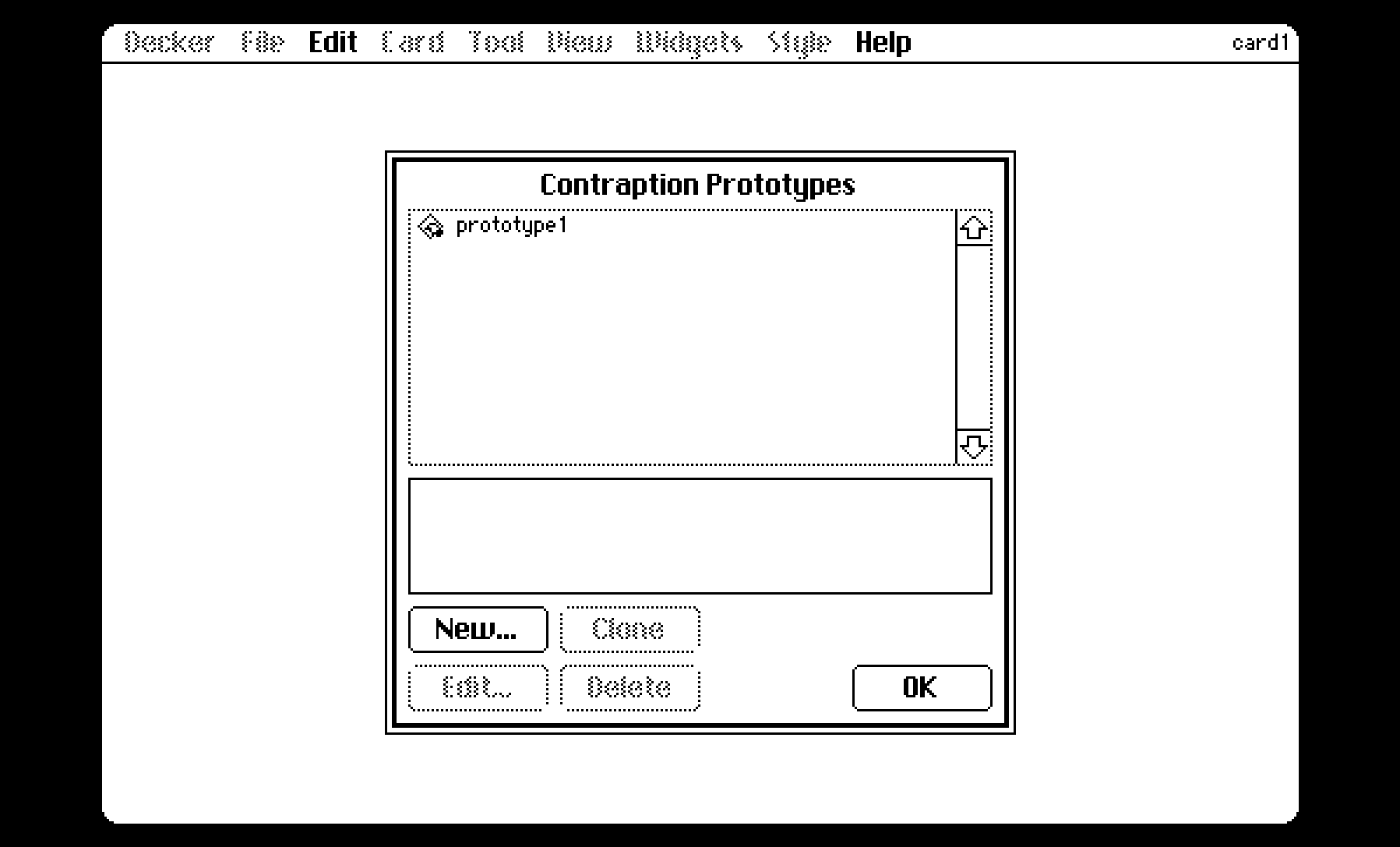
Here’s some screenshots showing this:

there’s a missing screenshot that should go here that shows opening the Prototype->Attribute menu and adding a new attribute called myvalue

(+3)

Apologies if I intruded, I wasn’t trying to take over.

I thought it would be useful to explain the ones that I use in my own work. This really goes to show how there’s always multiple ways of doing things in Decker. There never is just one way.

(+2)

No offense taken - I'm very grateful for what you've contributed! Since this post hasn't been up for very long, I considered taking it down to begin a more succinct rewrite, but I suppose the better documented this is, the more likely people will be able to find a pattern that works -exactly- how they expect it to.

(+2)

It's so useful to see how to use a grid for this stuff! I've known it should be possible but I never had a project that required it so I've never gone through the steps of it myself. And now there's a helpful guide!

Thank you so much for writing this up! Seeing more of the ways that people work in Decker is always a gift to the community.

(Just one of your many gifts to us, Missooni!)

(+2)

Thank you ahmwma! Your kind words are a gift in itself. ^^