

hey guys I wanna ask about how u can Generate picture of Anna and other characters from starmaker using Local AI models
I say a brief guide somewhere but can anyone give a somewhat detailed guide for the setup and prompting part
I would be much appreciated .....
3 days ago(+3)
Hey! I can drop a somewhat clean setup guide for you right here. I use ComfyUI Desktop, and on my setup (RTX 4090) it takes like 2-3 seconds to generate an image. Just keep in mind you'll need a decent GPU with at least 8GB to 12GB of VRAM for this to run smoothly.
I'm kinda new to this so others might have better alternatives, but at least this is working extremely well for me.
1. Where to get the files
Go to civitai.red (make sure it’s the .red domain because that's the one that allows NSFW). Search for starmaker story and click on the Starmaker Story Style - Anima page.
You will see a showcase image with Himari. Click on that image (or any other image you like there) and look at the right side of the screen. It will show you the exact Prompt, settings (Steps, Sampler, etc.), and the resources used to make it.
2. Downloading & placing the files in ComfyUI
You need to download the resources listed there and put them in the right folders:
- Main Model: Download WAI-ANIMA (v1.0). Put it in: Comfy-Desktop\ComfyUI-Shared\models\checkpoints
- Required Components for WAI-ANIMA: On the WAI-ANIMA page, look to the right and you'll see it requires a specific VAE and Text Encoder to work. Download both:
- Qwen Image VAE -> Put it in: Comfy-Desktop\ComfyUI-Shared\models\vae
- qwen_3_06b_base.safetensors (Text Encoder) -> Put it in: Comfy-Desktop\ComfyUI-Shared\models\clip (or text_encoders).
- LoRAs: Download Anima Turbo LoRA (v0.2) and Starmaker Story Style - Anima. Put both in: Comfy-Desktop\ComfyUI-Shared\models\loras
3. Setting up the Workflow
Instead of wasting hours trying to learn how ComfyUI nodes work from scratch, do this:
A) Take whichever photo you like from Civitai, drag and drop it straight into Comfy Desktop and boom, it will load the workflow for you. Warning: people's workflows can be a huge mess and ask you to install a bunch of extensions. So I recommend doing B instead:
B) Ask an AI to make a simple (but really effective) workflow for you, or just use mine! I'll reply to this comment with my JSON code below. Just make a new .txt file with notepad, paste the code inside, change the file extension from .txt to .json, and drag and drop that .json file into Comfy Desktop. (Just make sure to click the nodes and select the files you downloaded).
3 days ago(+2)
{
"last_node_id": 11,
"last_link_id": 13,
"nodes": [
{
"id": 1,
"type": "UNETLoader",
"pos": [40, 80],
"size": [320, 90],
"color": "#322",
"bgcolor": "#533",
"title": "Image Model (WaiAnima)",
"outputs": [{"name": "MODEL", "type": "MODEL", "links": [1], "slot_index": 0}],
"widgets_values": ["waiANIMA_v10Base10.safetensors", "default"]
},
{
"id": 2,
"type": "CLIPLoader",
"pos": [40, 210],
"size": [320, 90],
"color": "#332",
"bgcolor": "#553",
"title": "Text Encoder",
"outputs": [{"name": "CLIP", "type": "CLIP", "links": [2], "slot_index": 0}],
"widgets_values": ["waiANIMA_v10Base10_txt.safetensors", "longcat_image", "default"]
},
{
"id": 3,
"type": "VAELoader",
"pos": [40, 340],
"size": [320, 90],
"color": "#323",
"bgcolor": "#535",
"title": "Image VAE",
"outputs": [{"name": "VAE", "type": "VAE", "links": [12], "slot_index": 0}],
"widgets_values": ["qwenImage_qwenImageVAE.safetensors"]
},
{
"id": 4,
"type": "LoraLoader",
"pos": [400, 80],
"size": [320, 130],
"color": "#432",
"bgcolor": "#653",
"title": "LoRA 1 (Turbo)",
"inputs": [
{"name": "model", "type": "MODEL", "link": 1},
{"name": "clip", "type": "CLIP", "link": 2}
],
"outputs": [
{"name": "MODEL", "type": "MODEL", "links": [3], "slot_index": 0},
{"name": "CLIP", "type": "CLIP", "links": [4], "slot_index": 1}
],
"widgets_values": ["anima-turbo-lora-v0.2.safetensors", 0.9, 1.0]
},
{
"id": 5,
"type": "LoraLoader",
"pos": [400, 250],
"size": [320, 130],
"color": "#432",
"bgcolor": "#653",
"title": "LoRA 2 (StarMaker Style)",
"inputs": [
{"name": "model", "type": "MODEL", "link": 3},
{"name": "clip", "type": "CLIP", "link": 4}
],
"outputs": [
{"name": "MODEL", "type": "MODEL", "links": [5], "slot_index": 0},
{"name": "CLIP", "type": "CLIP", "links": [6, 7], "slot_index": 1}
],
"widgets_values": ["starmaker.safetensors", 1.0, 1.0]
},
{
"id": 6,
"type": "CLIPTextEncode",
"pos": [760, 80],
"size": [400, 150],
"color": "#242",
"bgcolor": "#363",
"title": "Positive Prompt",
"inputs": [{"name": "clip", "type": "CLIP", "link": 6}],
"outputs": [{"name": "CONDITIONING", "type": "CONDITIONING", "links": [8], "slot_index": 0}],
"widgets_values": ["@starmaker, "]
},
{
"id": 7,
"type": "CLIPTextEncode",
"pos": [760, 270],
"size": [400, 150],
"color": "#422",
"bgcolor": "#633",
"title": "Negative Prompt",
"inputs": [{"name": "clip", "type": "CLIP", "link": 7}],
"outputs": [{"name": "CONDITIONING", "type": "CONDITIONING", "links": [9], "slot_index": 0}],
"widgets_values": ["worst quality, low quality, score_1, score_2, score_3, blurry, jpeg artifacts, sepia, low quality, blurry, overexposed, modern anime, 3d render, realistic, plastic skin, overly shiny, photorealistic, nsfw details overload, deformed, bad anatomy"]
},
{
"id": 8,
"type": "EmptyLatentImage",
"pos": [760, 460],
"size": [320, 110],
"color": "#234",
"bgcolor": "#356",
"title": "Resolution",
"outputs": [{"name": "LATENT", "type": "LATENT", "links": [10], "slot_index": 0}],
"widgets_values": [832, 1216, 1]
},
{
"id": 9,
"type": "KSampler",
"pos": [1200, 80],
"size": [320, 300],
"color": "#234",
"bgcolor": "#356",
"title": "KSampler (Turbo)",
"inputs": [
{"name": "model", "type": "MODEL", "link": 5},
{"name": "positive", "type": "CONDITIONING", "link": 8},
{"name": "negative", "type": "CONDITIONING", "link": 9},
{"name": "latent_image", "type": "LATENT", "link": 10}
],
"outputs": [{"name": "LATENT", "type": "LATENT", "links": [11], "slot_index": 0}],
"widgets_values": [0, "randomize", 12, 1.0, "euler", "simple", 1.0]
},
{
"id": 10,
"type": "VAEDecode",
"pos": [1560, 80],
"size": [210, 90],
"color": "#323",
"bgcolor": "#535",
"title": "VAE Decode",
"inputs": [
{"name": "samples", "type": "LATENT", "link": 11},
{"name": "vae", "type": "VAE", "link": 12}
],
"outputs": [{"name": "IMAGE", "type": "IMAGE", "links": [13], "slot_index": 0}],
"widgets_values": []
},
{
"id": 11,
"type": "SaveImage",
"pos": [1810, 80],
"size": [350, 420],
"color": "#233",
"bgcolor": "#355",
"title": "Save Output",
"inputs": [{"name": "images", "type": "IMAGE", "link": 13}],
"widgets_values": ["Starmaker_Output"]
}
],
"links": [
[1, 1, 0, 4, 0, "MODEL"],
[2, 2, 0, 4, 1, "CLIP"],
[3, 4, 0, 5, 0, "MODEL"],
[4, 4, 1, 5, 1, "CLIP"],
[5, 5, 0, 9, 0, "MODEL"],
[6, 5, 1, 6, 0, "CLIP"],
[7, 5, 1, 7, 0, "CLIP"],
[8, 6, 0, 9, 1, "CONDITIONING"],
[9, 7, 0, 9, 2, "CONDITIONING"],
[10, 8, 0, 9, 3, "LATENT"],
[11, 9, 0, 10, 0, "LATENT"],
[12, 3, 0, 10, 1, "VAE"],
[13, 10, 0, 11, 0, "IMAGE"]
],
"groups": [],
"config": {},
"extra": {"ds": {"scale": 0.9, "offset": [20, 20]}},
"version": 0.4
}
1 day ago(+1)
Just wanna say, thanks a bunch providing us tutorial I really don't know how to navigate ComfyUI. Just a quick question though, how do I like connect a PromptManager to the Positive Prompt? I wanna input what I want to say to the PromptManager and it would transfer to the positive prompt. Any suggestions? Thanks in advance!
You're very welcome! To be honest, I'm pretty new to this whole thing too. I keep my setup super simple so far and just type my prompts directly inside the green Positive Prompt box (clip text encode). As you can see in the screenshot, I just connect its output straight into the positive input (the little dot/slot) on the KSampler, and the red Negative Prompt box (also a clip text encode) goes into the negative input on the KSampler.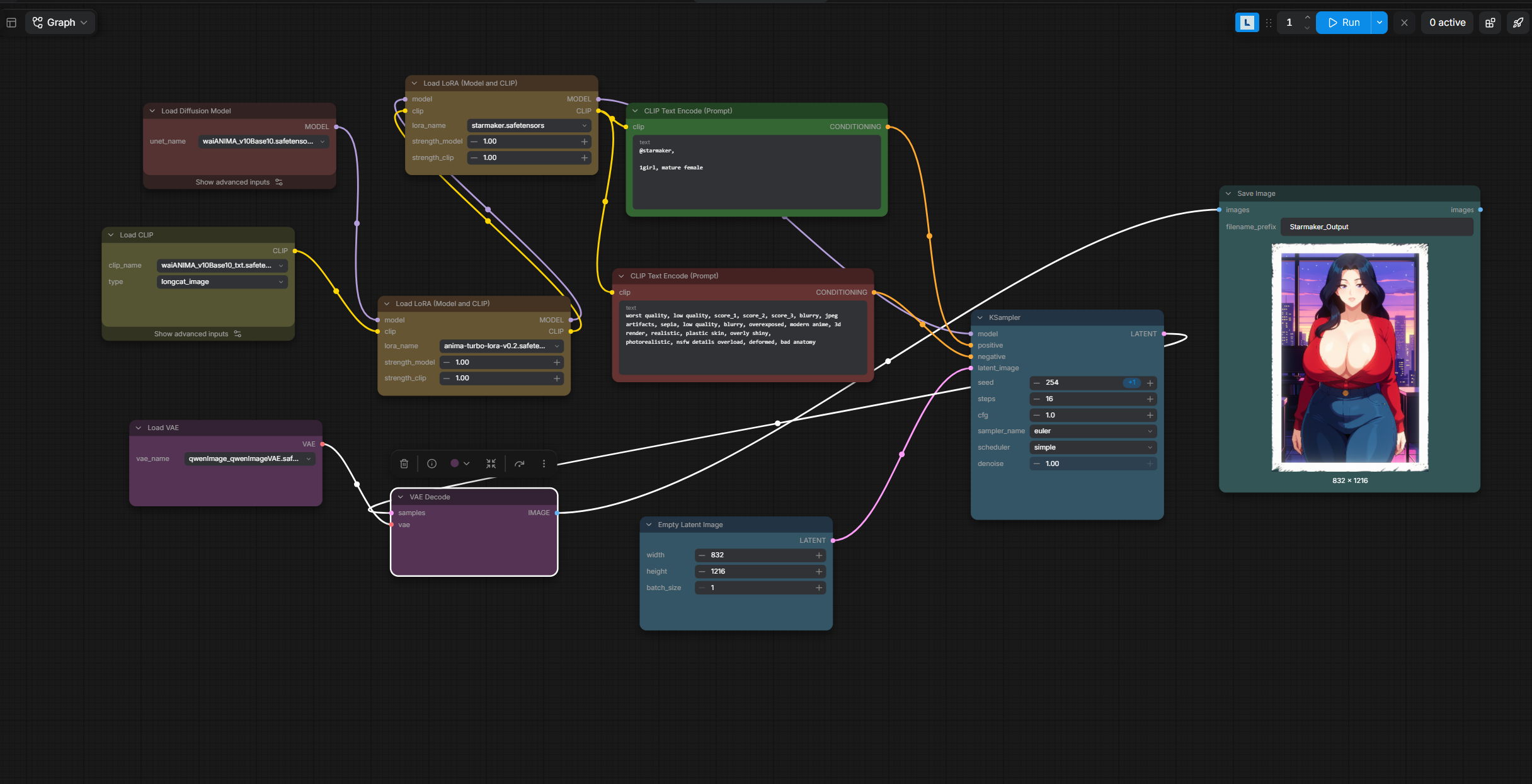
2 days ago(+1)
It's still there, they haven't removed it! Just make sure you are going to civitai.red and not civitai.com (because the .com hides NSFW stuff). Your normal .com account works the exact same on .red.
Here is the link too (in case itch.io or the mods allow it): https://civitai.red/models/2699251/starmaker-story-style-anima
1 day ago(+1)
To get a specific art style, a specific character, or basically anything specific, you need LoRAs.
The setup I shared only has the art style LoRA , so it doesn't include specific characters (Though it naturally generates Anna most of the time, which is all I really want, so that's why I don't use other LoRAs!). If you want specific characters, you have to download character LoRAs for them. For example, one LoRA for Amelia: https://civitai.red/models/3040258/amelia-starmaker-story?modelVersionId=3455597
Just like in the guide above, put those files in:
Comfy-Desktop\ComfyUI-Shared\models\loras
(Then you just load them into a LoRA node in the workflow, like the ones I already have set up there).
There might be an all in one LoRA out there that has all the characters from the game instead of having to download them one by one, though I haven't found anything like that yet!