

On Sale: GamesAssetsToolsTabletopComics
Indie game storeFree gamesFun gamesHorror games
Game developmentAssetsComics
SalesBundles
Jobs
TagsGame Engines

General Decker Question and Answer Thread Sticky

A topic by ahmwma created Aug 06, 2025 Views: 11,772 Replies: 307
Viewing posts 61 to 80 of 80 · Previous page · First page
(1 edit) (+3)

Hi!! i'm making a dolls house style game using these contraptions (the sticker ones) as 'objects' and i'd like to be able to share it with my friends who all would primarily use mobile devices to play, however due to the touch input if you 'pick up' a sticker and move it horizontally it automatically flips to the next card in the deck. i'm just wondering whether there's a way to turn off the auto flip if that makes sense?
Developer(+1)

Swipes that move between cards generate navigate[] events, just like pressing the left or right arrow keys. You can override the default behavior by defining an empty handler for the navigate[] event on the card- or deck-level script, like so:

on navigate do
 
end

Does that solve your problem?

(+1)

thank you so much, it works!!!! :))

(1 edit) (+1)

I've been implementing a simple visual novel game using the Dialogizer module. I wonder if I could render an animation in a canvas using the zazz.flibook while in the "dialog" mode? Let's say I have the following code

`on view do

 alarm.animated: 0

 alarm.show:"none"


 dd.open[deck]

 dd.say[deck.cards["intro_dialogs"].widgets["dialog"].value]

 dd.close[]

end

`

While in `intro_dialogs:dialog` I have something like

`

Phrase 1

Phrase 2

!play:track

Phrase 3

!alarm

`

There is a command handler in the card's script:

`

on command x do

 # alert["" fuse "intro:got command:", x]

 if x like "play:*"

  track:(":" split x)[1]

  if !(track = "stop")

   play[track "loop"] 

  else

   play[0 "loop"]

  end 

 end

 if x~"alarm"

  alarm.animated: 1

  alarm.show:"transparent"

 end

end

`

Where `alarm` is a canvas with the `on view` handler that runs a zazz.flibook. 

Upon reaching the `!alarm`, the alarm canvas becomes visible but no animation. And only after `dd.close[]`, the zazz kicks in. I read in the tutorial that `dd.say` is synchronous – it blocks the global event loop – while it would still call the `on animate` handler every now and then. But, I guess, I can't use zazz in this handler?

Developer(+2)

While Dialogizer is active, the view[] events requested by flagging a widget as .animated won't be produced naturally by Decker itself; all system events are "blocked" until the synchronous call to dd.say[] completes. Dialogizer sends a "synthetic" animate[] event to the current card every frame, and then you can in turn use that event to explicitly send a view[] event to other widgets that need to animate (or call the view[] function on the card, etc).

Perhaps your card script could have something like:

on animate do
 if alarm.animated
  alarm.event["view"]
 end
end

Or maybe you could do something a little more generic, querying the card to find any animated widgets and pump view[] events to them:

on animate do
 (extract value where value..animated from card.widgets)..event["view"]
end

This animate[] event is also how Puppeteer manages the animation for puppets. If you're using these libraries together, make sure your own animate[] event handler calls

pt.animate[deck]

at some point. You can also take a look at the card script for this part of the Dialogizer tutorial: http://beyondloom.com/decker/dialog.html#eventpumping

Does that help?

(+1)

Thank you!

alarm.event["view"] 

does exactly what I need. The event pumping is something I missed when I was looking through tutorials. Thanks again. 

(+2)

Hey there IJ,

Would you ever consider adding a feature that would let us sort Sounds/Resources/etc alphabetically when looking at the modals for each?

Developer(+1)

It would be reasonably straightforward to sort the sound, prototype, and font lists alphabetically when they are displayed.

Is there a specific workflow that you're having trouble with?

(1 edit)

For example, in my current project, I’m using a lot of sounds and prototypes. For the sounds especially, it is hard to identify what I’ve imported/used/can get rid of simply because I have to scroll up and down trying to find that particular filename.

This is mostly because I’m a fanatic and will re-edit sounds if they’re too loud or the loop isn’t quite right.. so even though I organize all my filenames before import, they still end up out of order if I delete/re-import a re-edited sound because they’re plopped back down to the bottom of the list. Does this make sense?

Developer(+1)

Decker 1.70 displays the font, sound, and prototype lists sorted alphabetically by name. In the Font/DA Mover resources are sorted by type, and then alphabetically.

(+1)

You’re a saint.

(3 edits) (+1)

In my game, I moved some of the common logic to the deck-level script. However, when I make a call to one of the function from the deck (e.g., deck:set_progress[me 2]), it breaks the Dialogizer altogether.  The `dd.open[deck], dd.say[...], etc, dd.close[]` just stops working. So weird.

I created a very simple deck where I reproduce the behavior: 

I would appreciate any advice on this. 

Developer(+1)

The phrase

deck:some_function[]

calls a function named "some_function" with no arguments and then assigns the result of calling that function to a variable named "deck". If the result of that function isn't the deck (it appears to be the number "1" in your example), you will then be calling the dialogizer functions with an invalid "deck" argument, which prevents them from working correctly.

If you have defined a function in a deck-level script:

on some_function argument do
 argument+2
end

You can invoke it from any card- or widget- level script by calling it like any other function:

some_function[3]

Widget scripts exist in a scope nested inside card scripts, which in turn exist in a scope nested inside the deck level script which in turn is nested inside a special magical scope with the definitions of all the default event handlers. Every variable or function definition in an outer scope is visible to the scopes nested within it, unless one of those scopes "shadows" it with a local definition with the same name.

Widgets, Cards, and the Deck all expose a ".event" attribute which is a function you can call to send a synthetic event to that deck-part. You can thus also invoke that deck-level function from elsewhere like so:

deck.event["some_function" 3]

This latter method works even if the target is not in a scope surrounding the caller, and it sets up automatic variable bindings ("me", the widgets on a card by name, etc) from the perspective of the target. This is most useful when you want to communicate across cards or simulate user interaction, like sending a button widget a "click" event which appears from that button's perspective like a user-generated click.

Does that help clarify?

(+1)

Now it all makes sense. Thank you!

Hi!

I'm helping localize a Decker project into Russian, and I've run into an issue with Cyrillic characters. So the original deck works fine, but when I replace the English text with Russian using Visual Studio Code, the Cyrillic characters appear as question marks. I also tested editing the text directly inside Decker, and the result is the same.

Is Cyrillic currently supported in Decker? If not, is there a recommended way to localize Decker projects into languages that use Cyrillic?
BTW, I'm not a developer.I'm just trying to figure out how to translate Decker projects. This is my first time working with Decker, so I might be missing something obvious.

Thank you!

Developer

Unfortunately, Decker does not currently support Cyrillic.

Decker uses an internal byte encoding called DeckRoman, which supports a variety of diacritics and special letters for Latin-based alphabets, and provides a range of fonts with those characters.

It is possible to represent other alphabets using a custom font, but this does not automatically make Decker recognize natural text input in those alphabets.

For a more determined tinkerer, it is within the realm of possibility to fork Decker and modify the lookup tables it uses for converting between UTF-8 and DeckRoman, but this would require some programming experience.

(+3)

Hello! I'm making a contraption that allows for you to search data on a hidden grid in the contraption itself. I want the user to be able to configure the columns that are shown when the search is done, and also to configure the column that will be the target of the search (the one that is used in the query). I tried the following code:

on click do
 # Variables to shorten the query line
 srch:search_col_val.text
 show:show_col_val.text
 term:search_terms.text
 # Query
 result:select show where srch like term from internal_copy.value
 # Display results
 search_entries.value:result
end

Where "search_col_val", "show_col_val" and "search_terms" are fields (with only search_terms being visible), "search_entries" being the visible search results grid, and "internal_copy" being the grid that is being searched.

I expected the query to show the elements whose searched column matches the search terms, but instead I get the value of show_col_val. How can I make this query do what I want it to do?

Developer(+2)

Your "srch" and "show" variables contain strings. In the context of a query subexpression they will be interpreted as string values, not the contents of a column by name. You can, however, use the implicit "column" dictionary to perform this indirection, something like

result:select column[show] where column[srch] like term from internal_copy.value

(the "column" dictionary is also how you can reference columns whose names are not valid lil identifiers.)

You might want to take a look at the examples for the "_hideby" column in grids; it's designed to assist in searching and filtering grid contents without requiring an auxiliary source of truth. 

(+3)

Is there a way to use integer scaling to display text in Decker at a multiple of the original font size? 

(I'm working on a custom font and would love to include some zoomed in views of certain glyphs, but keep them as live text)

Developer(+2)

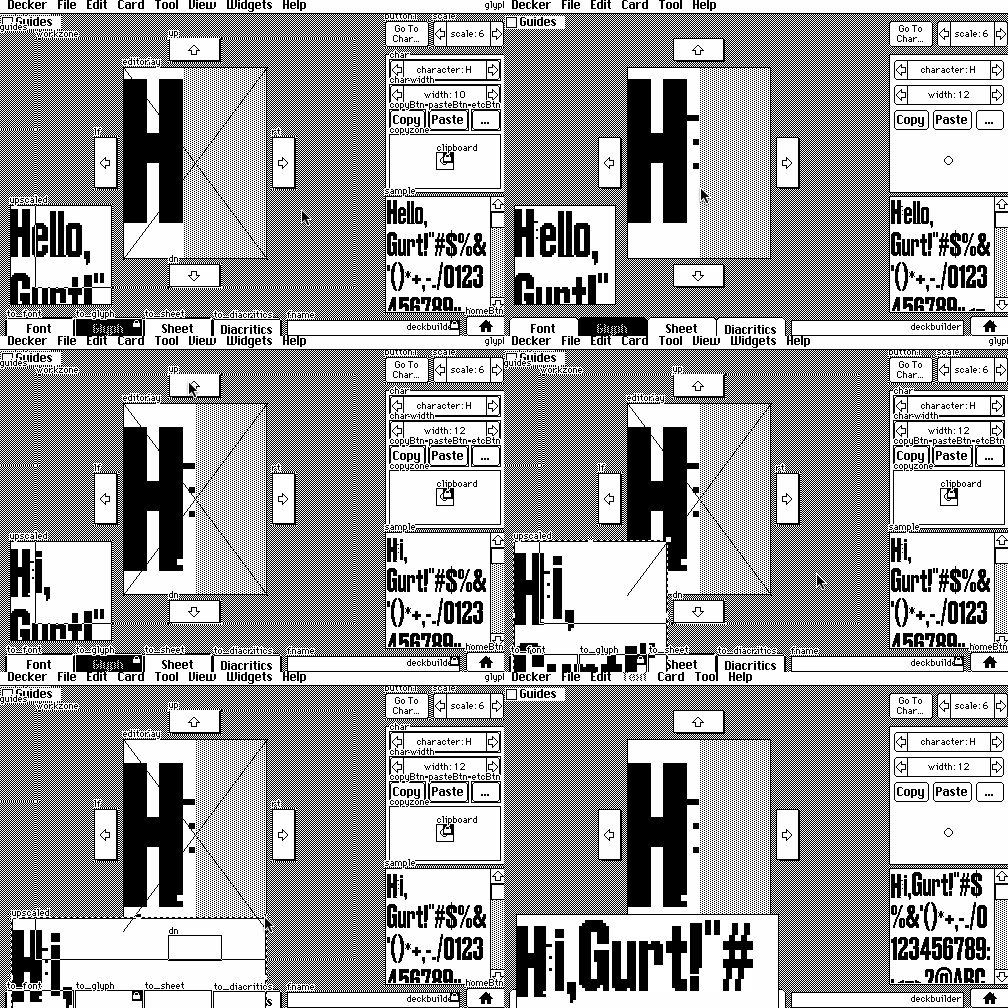
There are a few ways to do what I think you're asking for. You can set a canvas to have a "scale" setting greater than 1 to upscale whatever is drawn on it, and then draw text on it, or you could draw text on a canvas normally, copy the contents of the canvas as an image, upscale that, and then draw the upscaled image back to the canvas.

Presuming we start with the glyph editor in "All About Fonts", we could do the following:

1) create a new canvas widget and name it "upscaled". From its "Canvas properties" modal, set the scale factor as "2" (just for starters).

2) modify the card script, adding the following three lines to the "on view ..." function after the line that reads "sample.font:f"

upscaled.font:f
upscaled.clear[]
upscaled.text[sample.text (0,0),(1,2)*upscaled.lsize]

(This will word-wrap the beginning of the text in the "sample" field within the canvas, with a little extra room so it cuts off instead of ellipsizing)

3) tweak the "sample" field so that it triggers an update of the UI whenever it is changed by giving it a script like so:

on change do
 view[]
end

Now the upscaled preview will be updated whenever you draw on the glyph, change other font parameters, or type in the sample field. You can also adjust the "scale" property of the canvas as desired:


How's that?

(+2)

Thank you so much for your generous response, this will work great!

Developer (1 edit) (+1)

Having seen your stream, this can be simplified; for some reason I had assumed you wanted something integrated with the font editor.

Given a field named "f" and a canvas named "c", you can set the font of the canvas and field to your custom font manually, and then give the field the following script:

on change do
 c.clear[]
 c.text[f.text (0,0),(1,2)*c.lsize]
end

Since the contents of the canvas is always being redrawn from scratch to reflect the field contents, you could optionally reduce the file size of your deck a little bit by marking the canvas as "volatile" and dividing the script into a card script that updates the canvas whenever the card is refreshed:

on view do
 c.clear[]
 c.text[f.text (0,0),(1,2)*c.lsize]
end

And a script for the field to kick off an update whenever it changes:

on change do
 view[]
end

And if you wanted the canvas to always reflect the font(s) chosen for the field widget and any rich text inside it, you could generalize the script further to copy the field's font setting to the canvas before doing any drawing and use the field's .value (the rich text contents of the field) instead of .text (the plain-text contents):

on view do
 c.font:f.font
 c.clear[]
 c.text[f.value (0,0),(1,2)*c.lsize]
end

Hope that helps!

(+2)

Thank you again!! I realized that I phrased my original question in a confusing way, and I once again really appreciate your help! I'll dig into this tonight and try to make some adjustments. It's been a delightful process building out a font though!

(1 edit) (+1)

Hello! I have a draggable canvas that I would like to toggle from interact mode. I have tested this with a canvas and two buttons. The first button is scripted as follows:


on click do

 canvas1.draggable:"true"

end


This acts as intended, making the canvas draggable. The second button is meant to make it NOT draggable. I attempt this with the following script:

on click do

 canvas1.draggable:"false"

end


When this button is pressed, the canvas is still draggable; in fact, I have learned that any text in quotes (ex. "beedeebadoo" or "shoobyflooby") will still make the canvas draggable. What would the proper syntax be to make the canvas no longer draggable via a scripted event?

Thank you!! Big fan of your work :)

Developer (1 edit) (+3)

In Lil, the number 0, the empty string "", nil, the empty list (), or an empty dictionary is considered false and anything else is considered true. Most of the time, 1 and 0 are the clearest way to indicate true or false, respectively.

Your examples should probably be

on click do 
 canvas1.draggable:1
end

and

on click do
 canvas1.draggable:0
end

Does that make sense?

(+3)

Ah! I totally thought I had already tried using null, that works!! Thank you for your gifts O Wise One

(+1)

Just started with Decker and was learning the grid widget. I have a question about it. Is it possible to adjust the width of individual columns or are columns always equiwidth, based on the total width of the widget?

Developer

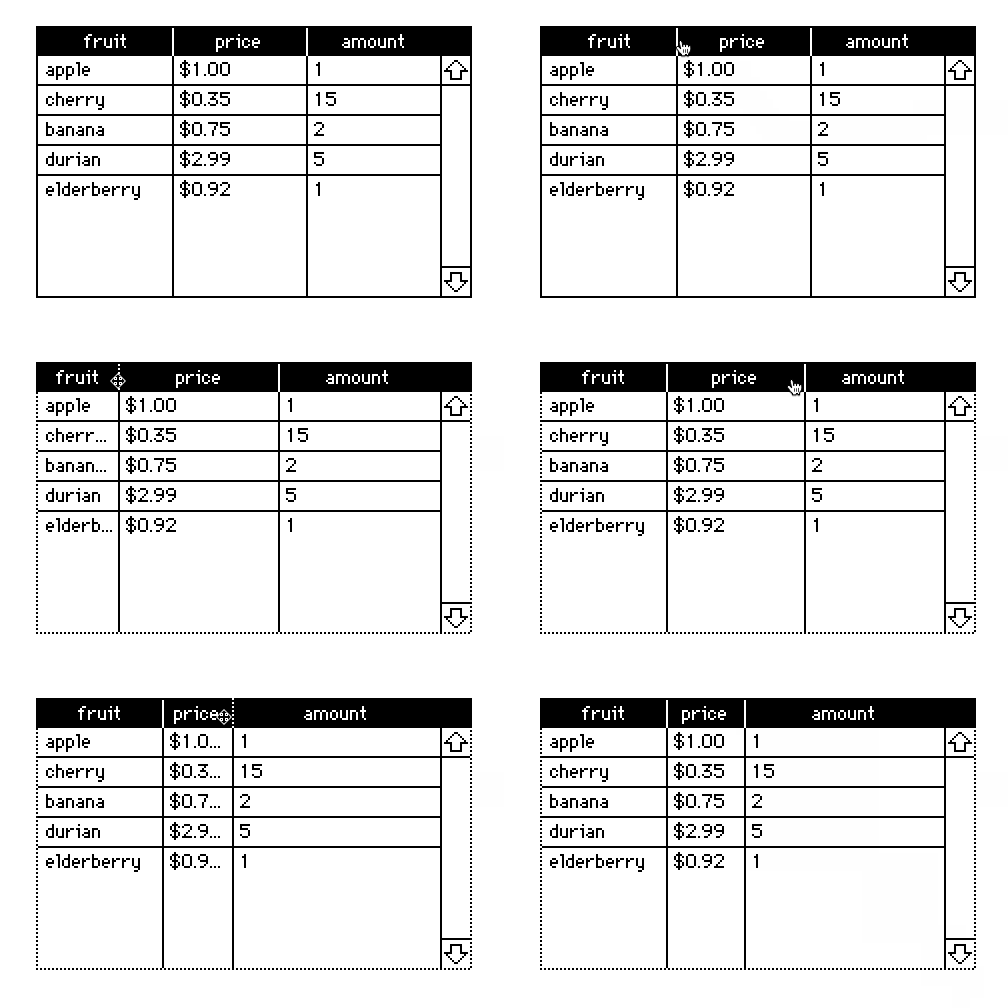
In interact mode, you can drag dividers between the column headers to adjust their sizes:

If you ever want to "unfix" the column widths you can click "Reset Widths" from the grid properties panel.

You can also set the column widths of a grid with scripts or via the Listener with the "grid.widths" property, which accepts a list of column widths in pixels:

mygrid.widths:60,30

Manual resizing constrains the minimum width of columns so that you can always distinguish their drag handles, but with scripting/the Listener it is possible to set columns to 0 pixels wide, as a way of hiding columns from the user without removing them from the underlying table.

Does that make sense?

(+1)

Bless you, sir! It makes perfect sense. Did I miss something in the documentation or are these details not provided? I looked all over and couldn't find anything.

Developer

From the decker reference manual,

If the grid has headers and more than one column is displayed, you can drag the space between column headings to resize the columns. By default, every column is given equal horizontal space. You can restore default spacing by clicking "Reset Widths" in the grid properties dialog.

The .widths property is described in the Grid Interface section, along with all the other scriptable properties:

x.widths: A list of up to 255 widths of table columns, in pixels. r/w.
(+2)

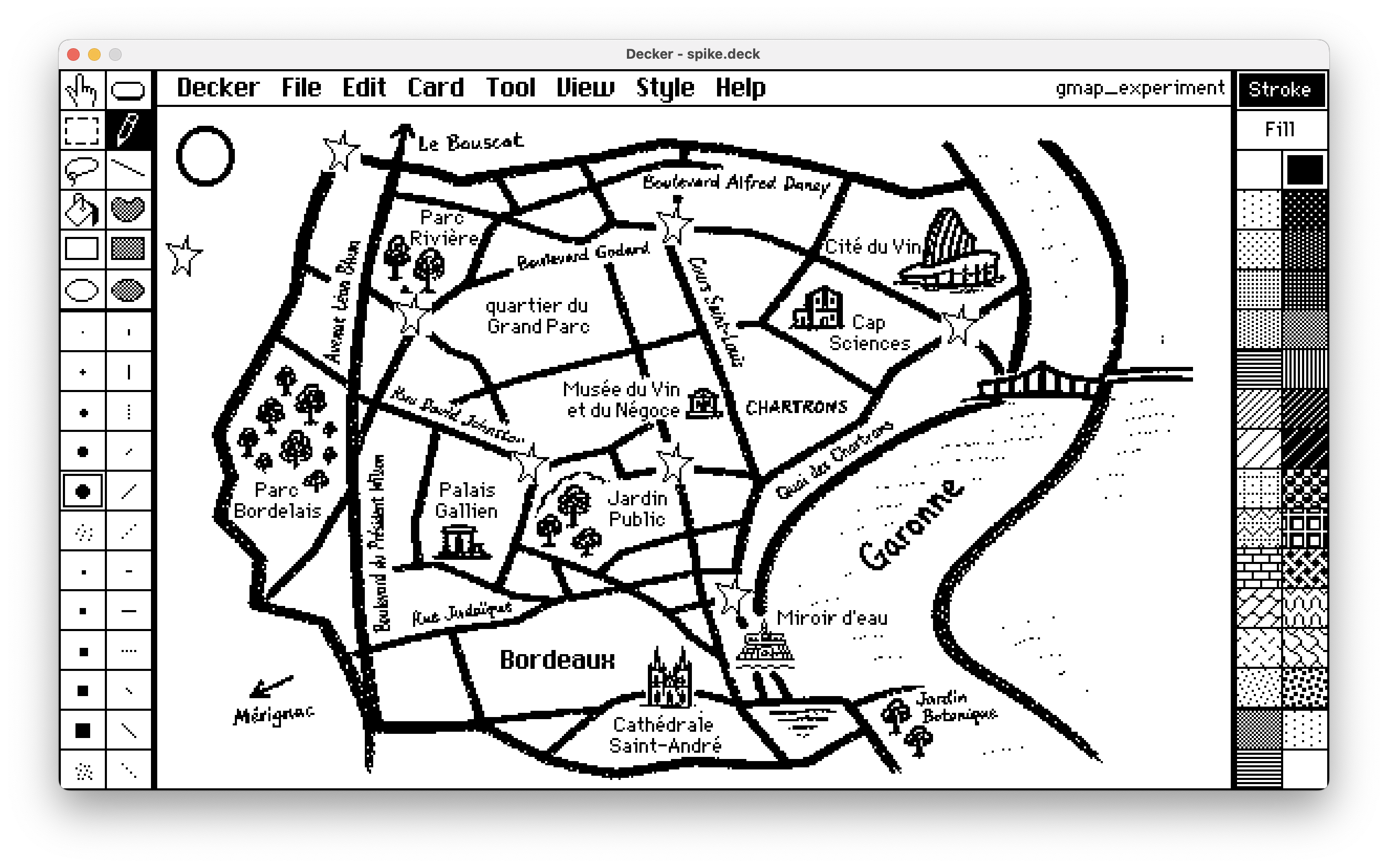
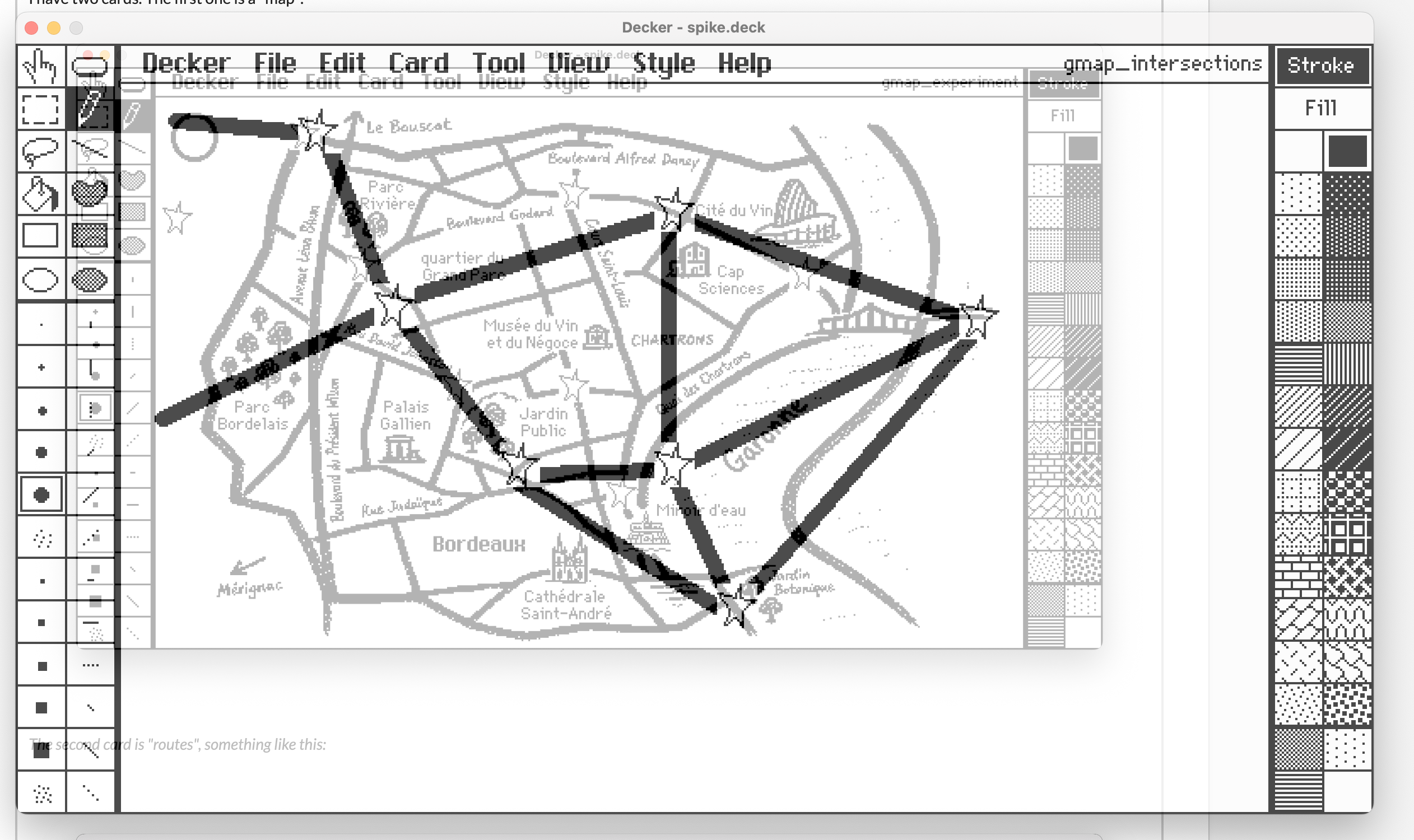
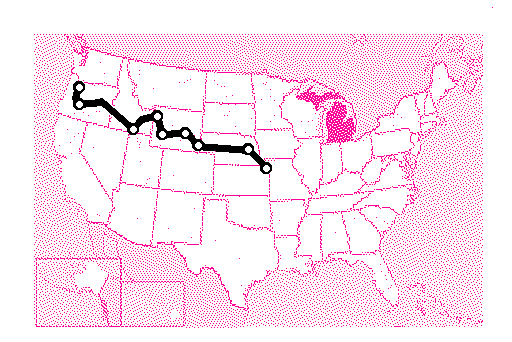
I have two cards. The first one is a "map":

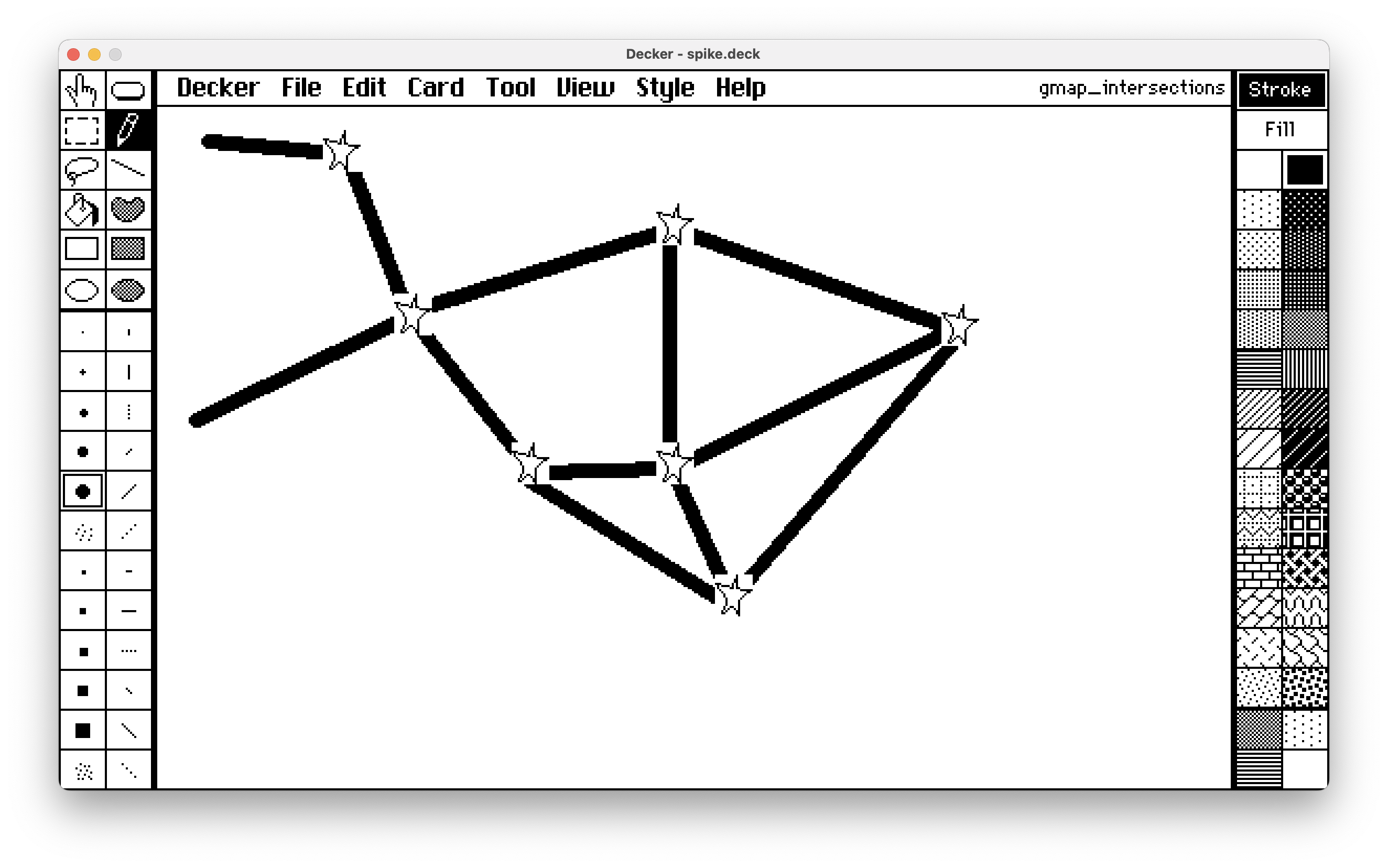
The second card is "routes", something like this:

I want to bring the the "map" card image as a background to the "routes" card by some user event. The caveat is that I want this background "dimmed down".  Ideally, to achieve something that decker provides with the "Style->Tracing Mode":


   I would appreciate any suggestions. Thanks!

(1 edit) (+1)

That's a nice map!

As far as i know Decker doesn't let you fiddle with opacity. Instead, you could "simulate" it by using gray in place of black. When in drawing mode, go to Style and check Color. The different shades of gray are at the bottom of the default Decker palette. I suggest using the Fill tool with your desired shade :)

Developer (1 edit) (+3)

As Flocon noted, Decker uses paletted color and doesn't have any notion of partial transparency, so there are some limits to what we can do here, but I can see ways to achieve something like the effect you describe. If you haven't already, I recommend reading through All About Color for some relevant background information.

Let's assume for simplicity that you're using Decker's default color palette, the "map" and "route" cards are fully in black-and-white (patterns 0 and 1), and everything you want to fade in is part of the card backgrounds (no text in fields, etc).

If we created a new card to tinker with, we could use a script in The Listener to composite the card backgrounds together, assigning a different color to the pixels of "map":

card.image.paste[map.image.copy[].map[1 dict 36]]
card.image.paste[route.image.copy[] 0,0 1]

(Be careful to save before doing this sort of thing in the Listener; it's a very powerful tool, but you can't "undo" changes performed this way!)


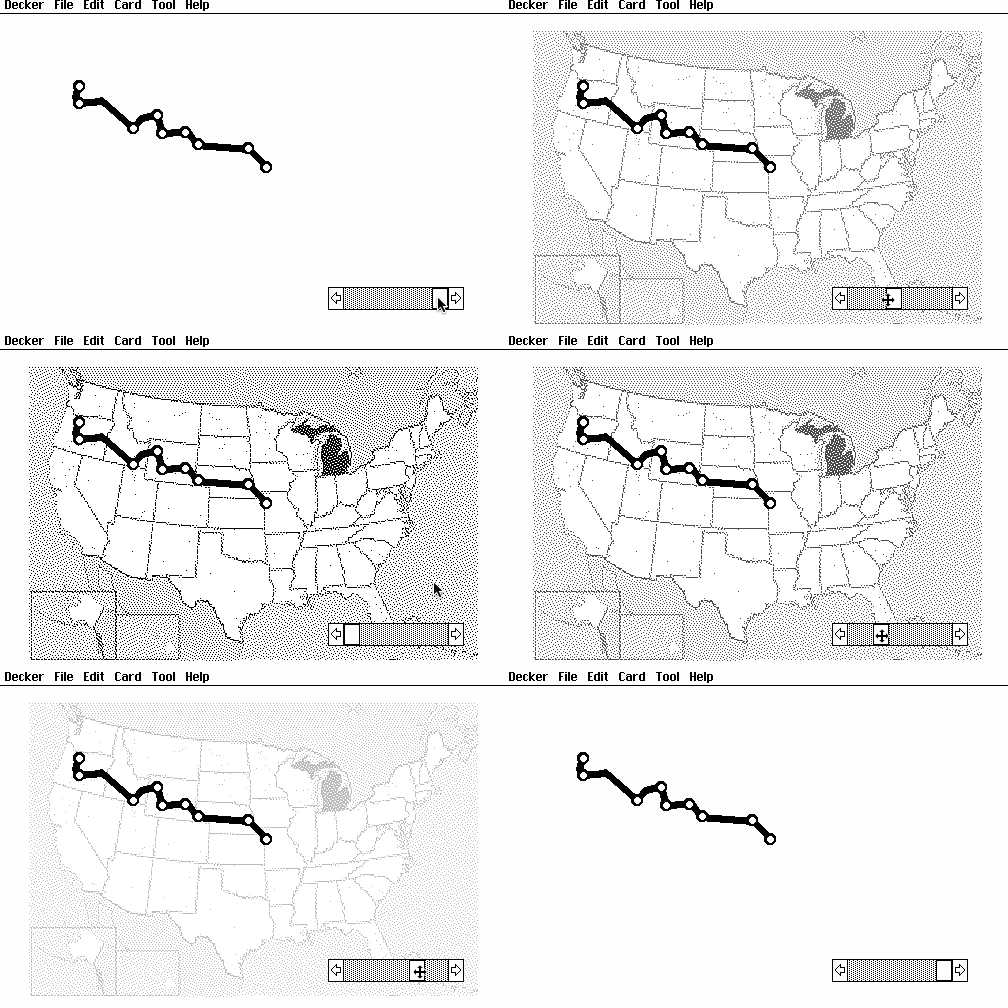
We could then manipulate the color Decker uses to display the "map" (I picked 36 here arbitrarily) to fade it in or out on the fly. Here I have a slider with a range of 0-255 wired up to let me change it manually:

on change do
 patterns[36]:"%06h" parse 6 take "%02h" format me.value
end


The way I'm computing the "packed RGB" grayscale value here is by turning the 0-255 value of the slider into a 2-digit hex code, replicating it 3 times, and then parsing the result as a 6-digit hex number, which may be a little confusing. All About Color has some functions in the "col" module to make computing packed colors a bit easier.

How's that for a starting point?

(+1)

That's an excellent starting point! Thank you for taking time to break it down for me.

And one more question, somewhat related this one. The "map" card aside from the image, has some field widgets with text – I used field widgets purely as labels. Simply because it lets me align text (center it) and easily move it around. Is there a programmatic way to convert the text in a label (with all the fonts and alignment) to an image? The only way that comes to mind is to create a canvas widget, assign it the same font as in the field, and then call the `.text[]` method – but then I'd need to split multi-line strings and calculated positions and anchoring every time.  

Developer(+1)

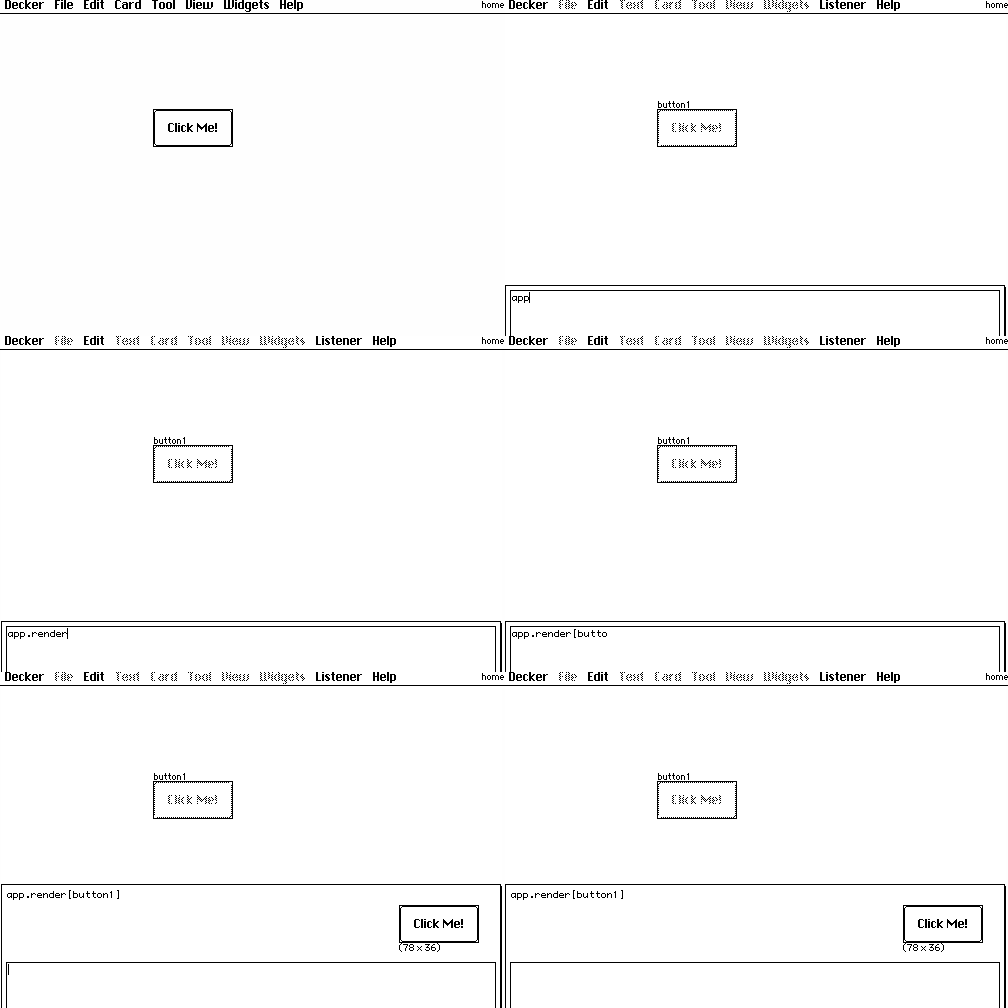
You can use the app.render[card] function to take a "screenshot" of a card as an image. If we did this for our "map" card in the previous example, the snippet of code for compositing both images together would instead be:

card.image.paste[app.render[map].map[1 dict 36]]
card.image.paste[route.image.copy[] 0,0 1]

Make sense?

It is also possible to render widgets individually and/or programmatically walk over some subset of the widgets on a card to inspect them or render their (rich) text on a canvas, etc. Happy to expand on that with examples if you find you need it.

(+1)

I want to know how to render widget(s) individually. >:)

Developer (1 edit) (+1)

Well, I had intended to allow an explanation to reflect a specific use-case, but I suppose I can concoct something.

The app.render[] function can be called with a widget, as with a card:


Let's say we want to save a "screenshot" of only the widgets on a card, and ignore the background.


Create an image interface the size of the card, iterate over the widgets of the card, rendering each and pasting it (with transparency) onto the image, reflecting their position on the card, and then write[] that image, prompting the user for a location to save it:

i:image[card.size]
each wid in card.widgets
 i.paste[app.render[wid] wid.pos 1]
end
write[i]


You could also, for example, selectively avoid rendering some of the widgets, either by "drop"-ing them from card.widgets by name before iterating over them:

each wid in ("button2","the forbidden one") drop card.widgets
 # ... draw everything but those two specific ones
end

Or conditionally avoiding/permitting a certain kind of widget:

each wid in card.widgets
 if !wid.type~"field"
  # ... draw everything except for nasty fields
 end
end

You can also use Lil's query language and/or widget naming conventions to locate widgets of interest:

each wid in extract value where value..name like "fancy_*" from card.widgets
 # ... draw only the widgets which are fancy
end

Et cetera, et cetera. How's that?

(+3)

Hello, sorry for the stupid question, but I cannot for the life of me figure out how to import a palette/hex file/use different colors. I did read throughthe 'all about color' deck, but it still wasn't clear to me.

(+3)

Not a stupid question! If you already have a hex file you can just drag it from your file folders onto your Decker projects and it should change your colors automatically. 

If you're on some platform where you can't drag-and-drop you can copy-paste the PalImport contraption (scroll down a little bit in this post to find the code block to copy) which should let you find and open your hex file and then apply it with the button.

Alternatively you can mess around with the colors directly in Decker with Missooni's RGB adjuster (expand the second part of this post and then copy the code block)

There's also an art section in Phinxel's Field Notes which talks about how color works in Decker, in case seeing things explained in a different way is helpful.

I have a zazz question. (I couldn't find a separate forum post dedicated to this module). I'm using `zazz.march` to move a canvas through several points. How do I programmatically "stop" the marching animation? Or put in on hold and resume later?

Developer

The zazz.march[] function is designed for very simple looping animations. It is tied to Decker's global frame counter, which makes it easy to use, but limits its flexibility.

If you have an animation that involves starting and stopping- or even starting and finishing- on a more detailed schedule, like a "cutscene", I'd recommend taking a look at Puppeteer. It defines a language for moving "puppets" around on the screen in various ways, playing sounds on cue, and quite a bit more.

The "ease" module offers another lower-level alternative, with functions for tweening a position along a spline defined by a series of control points.

Does any of that help?

Got it. I liked `zazz.march` exactly because of its simplicity :) The only thing lacking for my use case is "halting" the animation (or all animations currently managed by zazz) . I don't know how it fits with your architectural vision for the zazz module, but it would be nice if it exposed some kind of a `purge` method that just stops any active animations managed by zazz (by purging its internal state). Or, better off, a method for "unregistering" individual targets that are currently being animated. 

Anyway, I'll be looking for workarounds. Thanks!

(+2)

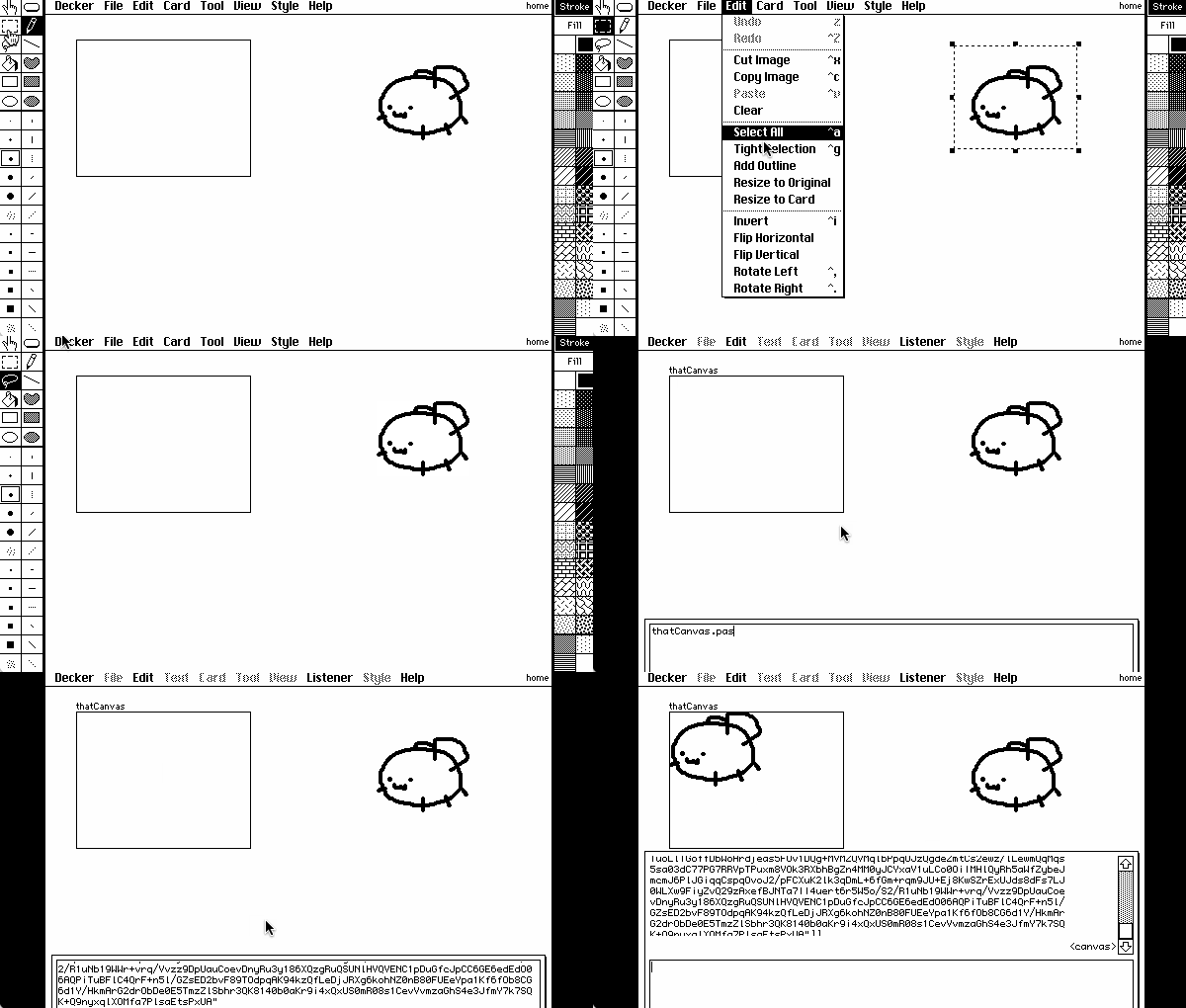
hello!! my problem is that i have a canvas at a specific size, and i want to put an image inside the canvas without changing its size... is there a way to paste it to fit the canvas, or will i have to resize my image manually?

Developer (1 edit) (+2)

If you have an image in your clipboard, you can paste it into a canvas without altering the size of the canvas by using the Listener. The image is represented in your clipboard as a string that probably looks something like "%%IMG3..."


thatCanvas.paste[image["%%IMG3..."]]

If you wanted to center the image within the canvas, you could tweak this recipe a little. You may also want to clear the canvas before pasting if you already have something drawn on it:

i:image["%%IMG3..."]
thatCanvas.clear[]
thatCanvas.paste[i .5*thatCanvas.size-i.size]

The Listener is also really handy for things like setting widgets to a precise size:

thatCanvas.size:120,100

How's that?

(+1)

thank you! but i also wanted to ask .. is there a way for the original image to resize into the canvas' size? like if the original image was bigger than the canvas? 

(also im not as familiar with lil as i should, but what does the i in i:image["%%IMG3..."] mean? is it like a variable? (and i wanted to know what exactly thatCanvas.paste[i .5*thatCanvas.size-i.size] meant... hope this isnt too much ;;)

Developer (1 edit) (+1)

Commands in the Listener are statements in Lil, Decker's scripting language. If this is your first exposure to Lil, you may want to have a look at The Phield Notes  or the Lil reference manual.

Breaking those examples down a bit more,

"%%IMG3..." is a string representation of an image. The image[] function constructs an Image Interface from such a string. In Lil, the colon (:) is an assignment operator. You can read it aloud as "gets" or "becomes". The phrase

i:image["%%IMG3..."]

Constructs an Image Interface and assigns it to a variable named "i". When you define variables like this in the Listener, you can refer to them in subsequent queries, or additional expressions in one query:


Both Images and Canvas widgets have a ".size" attribute giving their dimensions:


Sizes are represented as a list of two numbers- the width and height, respectively, in pixels. In Lil, all arithmetic operators have uniform precedence, applying right to left unless overridden by parentheses. Arithmetic operators also generalize across lists; subtracting them subtracts them element by element. Multiplying a list by a single number "spreads" that number to each element of the list:


Offsetting the top left corner of the pasted image by half of the difference between the size of the image and the canvas will center the image within the canvas.

Instead of specifying a position for drawing our pasted image with (x,y) coordinates, we could specify a position AND a width and height to stretch/crunch the image to fit, like so:

i:image["%%IMG3..."]
thatCanvas.clear[]
thatCanvas.paste[i (0,0),(thatCanvas.size)]

Is that a bit clearer?

(+1)

yes, that worked!! thank you so much for the explanation :D

Hello! I'm wondering if there's a way to update the talk sound on a Dialogizer preset while it's in the middle of reading a field? I want to give two characters different sounding voices without having to swap between reading seperate fields for each line. (I am using fields specifically because I am using multiple multiple fonts to denote whos and such)

(This was my best attempt at switching voices, but it didn't work unfortunately.)

Developer (1 edit)

You can define commands that change the style of dialog boxes mid-stream, including sound effects.

You'll need to define the handler for these commands either at the card level (if they're only used in one scene), or at the deck level (if they're used in multiple scenes). If you're also using Puppeteer, your custom command handler needs to ultimately defer to pt.command[] as its default case.

Does that make sense? I can furnish a more complete example if the one in the docs isn't clear enough on its own.

(+1)

I might need the example.  I tried to recreate the custom command stuff in the Dialogizer example, but I haven't been able to get it to work.

Developer(+1)

Let's say you have a scene with two characters, Alpha and Beta, which takes place on one card. I'll further assume that you're using both Dialogizer and Puppeteer together.

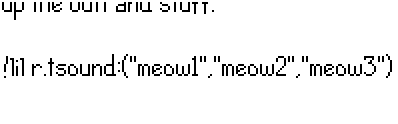
Alpha's speech should use a sound clip named "alphaVoice" and Beta's speech should randomly choose between sound clips named "betaVoice1" and "betaVoice2". We'll define two commands for use in our prose for dd.say[]: "!alpha" will switch to Alpha's voice, and "!beta" will switch to Beta's voice. To make the difference even more stark, I'll also give Alpha's text boxes a light color scheme and Beta's text boxes a dark color scheme. Voices are chosen with the "tsound" style setting, which also requires us to set a "speed" for animating in text. "fcolor" and "bcolor" are used to change the text box color schemes.

On the card script, we'll include an event handler for command[] events that looks like this:

on command x do
 if x~"alpha"
  o.speed:3
  o.tsound:"alphaVoice"
  o.fcolor:colors.black
  o.bcolor:colors.white
  dd.style[o]
 elseif x~"beta"
  o.speed:3
  o.tsound:("betaVoice1","betaVoice2")
  o.fcolor:colors.white
  o.bcolor:colors.black
  dd.style[o]
 else
  pt.command[deck x]
 end
end

Notice how there are blocks of code when the argument to command[] is "alpha" or "beta", and when it is neither it will fall through to calling pt.command[] to allow puppeteer !-commands to work normally. If you wanted to reuse these style-changing commands across your project, you could "lift" this definition up to the deck-level script.

Your prose for the scene might be stored in a field named "scene" and look something like


To play the cutscene, you'd then have a script triggered by, for example, a button:

on click do
 dd.open[deck]
 dd.say[scene.value]
 dd.close[]
 pt.clear[]
end

Is that more clear?

(+2)

Yes! Was able to get it working! I got really bad sleep last night so I somehow forgot about adding dd.style 😭. Although I'm glad I asked because I also kinda completely misplaced the pt.command[deck x] part as well. Thank you!

(1 edit) (+1)

Hmmm... I was thinking: Is it possible for Decker to work on 3ds? I don't have the console yet, but that's an interesting  thing i would love to see there, because the aesthetics are really compatible and Decker is not that demanding of the system. Also it would be so cool if you could use both screens for your game. If anything that would be soooo cool if someone could port this programm to 3ds!

Developer (2 edits) (+1)

Decker is open-source, so nothing is impossible if someone is sufficiently motivated to tinker with wild ideas in their own fork.

That said, I don't think porting Decker to the 3DS would be at all easy. Decker's user interface is designed with a minimum resolution of 512x342 pixels, while the 3DS screens are functionally 400x240 and 320x240 pixels. Decker is designed to be usable with a stylus and no extra buttons, but only the lower screen of a 3DS can respond to touch, and you'd probably need that entire touchscreen to serve as a keyboard whenever you want to edit a script, rename a widget, or generally interact with a field. The 3DS has very little RAM and a very slow CPU compared to most of the computers people typically use Decker on, so you'd need to do some careful optimization and possibly remove  or otherwise constrain some features entirely, like the unlimited undo history or the ability to have hundreds of cards in a deck.

Performance aside, I think you'd need to completely overhaul Decker's UI to suit such a device, and it would be difficult to run the decks and interactive docs people have already made for Decker's normal resolution (or bigger). It might be more technically feasible to make some kind of a stripped-down "Decker-player" for handheld consoles that exclusively runs premade decks designed with a lower screen resolution and lighter specs in general in mind, but it would be kind of a shame not to have the editing tools or the existing library of decks...

(+1)

I've also thought about this! But Internet-Janitor is totally correct about all the technical stuff. I think it would require someone very familiar with both Decker and the specifics of 3DS homebrew applications in order to bridge the gap and make sure things run well on the hardware.

But if anyone ever builds a way to port Decker games over to run on the 3DS then I think I would be very fun and cool to make some at the correct size for the screens and then try them out! (Maybe someday...!)

(+1)

OK, thanks y'all 🙃

(1 edit) (+1)

Hello... This is probably silly, I'm trying out the window position from Dialogizer but the end result has the textbox stuck in the default position (bottom screen). Clearly I am doing something wrong...

Below is a snippet of the Card script:

on view do
 o:()
 o.size:150,0
 o.osound:"scrape"
 o.nsound:"click"
 o.asound:"clap"
 dd.open[deck o]

 o.pos:"place2"
 o.tsound:("talk1","talk2","talk3")
 o.speed:3
 dd.style[o]
 dd.say["Him: <<I don't think so.\nMaybe.>>"]

dd.close[]
end
Developer (1 edit) (+2)

Do you have a widget on the active card named "place2" where you want your dialog box centered?

On the example on the documentation card for the ".pos" setting that is the name of a button widget set to "show none".

(+2)

I knew I missed something! Thank you so much! It works now.

(2 edits) (+1)

zazz question 

Trying to use zazz.flipbook and I think I might be misunderstanding. My target is a canvas widget in Card A but my frames [each one in their own canvas widget] are in Card B. How do I get the frames from Card B? I put Card B’s name after target in Card A’s script but nothing happens. Am I supposed to name the frames something special?

(+2)

So, first thing is referring to widgets on another card. This is easy, for a canvas named canvas1 on a card named card1 it's just card1.widgets.canvas1 (although if you have spaces in the names it is a bit messier)

The second issue might be that from my understanding, flipbook is designed for having all the frames in one image together, rather than split across multiple canvases. So you may need to rearrange how you've got the frames, i.e. combine them all into a single canvas rather than each in their own widget.

(+1)

Oh okay! New problem lol, I put the frames in one widget and can now use the source from a different card. HOWEVER, the target canvas is very, very finicky. I'm not sure how big the target canvas is supposed to be. It either shows multiple frames, shows one frame and doesn't move, or rapidly stutters between both frames making it shake.

(+3)

Your target canvas should be the same size of one individual frame from your animation. 

For easy resizing: Copy the image of one of your frames, then select your target canvas and use [Edit > Paste Into Canvas] it should automatically resize it to fit the image you just pasted.

(1 edit)

I imported an image that looks like this:


But it comes out looking like this:


I used this palette hex:

000000
555555
FF0000
FF8800
FFFF00
88FF00
00FF00
00FF88
00FFFF
0088FF
0000FF
8800FF
FF00FF
FF0088
AAAAAA
FFFFFF

But it thinks that FF00FF is the default color and it doesn't see FFFFFF as the transparent. I got Color and Transparency styles on. Am I doing something wrong?

Edit: I was doing something wrong! I just needed to export the images as PNGs. The colors and transparency were correct.

(+1)

Hi! I want to make a roughly Letter or A4-sized deck, or pdf derived from a deck. Roughly what dimensions would I set my deck to (editing the .deck file, probably), to pull this off?

What conversion should I use if I want other sized pdfs? I remember when I make a deck with big enough dimensions, Decker might change the pixel resolution it displays, even on my large screen. Maybe pdf size would have a consistent pixel to inch dimension, though?

Thank you!

(+3)

How do you want to turn the deck into a PDF? Are you expecting to use the PDF export module that comes with Decker or Millie’s zine template?

(+1)

I'm thinking the PDF export module, but I see that the Millie zine template does explicitly print to those margins, so it is definitely good to know about.

(+3)

Under the hood my template uses the same PDF module, it just does some layout stuff before exporting.

The card size I'm using is 512x362 for two side by side portrait A-shaped pages (which is essentially the same shape as one in landscape). As for whether that's A4, A5 etc that ultimately depends on what size you print at. US letter is a bit different since it doesn't keep the same ratio when folded in half though. But hopefully this helps somewhat.

Can the image interface work on canvases and, follow-up question, how would image[pos] work?

(+1)

The Image Interface and Canvas Interface are different, but they do have things in common, like .outline[], .merge[], .copy[], and .paste[].

image[pos] is described like this:

The pattern index of an (x,y) pixel of the image. Reads nil out of bounds, ignores out of bounds writes. r/w.

canvas[pos] is described like this:

The pattern index of an (x,y) pixel of the canvas. Reads 0 out of bounds, ignores out of bounds writes. r/w.

The only difference is that canvas[pos] is described as returning 0 if you ask for a pixel outside the edges, but that seems to be incorrect - in my testing canvas[-1,-1] returns nil just like an image.

Yeah, I can work with that.

Okay. Here's the thing, I want to make a raycaster engine in Decker. I understand most of the tutorials that I've watched, except for one thing, making a tile map array. I think I can do it with a list of lists, like

list(list(1,1,1,1,1,1,1,1),list(1,0,0,0,0,0,0,1),list(1,0,0,0,0,0,0,1),list(1,0,0,0,0,0,0,1),list(1,0,0,0,0,0,0,1),list(1,0,0,0,0,0,0,1),list(1,1,1,1,1,1,1,1)

Am I on the right track? It'd make more sense if it was arranged in a block, but I don't think Lil allows for line brakes.

(+2)

Lil allows line-breaks pretty much anywhere, except inside comments (the comment always ends at the end of the line). Here’s your example, broken over lines:

list(
 list(1,1,1,1,1,1,1,1),
 list(1,0,0,0,0,0,0,1),
 list(1,0,0,0,0,0,0,1),
 list(1,0,0,0,0,0,0,1),
 list(1,0,0,0,0,0,0,1),
 list(1,0,0,0,0,0,0,1),
 list(1,1,1,1,1,1,1,1)
)

It doesn’t quite do what you want, though. Instead of making an eight-item list of eight-item lists, it makes a nine-element list where the first eight items are tile numbers, and the ninth item is a nine-element list where the first eight items are tile numbers, and the ninth item is a nine-element list…

You want something more like this:

(list 1,1,1,1,1,1,1,1),
(list 1,0,0,0,0,0,0,1),
 list 1,1,1,1,1,1,1,1

Because Lil expressions are evaluated from right to left, this starts by stringing some 1s together to make an eight-element list representing the bottom row, then makes a one-element list wrapping the bottom-row list, then joins that wrapper with the one wrapping the second-bottom row, etc.

That will definitely work, but another thing you might consider is representing the tile map with an image. It is also a rectangular array of numbers, but stored more efficiently. It can also be easier to edit - .paste[] the image onto the background of a card, and you can use Decker’s built-in editing tools to draw the level, then .copy[] it back. Or better yet, if you have a card to store each level’s data, put the tilemap on the background image, and add a “Show: None” field named bounds to mark the bounds of the tilemap within the card. If the card representing the level you want to load is called level, you can get the tilemap with level.image.copy[level.widgets.bounds.pos level.widgets.bounds.size].

(1 edit)

That's cool but the colored pixels gives me limited textures to work with for the ray cast. But, thank you for showing me how the arrays work.

(+2)

Decker will let you paint with 48 different patterns, so that’s 48 different tiles you could put in your tilemap. You can actually store any number from 0-255 in an image pixel, which is a lot more possible tiles, though you can’t easily view or edit such an image so admittedly that’s less useful.

So... Let me get this straight, I could compress each tile in the map to a pixel and write a program that could read each one and and draw the map itself? The idea is appealing, and, maybe, I can double the number of possible tiles by having the program read the pixels two at a time, or sixteen times with four pixels. If that is possible.

The thing Is that I don't know how to write a program that could read the pixels and turn that into a full map.  Maybe with an if-statement and some stored textures... I still don't know, yet.

Viewing posts 61 to 80 of 80 · Previous page · First page